Showing posts with label testing. Show all posts

Tuesday, May 20, 2014

SCCM Lab Setup Laziness with PowerShell and Duct Tape

I've been dusting off my pointy little head with another round of "lets play set up with Configuration Manager!" and, well, I hate using GUI tools or command line stuff if a script will save me time.  The time invested in smacking the keyboard and making grunting noises and laughing hysterically is recouped later with spare change and coffee spilling, so it pays off.

Disclaimer:  I really don't have any duct tape right now, so you'll have to go without on this one.

Anyhow, I've been following along with a template procedure my buddy and trusted ass-kicking extraordinaire colleague and uber-technowunderkind: Chris DeCarlo compiled.  One part of this procedure has me creating a bunch of AD user accounts to tie to various things.  Some are for SQL services, others for AD tasks, and obviously some are for SCCM itself.  (btw- Chris, you did an outstanding job on this document. Kudos!)

Here's the accounts (sorry man, but I modified a few names out of brain-damaged habit).  The short names on the left are the sAMAccountName values, and to the right are their descriptions / explanations.

  • SCCMRS - SQL Reporting Services publishing account
  • SCCMNA - SCCM network access account
  • SCCMInstall - SCCM site server install account
  • SCCMDomJoin - SCCM domain joining account
  • SCCMClient - SCCM client push account
  • SCCMSQLSvc - SCCM SQL Server service account
  • SCCMSQLAgent - SCCM SQL Agent service account
  • SCCMOSD - SCCM OSD deploy and capture account
You may or may not need (or want) to create all of these, but I have the keyboard so this plane is going into the mountain and I'm the captain... so hold on.

In addition to this, I'm lazy.  Yes, I know that's a shock.  I'll wait as you pick your jaw off the floor.  (tap tap tap tap - eyes on phone,...) ok.  Rather than doing this the "right way", I do it (for lab purposes only) the "easy unrecommended way", which is to stuff all of these accounts into the "Domain Admins" group and then laugh as loud as possible.

You need two files (okay, you don't really NEED two files, but for this example it works):
  • A Comma-Separated Values file (.csv)
  • A PowerShell script (v3 or v4)
Assumptions
  1. Domain is "fubar.local"
  2. OU is created at root of the domain as "ServiceAccounts"
  3. You are logged onto the server/desktop in the LAB as a Domain Admin user
  4. You have faith in what I'm telling you (rotfl! okay, just kidding)
I built and tested this cardboard thing using Windows Server 2012 R2 with PowerShell v4 and some coffee, chewing gum and a few chicken drumsticks my wife just cooked (damn good too).

[CrappyCode]

$inputFile = Import-CSV  "useraccounts.csv"
$strPwd = "Tarfu123"
$ouPath = "OU=ServiceAccounts,DC=fubar,DC=local"

foreach($strLine in $inputFile) {
$cn = $strLine.cn
$samid = $strLine.sAMAccountName
$ln = $strLine.sn
$fn = $strLine.givenname
$dn = $strLine.displayname
$desc = $strLine.description
$upn = $strLine.UserPrincipalName

New-ADUser -SamAccountName $samid -Name "$cn" -UserPrincipalName $upn -AccountPassword (ConvertTo-SecureString -AsPlainText "$strPwd" -Force) -Enabled $true -PasswordNeverExpires $true -Path "$ouPath" -Description "$desc"
}

$inputFile | % {Add-ADGroupMember -Identity "Domain Admins" -Member $_.sAMAccountName } 
[/CrappyCode]

If you're not familiar with PowerShell, or scripting in general, you don't need to copy the [CrappyCode]. and [/CrappyCode] end tags.  Those are just for entertainment.  You will want to edit the domain names to protect the innocent, and whatever else you feel like modifying to suit your environmental needs.  The items in red are likely the items you will want to change for your needs.  

Also, the last line redirects the CSV piped content through a PowerShell pipeline into Add-ADGroupMember to stuff the new accounts into the Domain Admins group.  So easy, and cheap too.  Be careful of the line-wrapping headaches that come with copying from web browser windows. :)

The next piece is the CSV file (below).  Note that the first line contains the logical column headings, while the remaining lines are the actual data.  As long as the values are in the same relative order from left-to-right, it should work fine.  If you have values that contain apostrophes or commas be careful to "escape" them properly so they don't choke out the code like a backyard wrestling match gone wrong.

[CSV]
cn,givenname,sn,sAMAccountName,displayname,UserPrincipalName,description
SCCMRS,,,sccmrs,SCCM Reporting Services,sccmrs@fubar.local,SCCM SQL Reporting Services Account
SCCMNA,,,sccmna,SCCM Network Access,sccmna@fubar.local,SCCM Network Access Account
SCCM Install,,,sccminstall,SCCM Install,sccminstall@fubar.local,SCCM Server Installation Account
SCCMDomJoin,,,sccmdomjoin,SCCM Dom Join,sccmdomjoin@fubar.local,SCCM Domain Join Account
SCCMClient,,,sccmclient,SCCM Client Push,sccmclient@fubar.local,SCCM Client Push Account
SCCMSqlSvc,,,sccmsqlsvc,SCCM SQL Service,sccmsqlsvc@fubar.local,SCCM SQL Server Account
SCCMSqlAgent,,,sccmsqlagent,SCCM SQL Agent,sccmsqlagent@fubar.local,SCCM SQL Agent Account
SCCMOSD,,,sccmosd,SCCM OSD,sccmosd@fubar.local,SCCM OSD Deploy and Capture Account
[/CSV] 

Then, in your LAB environment (do not do this in production unless you like spending a lot of time in a courtroom with ugly people in suits), log on as a Domain Admin user, open the PowerShell console (right-click and select "Run as administrator"), and CD (change directory) to the path where you saved both of these files.

Then type in "powershell.exe -ExecutionPolicy Unrestricted -File useraccounts.csv

If you see a bunch of red text, you screwed up (probably as a result of believing what I tell you), but don't freak, go into the code and verify everything is neat and clean and the quotes are matched, etc.  Standard scripting/programming drudgery stuff.

When you're done, and assuming it works as intended (it did for me), you should see those accounts in the designated OU and each is a member of the "Domain Admins" group.

Cheers!

Saturday, November 30, 2013

5 Question Quiz Time

1. Pandemonium is...

A. The approach of landing craft at Normandy, June 6, 1944.
B. The Dairy section of any grocery store on the night before Thanksgiving.
C. A close-out Sale of Explosives at Akbhar's Amazing Ammo in downtown Kandahar.
D. All the above.

2. The shortest distance between two points is...

A. A straight line.
B. A LASER beam.
C. It depends on your budget.
D. All the above.

3. The difference between Excedrin Headache and Excedrin Migraine is...

A. Excedrin Migraine has a Red Box and bottle label
B. Excedrin Headache is cheaper.
C. The spelling.
D. All the above.

4. The reason, historically, that the flavor of vanilla has been associated with the color white, while chocolate has been associated with the color brown is...

A. Humans are historically retarded as shit.
B. The same reason nature likes to combine strawberries and bananas.
C. So you could tell them apart in the ice cream aisle.
D. All the above.

5. In order for the American government, and/or private industry, to build a major pipeline across the continental United States, there would have to be what thing promised?

A. A huge pay-off
B. A jail sentence for not complying.
C. Oil.
D. Any or all of the above.

If you answered (D) to all five questions, you are a winner!  If not, well, you can take the quiz again until you pass it.  Good luck!

Sunday, September 8, 2013

Exam 2013-0824 - Software Packaging, Repackaging and Deployment

The following exam consists of 5 questions pertaining to the field of "software repackaging and deployment" within a Microsoft Windows environment.  Each question may have one or more answers (multiple choice).  You have 15 minutes to complete it.  Good luck!


1. You've been assigned a request ticket to repackage and deploy a product to several computers within your network environment.  The ticket states that there are no binaries from which to build the package, and you must contact the vendor to continue.  You call the vendor and state your objectives.  The vendor replies that you cannot have a copy of their binaries because they don't trust anyone to handle them without pirating them, and that only they can perform installations for each computer.

Which of the following should be your first choice of action?

A. Reach through the phone and bitch-slap the representative with both hands.
B. Laugh hysterically and tell them to "never mind", because you already downloaded a copy from Pirate Bay.
C. Hang up. Close the ticket with a comment stating the vendor is on cheap drugs.
D. All the above.

2. You deployed a bootstrap package to execute a "per-user" installation of a product which was originally packaged as a "Click-Once" installer, onto a group of Windows 7 computers.  You are now told to remove that application and install a different application.  You discover that many of the target computers were shared among multiple users, who each launched the installer and have used it extensively.

Which should you do first?

A. Hire a hitman to kill the vendor.
B. Hire two hitmen and a hitwoman to kill the vendor.
C. Start smoking heavily.  If you already smoke, then smoke more heavily.
D. Look for a job outside of the IT world.

3. Your manager makes a comment during a staff meeting to the effect that "all MSI package installation deployments are the same, and simple as dirt!".  You should...

A. Remain motionless while thinking of your family, starving and crying at home around the bare dinner table, because you reacted properly and choked that person out, instead of ignoring it.
B. Ask the person, "so, when are you taking that job on by yourself?"
C. Yawn and continue working on your Fantasy Football roster from your mobile phone.
D. All of the above, in any order you desire.

4. A different manager insists that virtualization is the cure-all for deploying and managing client applications.

A. You raise your eyebrows.
B. You raise your eyebrows.
C. You raise your eyebrows again.
D. All of the above.

5. Which of the following command syntax examples will install the "fubar2014.msi" package, apply a transform named "tarfu.mst" during the installation, capture the log output into the user's "temp" data folder, do all of this silently, and keep your coffee warm throughout:

A. msiexec /i fubar2014.msi /qn TRANSFORMS=tarfu.mst /l* %temp%\fubar2014.log
B. msiexec /i fubar2014.msi /qb! TRANSFORMS=tarfu.mst /l* %appdata%\fubar.log
C. msiexec /install fubar2014 /quiet /norestart TRANSFORMS=tarfu.mst /lvao %appdata%\fubar.log
D. None of the above.


Be honest, did you scroll down here first and cheat?  Seriously? I hope not.  That would be even worse than failing it without cheating.


answers:

1. D
2. C
3. D
4. D
5. D

Saturday, September 22, 2012

Notes from the Lab: Migrating to Windows 8 / Windows Server 2012

My home lab is a Windows Server 2008 R2 Active Directory domain with a few Windows 7 clients.  The domain is hosted entirely on one domain controller, which also hosts quite a few other roles and features.  Windows 7 clients are all Service Pack 1 with the latest updates installed.  The server was also on the latest Service Pack and latest updates.  All computers are physical hardware.  None were/are virtual machines.  The "server" is a Dell Precision 390 workstation.  The desktops are a mixture of various Dell Inspiron and OptiPlex models.
(not really my lab, but I wish it was this sophisticated and cool looking!)

Preparation

I captured full System backups of my primary desktop and my domain controller server prior to embarking on this adventure.

Migrating the Desktops

I started by running the in-place upgrade on one of my Windows 7 64-bit clients to Windows 8.  The Windows 8 setup checker warned that I had to uninstall a few apps before it would allow me to continue, due to reported compatibility issues.  Namely, ATI Catalyst Install Manager, and the WSUS Admin Console, but it also warned I need to de-authorize my computer within iTunes.

After doing this, I had to reboot, and then kick off the Windows 8 setup again.  It ran through just fine and everything appeared to be in good shape on the other end.  Total time: about 1 hour.  Media: USB thumbdrive.

The applications I had installed and working fine on Windows 7:

  • Office 2010
  • iTunes 10.7.0.21
  • Adobe Reader X  10.1.4
  • Google Chrome 21.0.1180.89
  • Google Picasa 3.8
  • Paint.NET 3.5.10
  • TextPad 6.1.3
  • VMware Workstation 8.0.4
  • LogMeIn (free version)
  • Citrix Receiver
  • 7-Zip 9.20
  • WMI Code Creator (WMICC)
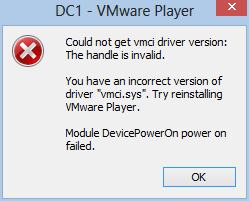
VMware Workstation 8.0.4, and VMware Player 4.0.4 both had issues when I tried to launch my guest virtual machines.  The error said I have an incorrect version of vmci.sys. (see image below).  So I re-ran the latest installer package for 8.0.4, which uninstalls the current setup and then installs it all again.  After doing this, both VMware Workstation and VMware Player worked just fine and were able to power on and support my guest VM's. (note: I know that the vendor says 9.0 supports Windows 8 as a key feature, but I wanted to see how 8.x would work out).


Migrating the Server

Next, I ran the Windows Server 2012 (Standard Edition) upgrade on my 2008 R2 domain controller.  I did this via RDP with a different USB thumbdrive.  It's worth noting that this is a workhorse server and hosts quite a few roles and features, which pretty much violate "best practices" guidelines, but hey, I know for a fact I'm not alone when it comes to having to "make do" with limited hardware budgets.  This server hosts:

  • Active Directory Domain Services (domain controller)
  • Internet Information Server (IIS) for both WSUS and software development
  • File and Print shares
  • WSUS 3.0 for managing patches and updates
  • Automation Server: scripts and scheduled tasks for managing all sorts of daily/nightly chores
  • Backup Services: backups from clients and the server to an external drive

Again, the Windows Server 2012 setup checker ran through and checked my system for potential issues prior to letting do the actual upgrade.  It warned me to uninstall WSUS 3.0 and verify "third-party applications compatibility", but didn't explicitly name any.  The only thing I could figure was my APC "PowerChute" UPS software, but I left it as-is.

It also said I had to run ADPREP /FORESTPREP and then ADPREP /DOMAINPREP before continuing.  You can find ADPREP.exe on the installation media under \support\adprep.  After uninstalling WSUS (content, logs and database) I rebooted, and started Windows Server 2012 setup process again.  After it warned me about the "third-party" issues, it allowed me to continue, so I took a deep breathe and pushed the button.  Total time: about 1 hour 20 minutes.

Afterwards, I went into the Server Manager console, went into Roles and Features, and added the Windows Server Update Server role.  Then I ran the post-install configuration tasks to setup the options to function as my domain WSUS server.

Interesting Notes

Some things I found that needed to be resolved after the server was migrated, some were quick and easy, some took a little digging around:

Group Policy Objects

I have a GPO named "Drive Mappings" that has drive letters mapped to shares on my server for user documents, photos, videos, and software utilities.  Each of them are configured via Group Policy Preferences, and each drive is mapped via "Replace" and the "Reconnect" option was checked.  This DID NOT WORK on ANY of my Windows 8 clients.  But after researching this a bit (see link1 and link2), I found it was due to two things:
  • I was logging on with an account that has local Administrator rights (this reportedly does not occur with users who do not have local administrative rights, but I didn't have time to test this yet)
  • The "Reconnect" option was checked
After, un-checking the "Reconnect" option, the drives began mapping correctly.

WSUS

After letting WSUS bake-in for 30 minutes or so, I was concerned about not seeing any computers reporting in.  I ran GPUDPATE /FORCE on several of the clients, as well as WUAUCLT /DETECTNOW, but still none were reporting in to the WSUS server.  After reading through the WSUS configuration notes for 2012, I discovered that it had reconfigured the web service to respond on port 8530 (HTTP) and/or 8531 (HTTPS), but I was only using HTTP.

So, I went into my GPO settings, and edited the setting "Specify intranet Microsoft update service location" to append ":8530" onto the existing URL entry.  The setting is found under Computer Configuration / Policies / Administrative Templates / Windows Components / Windows Update.
After saving the changes, I went back to some clients and ran GPUPDATE /FORCE, and then WUAUCLT /DETECTNOW.  Within two minutes the clients started appearing in the WSUS console.

The Dreaded Start Screen

I tried REALLY REALLY hard to warm up to the Windows 8 Start Screen, but I can't do it.  It makes sense for a tablet (e.g. touch-screen) interface, but for a mouse and keyboard I cannot find ANY rationale that it can be "as" efficient to use the Metro tiles rather than the traditional Desktop.

My friend and co-worker Chris DeCarlo pointed me to the ClassicShell application on SourceForge, which suppresses the Start Screen and installs a Windows 7-ish Start Menu.  With that in place I find Windows 8 to be pretty nice, but I still am forcing myself to try the tile interface as often as I can just to give it a fair trial. ClassicShell is impressively built, and has a lot of attention to detail.  However, I doesn't seem to show a "Computer" link on the right-hand side, nor does it apply the "Pin to Start Menu" feature consistently (trying to pin Internet Explorer to the Start Menu only adds repeated shortcuts on the "Programs" fly-out menu).  All in all, however, it's a gotta-have for my needs and I really like it.

Miscellaneous

If I were asked to rank the applications I use most often, on a typical day, it would probably look like this...
  1. Internet Explorer and Google Chrome (a tie)
  2. SQL Server Management Studio
  3. TextPad
  4. Microsoft Outlook
  5. WMI Code Creator
  6. Windows PowerShell ISE
  7. Snipping Tool
  8. Paint.NET
One that might be easily overlooked is number 5 (WMIC).  But I live in that application quite often as I do a fair amount of work with WMI and WBEM scripting.  One thing I noticed immediately as that the CIM namespaces list continues to grow with each major Windows version release.  In fact, it took about a full minute for the list to fully populate the first time I opened the application. Not a huge deal obviously, but something I found interesting (and nice!)


Windows.old

As with previous Windows version "in-place" upgrades, the original environment is backed up into the "Windows.old" folder located in the root of the system drive.  If you try to delete this folder, you will be smacked in the face with a cold, wet, dish rag that has the phrase "Access Denied!" embroidered across it.  That's true whether you try to delete it as an Administrator account, opening a CMD console using "Run as Administrator" or by running a script under an elevated user context.

The solution is to run the Disk Cleanup utility provided with Windows 8.  Be sure to click the "Clean up system files" button, otherwise you won't see the option to check "Previous Windows Installations".


Conclusion

The only thing I really miss right now is not having a CPU that supports SLAT, so I can't run HyperV 3.0.  At work I have a computer that does, and it runs HyperV 3.0.  I'd really like to expand my horizons and learn more about the Microsoft side of virtualization and "now" seems like the right time to do so.  For now, I'm using VMware Player and it seems to work very well on Windows 8.

As for "Metro" (or whatever Microsoft decides to call the Windows 8 UI/UX), I like it.  I've always like the flat, spaceous, simplified look over the Aero or XP motif.  What some people don't realize is that Google was actually putting a "metro"-ish UI on much of their web applications like Gmail, Docs, and so on.  I'm talking about the now-familiar 2D motif, fat-border outlined regions and tables, padded flat buttons, and ample use of white space to achieve a simplified look. As to who came up with that concept first is anyone's guess.  I assume it was "invented" years ago and simply rediscovered, as is often true with many "new" things these days.

In any case, Windows 8 is growing on me and I intend on keeping up with it.  Not simply because I work in the IT field, but because I kind of like shiny new things.

Wednesday, May 9, 2012

Windows Software Deployment Support Quiz 101.01.01

Another sample interview quiz.  Have fun.  No Google/Bing/Yahoo cheating...

1. Name the Registry key (path) where "Add or Remove Programs" entries are found on a 32-bit Windows 7 client.

2. Name the Registry path where 32-bit applications shown in "Add or Remove Programs" are found on a Windows 7 64-bit client.

3. Name the actual path most often identified by system variable %AllUsersProfile% on Windows XP as opposed to Windows 7.

4. What are the path differences for where the "All Users" Desktop folder resides on Windows XP as opposed to Windows 7?  Also where the "All Users" Start Menu path is on each.

5. For Windows XP and Windows 7, name the "most common" path for each of the following environment variables:

%WINDIR%   %SYSTEMROOT%  %PROGRAMFILES%  %PROGRAMDATA%  %TEMP%  %USERPROFILE%

6. Describe each of the following types of testing:

Installation Testing
Deployment Testing
User Acceptance Testing

7. Describe as many ways as you possibly can to "deploy" a Windows Installer package to Windows 7 computers over an Active Directory domain network, wherein NONE of the end users have administrative rights to install their own applications.  You can include both "free" built-in capabilities included with Windows and Active Directory, as well as commercial products.

8. You need to install "fubar2012.msi" silently on a group of computers over your network, while also specifying a custom input parameter "LicenseKey=123456".  Describe at least two ways you can execute the installation with the custom input parameter.

9. You attempt to install a software product from a CMD console or via a script, but the installation fails with a 1603 or 1619 exit code.  What basic information can you determine from either of those two codes?

10. The product identifier code for each Windows Installer package installed on a particular computer often has a format of {B8AD779A-82DA-4365-A7D0-AD3DCFC55CFF}.   What is this type of identifier most often called?

Saturday, April 14, 2012

Best Exam Ever

If you work in IT and have ever chased certification, you are well aware of the familiar exam questions.  Most are scenario based, but they are always focused on the technical aspects.  We all know that technical skills will only get you so far in a career.  There's much more that has to be mastered in order to gain upward mobility.  Here's an example exam to try out...

1. Your boss calls you into a private meeting and explains his new "vision" for the IT environment.  He read an article on a recent business trip flight about how switching from Windows to Linux will save tons of money.  He insists there's no research or planning required.  "Just do it" he says, like the Nike commercials say.  You try to explain the problems with getting all the Windows applications to run either natively with WINE or through virtualization, but he waves you off as if you were a noisy mosquito at a wine festival.  You need to make a decision on what to do.  You choose one of the following:

A. Request a transfer to a different department (different manager)
B. Apply for a job at a different employer
C. Insist he increase his dosage of Xanax and avoid business flights for another year
D. Put a Linux wallpaper theme on his Windows desktop and convince him the migration is complete

Friday, April 13, 2012

Packaging Exam: Part 3

The stupidity continues on...

You've installed a 32-bit application on a 64-bit Windows 7 Enterprise computer.  You want to track down all the places you might likely find this "footprint".  Which locations would you select?

A. %ProgramFiles%
B. %ProgramFiles(x86)%
C. %CommontFiles%
D. %CommonFiles(x86)%
E. %ProgramData%
F. %WINDIR%\System32
G. Registry: HKLM\SOFTWARE
H. Registry: HKLM\SOFTWARE\WOW6432node
I. Registry: HKLM\SOFTWARE\Microsoft\Windows\CurrentVersion\Uninstall
J. Registry: HKLM\SOFTWARE\WOW6432Node\Microsoft\Windows\CurrentVersion\Uninstall
K. Registry: HKEY_CLASSES_ROOT


Answer:

(I'm not telling)  moo-ha-ha-haaaa!  Post your answers below...

Wednesday, April 11, 2012

Packaging Exam: Part 1

I'm going to start posting questions from my "packaging exam" which I use for screening job applicants for one of our larger customers.  Being that I also work on the packaging and deployment team, I've compiled these questions from past experience as well as past interviews.  The questions are continuously updated, and I can't post all of them, so I'm planning to post just a sampling of them over a few days span.

Scenario:  You've performed an uninstall of a software application which was originally installed from an MSI package.  Afterwards, you've discovered that the product installation folder as well as several files within it and in sub-folders beneath it were left behind.

Question: What is/are the most likely reasons these items were left behind?

A. The files were added or modified after the initial installation
B. The files were "in use" by another process at the time of the uninstall
C. The files were marked as "hidden" or "system"
D. You ran the uninstall without Administrator level permissions.

Correct Answers:  A, B

Explanation:

A. An MSI installation (Windows Installer) uses a manifest-oriented approach to mapping uninstall processing with the original installation changes.  If objects are added after the installation, they are not considered part of the original installation and are left alone.  Being that they are left alone, the folders in which they reside cannot be safely deleted.

B. Files which are marked as being "in use" by a process (or service, also a process), are locked from deletion.  In order to delete the files, you must stop any services which use the files, and/or terminate processes which are using them.

Comments:

A common approach to performing "clean" uninstalls is to include TASKKILL or (Sysinternals') PSKILL requests to terminate processes, as well as SC or PSSERVICE (Sysinternals) to stop running services, prior to beginning the main uninstall.  This helps to ensure files are not in use while the uninstall is being executed.  Even though many installers will include robust handling of services and processes, many more do not bother.

For removing leftover folders and files, the old "RD" command will usually suffice.  For leftover Registry keys, the REG command is usually sufficient as well.

Wednesday, February 8, 2012

Repackaging Quiz

This is another brief snippet from the quiz/exam/test we use for screening applicants.  Enjoy...

  1. Name as many ways as you can think of to repackage a software installation.
  2. Explain the differences between repackaging via "snapshot" and "monitoring"
  3. Describe as many things as you can that get left behind from a typical uninstall
  4. MSIEXEC:  
    1. What does /I do?  /X ?
    2. What's the difference between /QB and /QN?
    3. Which will install for all users?  ALLUSERS=1, ALLUSERS=2
  5. What things can be complicated by users not having elevated permissions?
  6. What things can be adjusted without elevating user permissions globally?
  7. One user can launch an application successfully.  Another cannot.  What questions do you ask?
  8. Describe a "layer zero" installation versus "layer one" or "layer two". What products could be involved with each?
  9. Describe how Application Virtualization generally works (high-level)
  10. List some common prerequisites for many common software products.
  11. An Administrator can launch an application, but a non-Administrator user on the same computer cannot. What techniques and tools would you use to diagnose this most effectively?
  12. In your own words: what is a DLL?
  13. Where is the User Profile folder root on XP, and Windows 7?
  14. Where is the Program Files installation root on 32-bit and 64-bit clients?
  15. Where is the ARP list in the Registry?  (32-bit and 64-bit clients)

Thursday, October 6, 2011

When Applications Take a Dump

How many times have you uninstalled a software product only to find out later that it left traces of its existence all over your poor computer?  Part of the work of a software packager (or rather: repackager) is to perform forensic analysis of the footprint of an application at the time of installation, after being used, and after being uninstalled.  The goal is always to get the computer back to a state as if the application had never been installed, but without causing issues with the operating system or other applications.  Rather than try to split this over XP, Vista and Windows 7, I'm only talking about 7 here.  I don't give a crap about XP or Vista anymore, sorry.  If the %name% stuff confuses you, just open a CMD window, type in SET and press Enter to see what I'm talking about.

The Obvious

  • %ProgramFiles%
  • %WinDir%\System32
  • %CommonProgramFiles%
  • %AllUsersProfile% (note: This is a Symbolic Link to %ProgramData%, same place)
  • %ProgramData%
  • %Temp%
  • HKLM\SOFTWARE\<vendor-or-product>
  • HKLM\SOFTWARE\Microsoft\Windows\CurrentVersion\Uninstall

The Not-So-Obvious

  • 64-bit Systems
    • %ProgramFiles(x86)%
    • %CommonProgramFiles(x86)%
    • HKLM\Software\Wow6432Node\...
  • %LocalAppData%
  • %SystemDrive%\Users\Default (note: "Default User" is a JUNCTION to "Default", same place)
  • Services
  • DCOM configuration settings
  • WMI / CIM namespaces
  • HKLM\SOFTWARE\Microsoft\Windows\CurrentVersion\Run (and RunOnce)
  • HKLM\SOFTWARE\Microsoft\Active Setup\...
  • HKLM\SOFTWARE\ODBC\...
  • HKEY_CLASSES_ROOT\...
  • HKLM\SYSTEM\CurrentControlSet\...
  • HKLM\SYSTEM\CurrentControlSet\Control\Session Manager\Environment
  • %ProgramData%\Microsoft\Windows\Start Menu\Programs\Startup

This is not a complete list.  Some applications crap in more places than these.  But hopefully this gives you a rough idea of places to look when something gets left behind and things are just not quite right as a result.

Tools

Some of the tools that can come in handy to help investigate what an application does to a computer are as follows:

  • Virtualization: VMware Player, VMware Workstation, Virtual Box, Hyper-V
  • Sysinternals:  Process Explorer, AutoRuns, Process Monitor
  • CMD:  DIR /AH /AS
  • InstallShield Repackager (snapshot results)

clean_up_after_yourself

Wednesday, September 14, 2011

Windows 8 - My First 4 Hours

Yep. I'm a sucker for masochistic activities, like beta testing.  It used to pay off, but with most vendors the perks of sticking your neck out and expending time and frustration are not rewarded like they used to be.  I have to suspend my jury decision on Microsoft for now though.

I downloaded Windows 8 Developer Preview 64-bit and ran it inside VMware Workstation 8.0 for a few days before I felt excited enough to unleash it on my Dell Zino 400 HD.  It has an Athlon X2 dual core 1.5 GHz processor with 8 Gb RAM.  It runs Windows 7 Ultimate 64-bit SP1.  I decided to install a bunch of applications, test them on the current platform, then install Windows 8 Dev Preview via an in-place upgrade, and then see how everything works.

General

All of the existing applications are moved under C:\Windows.old\Program Files or C:\Windows.old\Program Files (x86).  Their corresponding shortcuts (on the Task Bar) are updated to change the "Target" path to suit, but the icon paths are not updated on any of them.

Applications

Office 2010 - Does not work. I found each application under the new path (see above) and tried to launch them via their base .exe files (e.g. "WINWORD.exe") but none of them work anymore.  The error is shown below:
Paint.NET 3.5.8 - Does not work.  When I try to launch the .exe file it says that VC++ 2005 SP1 needs to be repaired.  It provides a small dialog form with a "Repair" button, but it does nothing at all.

iTunes 10 - Does not work.  The error is shown below:

TextPad 5.04 - Works.  But, all licensing and customization information is lost and must be re-entered.

TweetDeck - Does not work.  It says I need to install Adobe AIR

IE 10 - Sort of works.  My first trip to YouTube said I needed to install Flash 10, so I did.  Then it works fine.  However, you can launch IE 10 in one of two modes: "immersive" (full-screen, from the tile menu), or "framed" (traditional windowed format).  These two modes are independent and isolated from each other.  You cannot view tabs in one mode from the other, nor can you toggle over to them.  Very odd.

FileZilla 3.5.1 - Works.  But licensing and custom connection settings are lost.

Google Earth 6 - Works.  Opens and begins to render the globe and stars and then says it must close due to an error and aborts. After this, it launches and works fine.  Not sure how consistent this behavior actually will be.

Windows Live Writer 2011 - Does not work.  It says it needs to download, install and enable .NET Framework 3.5.1 and it tries to do that.  It fails.

Google Chrome 15 (dev) - Gone.  Not a trace of it anywhere that I can find it.

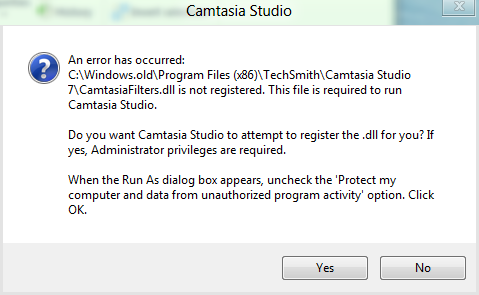
Camtasia Studio 7 - Works.  But the first launch will say that required DLL files are not registered.  It prompts to re-register them with elevated privileges (UAC) and succeeded, but then it warns of missing media associations, but then it seems to launch fine.  All licensing information is lost and must be re-entered.


More:

Windows Server Update Services (WSUS) 3.0 Sp2 Admin Console snap-in will not load into MMC.  It says that it is no longer registered.  Attempts to reinstall it have been unsuccessful.  Error is shown below:

The old days of being able to click the "Start" button and start typing something to auto-search for it are gone.  The new "Search" feature requires clicking on "Apps" in order to find things, for example "Snipping Tool", which I use a lot.

Conclusion

If you have a lot of applications you need to ensure reliability going forward, especially if:

A. They are from small vendors that are unlikely to release an update or new version to work on Windows 8.

or

B. They are from big vendors, and you are sure they will release a new version that will cost a shitload of money to handle all of your licenses.

...then you should start testing now.  And I mean NOW, as in RIGHT NOW.  I'm sure things will be fixed and cleaned up, so many of these issues I've encountered may not be a big deal in the end.  I'm also aware that most of you won't do in-place upgrades and that the results of installing things "clean" and "fresh" on a new Windows 8 installation will likely behave much better.  But just in case...

Wednesday, August 17, 2011

Semi-Showdown: VBscript, PowerShell / ADO, ADO.NET

Ok, so I got REALLY REALLY REALLY bored one day and had to settle a nagging question in my head (I have another nagging question involving the medical/scientific analysis of whether the metabolic rate change incurred by the caffeine in a cup of strong coffee burns off enough calories to offset a tablespoon of sugar in the coffee itself, but that's for another day). 

I posted an article on this subject a long time ago, but without any analysis, just a question about why 99.9 percent of all the PowerShell "database" examples on the Internet use ADO (via COM InterOp) rather than pure/native ADO.NET.  Since then however, the ratio of PowerShell+ADO.NET examples has grown significantly, which is a good thing.  Nothing like trying to impress a consumer with a spiffy new sports car than by showing you how well it can sit idle in a traffic jam.

The Goal:

  • Measure the performance variations between VBscript+ADO, PowerShell+ADO, and PowerShell+ADO.NET.

The Setup:

  • Query a remote SQL Server database table, for one column only
  • Query: Select one column, of type VARCHAR(255), from approximately 5,300 rows
  • The column being queried is indexed
  • The table contains four columns, of types: INT, SMALLDATETIME, VARCHAR(255) and VARCHAR(50)

The Server:

  • Hyper-V 2008 R2 SP1 guest:
    • Windows Server 2008 SP2
    • 20 GB RAM
    • 4 CPUs
    • SQL Server 2008 R2
  • Client:
    • HP 7900 Desktop
    • Windows 7 SP1, 64-bit
    • 12 GB RAM
    • Dual Core CPU

The Code:

[VBSCRIPT]
query = "SELECT ProductName FROM SoftwareExclusion ORDER BY ProductName"
Set conn = CreateObject("ADODB.Connection")
Set cmd = CreateObject("ADODB.Command")
Set rs = CreateObject("ADODB.Recordset")
conn.Open sqlConnectionString
rs.CursorLocation = adUseClient
rs.CursorType = adOpenStatic
rs.LockType = adLockReadOnly
Set cmd.ActiveConnection = conn
cmd.CommandType = adCmdText
cmd.CommandText = query
rs.Open cmd
If Not(rs.BOF And rs.EOF) Then
Do Until rs.EOF
wscript.echo rs.Fields("ProductName").Value
rs.MoveNext
Loop
Else
wscript.echo "error: no records found"
End If

rs.Close
conn.Close
Set rs = Nothing
Set cmd = Nothing
Set conn = Nothing

wscript.echo Timer-t1 & " seconds"
[/VBSCRIPT]


[PS_ADO]
$t1 = Get-Date

$query = "SELECT ProductName FROM SoftwareExclusion ORDER BY ProductName"

$adoOpenStatic = 3
$adoLockOptimistic = 3

$adoConnection = New-Object -ComObject ADODB.Connection
$adoRecordset = New-Object -ComObject ADODB.Recordset

$adoConnection.Open($sqlConnectionString)
$adoRecordset.Open($query, $adoConnection, $adoOpenStatic, $adoLockOptimistic)
$adoRecordset.MoveFirst()
$rows = $adoRecordset.RecordCount

do {
write-host $adoRecordset.Fields.Item("ProductName").Value
$adoRecordset.MoveNext()
} until ($adoRecordset.EOF -eq $TRUE)

$adoRecordset.Close()
$adoConnection.Close()

$runtime = New-TimeSpan $t1 $(Get-Date)
write-host "Runtime: "$runtime.Seconds" seconds"
[/PS_ADO]


[PS_ADONET]
$t1 = Get-Date

$SqlQuery = "SELECT ProductName FROM SoftwareExclusion ORDER BY ProductName"

$SqlConnection = New-Object System.Data.SqlClient.SqlConnection
$SqlConnection.ConnectionString = $SqlConnectionString

$SqlCmd = New-Object System.Data.SqlClient.SqlCommand
$SqlCmd.CommandText = $SqlQuery
$SqlCmd.Connection = $SqlConnection

$SqlAdapter = New-Object System.Data.SqlClient.SqlDataAdapter
$SqlAdapter.SelectCommand = $SqlCmd

$DataSet = New-Object System.Data.DataSet
$SqlAdapter.Fill($DataSet)
$SqlConnection.Close()

#output the data
$DataSet.Tables[0]

$runtime = New-TimeSpan $t1 $(Get-Date)
write-host "Runtime: "$runtime.Seconds" seconds"
[/PS_ADONET]


The Results:


  • 10 successive execution runs each


  • Average Run Times:


    • Test 1 = 1.6 seconds


    • Test 2 = 22.21 seconds


    • Test 3 = 3.9 seconds


Friday, October 15, 2010

Pros and Cons of Virtual Test Machines

Most people know what I’m talking about when I say “virtual test machines”, but I’m sure some of you do not.  Or aren’t 100 percent sure anyway.  In any case, it is simply the practice of setting up virtual machines (aka “guest” computers) to support testing of various things.  In my particular case, it involves software packaging and deployment testing, but I’ve used this for modeling Active Directory migrations, SMS and ConfigMgr deployments, Group Policy modeling and management, scripting, and just plain old diabolical fun.

Most anyone working in IT that uses VMware, VirtualPC or Virtual Box, or whatever, is well aware of the good things it provides.  It makes life easier.  But there are always caveates.  Nothing in IT is a panacea of pure goodness. There is always something to be careful to avoid or prepare for.  Virtualization is no different.

I will say that there are more good things (benefits) than bad things (drawbacks, disadvantages), so in the end: proceed.  All I’m doing is shining a flashlight on a few creeky boards you may step on eventually, so keep your eyes open.

Pros

  • Protected isolation
  • Faster provisioning
  • Faster roll-back via Snapshots
  • Multiple test platforms via Cloning
  • Portability
  • Less hardware, reduced footprint/power/heat

Most of these are self-explanatory.  Virtualized computers provide a protected bubble in which to do things that would otherwise cause changes that are difficult (or impossible) to recover from.  A mistake with a Group Policy in a production environment can be disasterous and ugly.  The same mistake in a virtual environment is much more easily undone.  The usual advantages cited for data center virtualization apply equally to desktop virtualization. 

I will say that I give a slight tip of the hat to VMware Workstation for “snapshots” over VirtualPC.  I don’t recal VirtualBox providing this feature either, but it’s a HUGE benefit to virtual testing.  Not just for being able to “roll back” (aka “revert”) but also for easily building state trees which allow you to fork one virtual machine into many in short time, each having a unique delta over the previous.  For example: a baseline machine, then snapshots for adding various applications, service packs, and combinations, maybe six or seven machine states you can jump to at any time.

But as I said: there are caveates.

Cons

  • Domain synchronization
  • Tools / Additions updates
  • Hardware Interfaces
  • Isolate “test” from “production” for availability/management

Let me explain these a bit more:

Domain synchronization comes into play if you join your virtual machines to a functional Active Directory domain.  Each computer in a domain environment synchronizes its own password with the AD on a regular schedule.  If you roll a virtual machine back to a state that preceeds the most recent synchronization, guess what happens?  It’s like trying to logon with your older password.  BZZZT!  Fail!  The computer will display messages at logon stating the the domain controller could not be found and so on.  Simply rejoin the virtual machine to the domain to reset it, then re-snapshot it and delete the older snapshot (so you don’t do it again).  You will need to do this about once per month typically.

Tools (aka “Additions”) updates.  These are special installations that come with the virtual machine software which are installed into the virtual “guest” computers.  These packages provide enhanced interface between the virtual machine and the physical host.  Usually they update the video and network drivers, but may also add things like drag-n-drop or clipboard support, USB plug-n-play support and so on.  VMware updates these fairly often (a few times a year).  If you update VMware Workstation from 7.0 to 7.1 or 7.1.2 (etc.) it will also prompt you to update the tools installations in each virtual machine.  The more virtual machines you have, the more work you have waiting for you.  And when you use snapshot trees you will need to open each captured state in the tree and update the tools as well.  A bit of a pain, but it scales with the number of virtual guests you use.

Hardware interfaces.  Some software requires connecting to a hardware device which may or may not behave well with a virtual machine.  Some older (“legacy”) parallel and serial port devices, or certain USB devices, may not auto-detect between the physical port and the software running in a virtual machine.  In some cases, you will still need to maintain a physical test computer for such purposes.  This is not at all uncommon.  If you support hundreds of applications, you won’t typically be able to go completely virtual with your testing.  But as Confucius said: “any virtual is better than none”.  Ok, he might not have said that.

Isolate “test” from “production”.  If you plan on virtualizing desktop computers for testing, that’s one thing.  If you’re going to do that with production computers, that’s different.  I won’t go into all the issues, because the list is forever long and I’m still burning my candle at both ends on a big project, but thinks of these aspects to your production environment:

  • Anti-virus and anti-malware centralized management (when VM’s rollback state constantly)
  • Active Directory and Group Policy settings (same)
  • Running push scans from a server (when VM’s are offline)
  • Deploying service packs and application updates (and VM’s rollback constantly or are offline)

It can be messy to manage.  It’s usually best for controlled testing.  I’m not talking about VDI implementations or MED-V or anything like that.  This is with desktop-oriented, virtualization of computers on top of physical computers.

I’m not at all trying to discourage anyone from virtualizing computers, especially for testing purposes.  I’m just saying that it’s not something to walk into blindly.  Plan ahead and it will be a smooth journey.

Friday, September 3, 2010

Building Your Own Group Policy Virtual Lab

It's a been a long time since I wrote anything about Group Policy.  I'm sure some of you are happy about that, and maybe wish I'd take even longer, but oh well.  You must endure the torture that my second-rate writing brings to unsuspecting eyeballs and those with challenged mouse clicking fingers.

Lot's of folks are skiddish (not Yiddish, an entirely different thing) about practicing and learning about Group Policy in a "safe" and protected environment.  Some will simply create a few "test" OU's and test user and group accounts in their production Active Directory environment.  That's risky.  It can actually be downright "stupid-dangerous".  Two words that go together like bacon and eggs, Tom and Jerry, politics and lying, and a few others.  The key word is "tatooing", which can render your environment, in technical terms: fucked up beyond all repair (that's FUBAR).

The better, smarter, safer way to go is using a virtual environment.  If you haven't used a virtual machine setup before, maybe you've just read and heard about the concept, it's very easy.  VERY easy indeed.  And not only cheap, but FREE.  I have to assume that if you're working with Group Policy, then you have an Active Directory environment nearby.  If you have Active Directory, then chances are you have Windows Server handy.  You are ready to go.

  1. Install a Virtual Machine product.  There are several free products to choose from, including VMware Player, Sun VirtualBox, and the ubiquitously sucky-ass VirtualPC from Microsoft, among others.  I prefer VMware Player or VirtualBox.  If you can afford VMware Workstation that's a better option since it supports "snapshots", which are very VERY helpful.
  2. Create your Virtual Machines.  You will need at least one Windows Server VM and at least one or two Windows client VM's.  For our examples, and because I **LOVE** Group Policy Preferences (or GPP's), I will recommend Windows Server 2008 or 2008 R2, and Windows 7.  If you need to support XP in your environment, then by all means: add a Windows XP VM to your mix.
  3. Prepare the Virtual Machines.  Go ahead and install the operating systems and name the computers and install any/all updates.  I also recommend downloading any utilities like Admin Tools, Resource Kits, Sysinternals tools, and so on.  Be sure to consider item #4 during this step as well.
  4. Be Careful with Network Settings!  While you are building each VM, you can leave the network setting to "bridged" or "NAT", so that you can download updates and utilities, etc.  But before you make the jump to creating the AD domain environment, move all your VM's into a private virtual network.  This is VERY important!  I won't dive into the procedure for this because it's best left to the documentation for your chosen product.  It's not difficult.
  5. Promote the first AD Domain Controller.  Go ahead and add the AD Domain Services role and run DCPROMO to create the first domain controller.  Make sure you are running in a private virtual network first!!  If you use Windows for DHCP management be sure to disable the built-in DHCP service provided by the virtual machine software.  Document the settings!  The Forest/Domain names, IP addresses, server names, admin and DSRM recovery passwords, etc.  After the DC is promoted and rebooted, be sure to give it some time to settle in, then run through your diagnostics to make sure it is operating properly.
  6. Join Desktop VM's to the Virtual Domain.  Set up each desktop VM and join them to the new domain.  Make sure they join properly and everything connects together.  This will feel like putting together a playset for your kids.
  7. Snapshot or Backup.  If you have VMware Workstation make snapshots of each VM to provide a fall-back restore point so you don't lose all the work you've done to this point.  If you don't have snapshots available, you can simply power down each VM (using the internal "Shutdown" not just killing the VM) and copy the pertinent config and disk files to another location.  The intent here is to avoid losing all the work you've done.  If you screw up your lab, or the physical host crashes, you can rebuild and get your lab back to this point in time and save yourself a lot of pain.
  8. Start Playing.  Now that you've got your lab up and running, and you have the safety net of a backup or snapshot, you should be ready to start trying things out.

As a standard practice, I recommend installing RSAT on one of your Windows 7 VM's so you can manage AD and Group Policy features from a desktop, rather than relying on logging into a DC every time.  This is usually more realistic.  It's not usually recommended to constantly log into a DC to do daily check-ups and modifications unless you have to.  This is especially true if the DC has other roles on it like File/Print, Web services and so on.

Even though you are in a VM environment, it is still a good idea to create test OU's and test user accounts, test groups, test computers, shares, and so on.  This offers you additional layers of safety.  It's easier to blow off a bad GPO configuration against a test OU and test accounts, than it is to recover the entire VM environment.

The scope and scale of your virtual environment is only limited by two things: disk space and memory.  Those are both limited by budget.  If you have the budget to expand your disk storage capacity (and redundancy) and add memory, do it.  It's worth it if you intend on making this a serious project.  There is no such thing as too much memory or storage capacity.  The more you have available, the more you will consume.  That's a fact of nature.

If you have enough resources available you can expand your environment and your testing to include things like sub-domains, multiple forests, multiple sites and site link replication, DNS configurations, DHCP scopes and options, VLAN's and so on.  You can also add other products to your environment such as Sharepoint/MOSS, System Center products like Config Mgr, SCOM, DPM, as well as Exchange, WSUS, and other products (not to mention scripting and non-Microsoft products).  It's also perfect for practicing those topics for your upcoming certification exam that you may not even have in your production environment.

But I digress.

The point of this article was to help with building a virtual lab to work with Group Policy.  I got a little sidetracked, but hopefully in a good way.  I hear from people all the time that say they are hesitant to practice with Group Policy settings for fear of breaking their environment or creating a mess they might have to dig their way out of (adding yet more work to their already busy day).  Having a virtual environment allows you to try things and not impact your real environment, so you can move ahead without the worries.  Take an afternoon, stay after work, or a weekend morning, and build your virtual lab.  It'll pay off for you, I promise.

Monday, October 26, 2009

Certifiably Certifiable

As of this week, I am edumacated certificated as such…

  • Microsoft® Certified Professional (MCP)
  • MCSA on Microsoft Windows Server 2003
  • MCITP: Windows Server 2008 Server Administrator
  • MCTS: Microsoft Windows Vista: Configuration
  • MCTS: Microsoft System Center Configuration Manager, Configuration
  • MCTS: Windows Server 2008 Active Directory: Configuration
  • MCTS: Windows Server 2008 Network Infrastructure: Configuration

…and yet when I get home I *STILL* have to take out the trash.  I get no respect.

Wednesday, May 27, 2009

Basic Troubleshooting 101

At 45 years, I’m even more amazed now than ever at just how incapable people are at performing basic troubleshooting.  Getting to the root cause of a problem.  Any problem.  While I’m focusing on “technology” for the moment, this applies to LIFE in general.  Every day I see people start to gather information about a problem, and before they finish listening to the whole story, are already diving in to “fix” the problem.

9 times out of 10 they end up not fixing the problem, but rather, they prolong or intensify it.  This drags the problem on longer.  The negative aspects of this are dangerous.  Wasted time is just the beginning.  If you’re a doctor, someone could die.  If you maintain certain kinds of machinery or systems, people could die.  This is serious shit!  If you’re laughing right now: shut the fuck up and pay attention!

Basic Troubleshooting

  1. Gather the facts (not the rhetoric, bullshit story, just the facts)
  2. Isolate the scope of the problem (how big, how far spread)
  3. Compare with something not-broken
  4. Look for patterns

Basic IT Troubleshooting

  1. Gather the facts
    1. Find out what changed
    2. Inspect event logs, file logs
    3. Eliminate the obvious (cables, power)
    4. When did the problem first occur
    5. Did it EVER work correctly
  2. Isolate the Scope
    1. Is it User-Specific (one user affected, others are not)
    2. Is it Machine-Specific (all users affected on same computer)
    3. Is it Application-specific (one app, or all apps)
    4. Is it device-specific (printer, scanner)
    5. Is it resource-specific (a particular shared folder)
  3. Compare
    1. Before and After log results
    2. Verify interfaces (ping, browse)
    3. Verify user accounts (enabled, locked, group memberships)
    4. Verify security settings
    5. What differs from this to another? (user, machine, app, device, etc)
  4. Look for Patterns
    1. Does it happen consistently
    2. Does it happen at particular days, hours, weeks
    3. Does it coincide with another process
    4. What circumstances cause it to occur

Nearly every time someone contacts me for help with something on their computer (and I’m talking about IT “professionals” here, not family, friends and so on), I ask “what do the event logs show?”, and I get the same answer “I haven’t checked yet.”

Here’s a real world example:  User calls in a support request saying their application is “broken and won’t launch anymore”.  Help Desk technician immediately uninstalls and reinstalls the application.  This process normally takes an hour per machine.  But guess what?  The problem returns.  Did they check to see if another user could run that application under their own login?  Did they check to see if the application works on other computers?

In one case, the problem was a license server not responding, so NONE of the applications on ANY computer were working.  Restarting a service fixed the problem.    In another case, the user’s profile had a corrupt registry key (HKCU) and simply deleting the registry key and subkeys forced the application to rebuild the keys and everything worked fine.  In both cases, the “fix” was completely wrong and wasted an hour of time for everyone and accomplished nothing.  Rushing in to fix a problem without being careful to diagnose it first is dangerous. It’s how space shuttles blow up.  It’s how ships run aground.  It’s how patients die.  We all make mistakes, but a mistake is a deviation from a normal pattern of NOT making mistakes.  If you make mistakes all the time, everytime, you need to find another career.

Finally, if you step back and look at your environment and find that you’re fixing the same kinds of problems a lot, that is almost always a clear indication that there wasn’t enough testing performed early on.  Whether it was picking the wrong products or technologies, or not implementing properly, or not training users to use it effectively, or not telling users it was coming (and when), well, somebody screwed up.

Conclusion

Slow down, at least a little, and be sure to gather everything you can about a problem so you can get your mind around it and solve it effectively.  The time you spend up front will usually save twice that on the other end when you try to solve the problem.

Monday, April 27, 2009

ITIL v3 Foundations Exam

I passed my ITIL v3 Foundations exam with a score of 93! Holy crap. It wasn't the toughest exam I've taken, but it was one of the most confusing. I left the classroom thinking I might have scored 65 or 70 (26 of 40 questions to pass). Cool.

Tuesday, September 2, 2008

Blog-Pointer: Setting up Your MS App-V Lab

This is fantastic. Another great post from J.C. on the App-V blog site. I think I've setup at least four separate App-V (then SoftGrid) lab environments on VMware in the past and none were identical. Ad hoc is the best way to describe it. Same goes for my Thinstall labs. This post has some great info for setting up a lab for App-V 4.5, using Windows Server 2008 as the base environment, with IIS7, certificates, and so forth. Now, if only Microsoft would make App-V completely FREE. I would like to see either VMware go "FREE" with ThinApp, or Microsoft do it. The whole industry is stuck at top-dead-center right now because of cost.