Showing posts with label lab setup. Show all posts

Tuesday, May 20, 2014

SCCM Lab Setup Laziness with PowerShell and Duct Tape

I've been dusting off my pointy little head with another round of "lets play set up with Configuration Manager!" and, well, I hate using GUI tools or command line stuff if a script will save me time.  The time invested in smacking the keyboard and making grunting noises and laughing hysterically is recouped later with spare change and coffee spilling, so it pays off.

Disclaimer:  I really don't have any duct tape right now, so you'll have to go without on this one.

Anyhow, I've been following along with a template procedure my buddy and trusted ass-kicking extraordinaire colleague and uber-technowunderkind: Chris DeCarlo compiled.  One part of this procedure has me creating a bunch of AD user accounts to tie to various things.  Some are for SQL services, others for AD tasks, and obviously some are for SCCM itself.  (btw- Chris, you did an outstanding job on this document. Kudos!)

Here's the accounts (sorry man, but I modified a few names out of brain-damaged habit).  The short names on the left are the sAMAccountName values, and to the right are their descriptions / explanations.

  • SCCMRS - SQL Reporting Services publishing account
  • SCCMNA - SCCM network access account
  • SCCMInstall - SCCM site server install account
  • SCCMDomJoin - SCCM domain joining account
  • SCCMClient - SCCM client push account
  • SCCMSQLSvc - SCCM SQL Server service account
  • SCCMSQLAgent - SCCM SQL Agent service account
  • SCCMOSD - SCCM OSD deploy and capture account
You may or may not need (or want) to create all of these, but I have the keyboard so this plane is going into the mountain and I'm the captain... so hold on.

In addition to this, I'm lazy.  Yes, I know that's a shock.  I'll wait as you pick your jaw off the floor.  (tap tap tap tap - eyes on phone,...) ok.  Rather than doing this the "right way", I do it (for lab purposes only) the "easy unrecommended way", which is to stuff all of these accounts into the "Domain Admins" group and then laugh as loud as possible.

You need two files (okay, you don't really NEED two files, but for this example it works):
  • A Comma-Separated Values file (.csv)
  • A PowerShell script (v3 or v4)
Assumptions
  1. Domain is "fubar.local"
  2. OU is created at root of the domain as "ServiceAccounts"
  3. You are logged onto the server/desktop in the LAB as a Domain Admin user
  4. You have faith in what I'm telling you (rotfl! okay, just kidding)
I built and tested this cardboard thing using Windows Server 2012 R2 with PowerShell v4 and some coffee, chewing gum and a few chicken drumsticks my wife just cooked (damn good too).

[CrappyCode]

$inputFile = Import-CSV  "useraccounts.csv"
$strPwd = "Tarfu123"
$ouPath = "OU=ServiceAccounts,DC=fubar,DC=local"

foreach($strLine in $inputFile) {
$cn = $strLine.cn
$samid = $strLine.sAMAccountName
$ln = $strLine.sn
$fn = $strLine.givenname
$dn = $strLine.displayname
$desc = $strLine.description
$upn = $strLine.UserPrincipalName

New-ADUser -SamAccountName $samid -Name "$cn" -UserPrincipalName $upn -AccountPassword (ConvertTo-SecureString -AsPlainText "$strPwd" -Force) -Enabled $true -PasswordNeverExpires $true -Path "$ouPath" -Description "$desc"
}

$inputFile | % {Add-ADGroupMember -Identity "Domain Admins" -Member $_.sAMAccountName } 
[/CrappyCode]

If you're not familiar with PowerShell, or scripting in general, you don't need to copy the [CrappyCode]. and [/CrappyCode] end tags.  Those are just for entertainment.  You will want to edit the domain names to protect the innocent, and whatever else you feel like modifying to suit your environmental needs.  The items in red are likely the items you will want to change for your needs.  

Also, the last line redirects the CSV piped content through a PowerShell pipeline into Add-ADGroupMember to stuff the new accounts into the Domain Admins group.  So easy, and cheap too.  Be careful of the line-wrapping headaches that come with copying from web browser windows. :)

The next piece is the CSV file (below).  Note that the first line contains the logical column headings, while the remaining lines are the actual data.  As long as the values are in the same relative order from left-to-right, it should work fine.  If you have values that contain apostrophes or commas be careful to "escape" them properly so they don't choke out the code like a backyard wrestling match gone wrong.

[CSV]
cn,givenname,sn,sAMAccountName,displayname,UserPrincipalName,description
SCCMRS,,,sccmrs,SCCM Reporting Services,sccmrs@fubar.local,SCCM SQL Reporting Services Account
SCCMNA,,,sccmna,SCCM Network Access,sccmna@fubar.local,SCCM Network Access Account
SCCM Install,,,sccminstall,SCCM Install,sccminstall@fubar.local,SCCM Server Installation Account
SCCMDomJoin,,,sccmdomjoin,SCCM Dom Join,sccmdomjoin@fubar.local,SCCM Domain Join Account
SCCMClient,,,sccmclient,SCCM Client Push,sccmclient@fubar.local,SCCM Client Push Account
SCCMSqlSvc,,,sccmsqlsvc,SCCM SQL Service,sccmsqlsvc@fubar.local,SCCM SQL Server Account
SCCMSqlAgent,,,sccmsqlagent,SCCM SQL Agent,sccmsqlagent@fubar.local,SCCM SQL Agent Account
SCCMOSD,,,sccmosd,SCCM OSD,sccmosd@fubar.local,SCCM OSD Deploy and Capture Account
[/CSV] 

Then, in your LAB environment (do not do this in production unless you like spending a lot of time in a courtroom with ugly people in suits), log on as a Domain Admin user, open the PowerShell console (right-click and select "Run as administrator"), and CD (change directory) to the path where you saved both of these files.

Then type in "powershell.exe -ExecutionPolicy Unrestricted -File useraccounts.csv

If you see a bunch of red text, you screwed up (probably as a result of believing what I tell you), but don't freak, go into the code and verify everything is neat and clean and the quotes are matched, etc.  Standard scripting/programming drudgery stuff.

When you're done, and assuming it works as intended (it did for me), you should see those accounts in the designated OU and each is a member of the "Domain Admins" group.

Cheers!

Saturday, September 22, 2012

Notes from the Lab: Migrating to Windows 8 / Windows Server 2012

My home lab is a Windows Server 2008 R2 Active Directory domain with a few Windows 7 clients.  The domain is hosted entirely on one domain controller, which also hosts quite a few other roles and features.  Windows 7 clients are all Service Pack 1 with the latest updates installed.  The server was also on the latest Service Pack and latest updates.  All computers are physical hardware.  None were/are virtual machines.  The "server" is a Dell Precision 390 workstation.  The desktops are a mixture of various Dell Inspiron and OptiPlex models.
(not really my lab, but I wish it was this sophisticated and cool looking!)

Preparation

I captured full System backups of my primary desktop and my domain controller server prior to embarking on this adventure.

Migrating the Desktops

I started by running the in-place upgrade on one of my Windows 7 64-bit clients to Windows 8.  The Windows 8 setup checker warned that I had to uninstall a few apps before it would allow me to continue, due to reported compatibility issues.  Namely, ATI Catalyst Install Manager, and the WSUS Admin Console, but it also warned I need to de-authorize my computer within iTunes.

After doing this, I had to reboot, and then kick off the Windows 8 setup again.  It ran through just fine and everything appeared to be in good shape on the other end.  Total time: about 1 hour.  Media: USB thumbdrive.

The applications I had installed and working fine on Windows 7:

  • Office 2010
  • iTunes 10.7.0.21
  • Adobe Reader X  10.1.4
  • Google Chrome 21.0.1180.89
  • Google Picasa 3.8
  • Paint.NET 3.5.10
  • TextPad 6.1.3
  • VMware Workstation 8.0.4
  • LogMeIn (free version)
  • Citrix Receiver
  • 7-Zip 9.20
  • WMI Code Creator (WMICC)
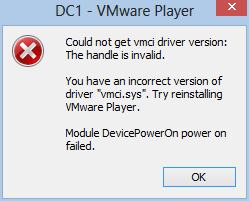
VMware Workstation 8.0.4, and VMware Player 4.0.4 both had issues when I tried to launch my guest virtual machines.  The error said I have an incorrect version of vmci.sys. (see image below).  So I re-ran the latest installer package for 8.0.4, which uninstalls the current setup and then installs it all again.  After doing this, both VMware Workstation and VMware Player worked just fine and were able to power on and support my guest VM's. (note: I know that the vendor says 9.0 supports Windows 8 as a key feature, but I wanted to see how 8.x would work out).


Migrating the Server

Next, I ran the Windows Server 2012 (Standard Edition) upgrade on my 2008 R2 domain controller.  I did this via RDP with a different USB thumbdrive.  It's worth noting that this is a workhorse server and hosts quite a few roles and features, which pretty much violate "best practices" guidelines, but hey, I know for a fact I'm not alone when it comes to having to "make do" with limited hardware budgets.  This server hosts:

  • Active Directory Domain Services (domain controller)
  • Internet Information Server (IIS) for both WSUS and software development
  • File and Print shares
  • WSUS 3.0 for managing patches and updates
  • Automation Server: scripts and scheduled tasks for managing all sorts of daily/nightly chores
  • Backup Services: backups from clients and the server to an external drive

Again, the Windows Server 2012 setup checker ran through and checked my system for potential issues prior to letting do the actual upgrade.  It warned me to uninstall WSUS 3.0 and verify "third-party applications compatibility", but didn't explicitly name any.  The only thing I could figure was my APC "PowerChute" UPS software, but I left it as-is.

It also said I had to run ADPREP /FORESTPREP and then ADPREP /DOMAINPREP before continuing.  You can find ADPREP.exe on the installation media under \support\adprep.  After uninstalling WSUS (content, logs and database) I rebooted, and started Windows Server 2012 setup process again.  After it warned me about the "third-party" issues, it allowed me to continue, so I took a deep breathe and pushed the button.  Total time: about 1 hour 20 minutes.

Afterwards, I went into the Server Manager console, went into Roles and Features, and added the Windows Server Update Server role.  Then I ran the post-install configuration tasks to setup the options to function as my domain WSUS server.

Interesting Notes

Some things I found that needed to be resolved after the server was migrated, some were quick and easy, some took a little digging around:

Group Policy Objects

I have a GPO named "Drive Mappings" that has drive letters mapped to shares on my server for user documents, photos, videos, and software utilities.  Each of them are configured via Group Policy Preferences, and each drive is mapped via "Replace" and the "Reconnect" option was checked.  This DID NOT WORK on ANY of my Windows 8 clients.  But after researching this a bit (see link1 and link2), I found it was due to two things:
  • I was logging on with an account that has local Administrator rights (this reportedly does not occur with users who do not have local administrative rights, but I didn't have time to test this yet)
  • The "Reconnect" option was checked
After, un-checking the "Reconnect" option, the drives began mapping correctly.

WSUS

After letting WSUS bake-in for 30 minutes or so, I was concerned about not seeing any computers reporting in.  I ran GPUDPATE /FORCE on several of the clients, as well as WUAUCLT /DETECTNOW, but still none were reporting in to the WSUS server.  After reading through the WSUS configuration notes for 2012, I discovered that it had reconfigured the web service to respond on port 8530 (HTTP) and/or 8531 (HTTPS), but I was only using HTTP.

So, I went into my GPO settings, and edited the setting "Specify intranet Microsoft update service location" to append ":8530" onto the existing URL entry.  The setting is found under Computer Configuration / Policies / Administrative Templates / Windows Components / Windows Update.
After saving the changes, I went back to some clients and ran GPUPDATE /FORCE, and then WUAUCLT /DETECTNOW.  Within two minutes the clients started appearing in the WSUS console.

The Dreaded Start Screen

I tried REALLY REALLY hard to warm up to the Windows 8 Start Screen, but I can't do it.  It makes sense for a tablet (e.g. touch-screen) interface, but for a mouse and keyboard I cannot find ANY rationale that it can be "as" efficient to use the Metro tiles rather than the traditional Desktop.

My friend and co-worker Chris DeCarlo pointed me to the ClassicShell application on SourceForge, which suppresses the Start Screen and installs a Windows 7-ish Start Menu.  With that in place I find Windows 8 to be pretty nice, but I still am forcing myself to try the tile interface as often as I can just to give it a fair trial. ClassicShell is impressively built, and has a lot of attention to detail.  However, I doesn't seem to show a "Computer" link on the right-hand side, nor does it apply the "Pin to Start Menu" feature consistently (trying to pin Internet Explorer to the Start Menu only adds repeated shortcuts on the "Programs" fly-out menu).  All in all, however, it's a gotta-have for my needs and I really like it.

Miscellaneous

If I were asked to rank the applications I use most often, on a typical day, it would probably look like this...
  1. Internet Explorer and Google Chrome (a tie)
  2. SQL Server Management Studio
  3. TextPad
  4. Microsoft Outlook
  5. WMI Code Creator
  6. Windows PowerShell ISE
  7. Snipping Tool
  8. Paint.NET
One that might be easily overlooked is number 5 (WMIC).  But I live in that application quite often as I do a fair amount of work with WMI and WBEM scripting.  One thing I noticed immediately as that the CIM namespaces list continues to grow with each major Windows version release.  In fact, it took about a full minute for the list to fully populate the first time I opened the application. Not a huge deal obviously, but something I found interesting (and nice!)


Windows.old

As with previous Windows version "in-place" upgrades, the original environment is backed up into the "Windows.old" folder located in the root of the system drive.  If you try to delete this folder, you will be smacked in the face with a cold, wet, dish rag that has the phrase "Access Denied!" embroidered across it.  That's true whether you try to delete it as an Administrator account, opening a CMD console using "Run as Administrator" or by running a script under an elevated user context.

The solution is to run the Disk Cleanup utility provided with Windows 8.  Be sure to click the "Clean up system files" button, otherwise you won't see the option to check "Previous Windows Installations".


Conclusion

The only thing I really miss right now is not having a CPU that supports SLAT, so I can't run HyperV 3.0.  At work I have a computer that does, and it runs HyperV 3.0.  I'd really like to expand my horizons and learn more about the Microsoft side of virtualization and "now" seems like the right time to do so.  For now, I'm using VMware Player and it seems to work very well on Windows 8.

As for "Metro" (or whatever Microsoft decides to call the Windows 8 UI/UX), I like it.  I've always like the flat, spaceous, simplified look over the Aero or XP motif.  What some people don't realize is that Google was actually putting a "metro"-ish UI on much of their web applications like Gmail, Docs, and so on.  I'm talking about the now-familiar 2D motif, fat-border outlined regions and tables, padded flat buttons, and ample use of white space to achieve a simplified look. As to who came up with that concept first is anyone's guess.  I assume it was "invented" years ago and simply rediscovered, as is often true with many "new" things these days.

In any case, Windows 8 is growing on me and I intend on keeping up with it.  Not simply because I work in the IT field, but because I kind of like shiny new things.

Friday, December 26, 2008

Flashback to 2003

I was re-archiving old junk over the holiday break (and how exciting is that?) and ran across this photo of my lab setup from when I worked on migrating a company WAN from NT4 to 2003 AD.  Ahh, the good ole days.  WS03 was still in beta when I started modeling the target environment, and was just released a few months before we started the actual migration.  Some argued for going with Windows Server 2000, but after having spent about eight months on the beta there was no way I was settling for that trash.
 
We didn't have VMware yet, so I had to amass all these junk boxes to build a semi-reasonable "WAN" model to test with.  In 2005 we purchased a few licenses of VMware GSX Server and shrunk this test lab down to two boxes, still one monitor and keyboard.  I ran out of electrical outlets and came close to maxing out the limits for my office (according to our facilities guy at the time).  The heat generation was pretty significant, as were the cummulative buzzing of the cooling fans.

Looking back, I would say that my views of WS03 over WS2K are the same as I have now for WS08 over WS03.  The improvements are just as significant, maybe moreso.  I sure learned a ton about what to do, and what not to do.  There are a lot of things I would have done different if I were doing that migration now.   It was a good time though.  Good times.

Wednesday, November 12, 2008

SharePoint (MOSS) VM Lab Setup

I ran across this really nice step-by-step SharePoint lab setup article from another blog post that linked to it, but I can't remember which one (sorry).  However, this is a fantastic resource for anyone wanting to setup a MOSS 2007 lab environment.  They use Virtual PC, but I used it on VMware Workstation 6.5 and it rocks.  Thanks to Tony Zink for taking the time to put this together and share it with all of us.