Showing posts with label textpad. Show all posts

Thursday, February 6, 2014

TextPad Tip O-The Day: Adding a PowerShell Tool Link

I loves me some TextPad!  I'm fully aware that code editors are near to religion in terms of sincerity and defensiveness on the part of programmers (those of whom that are of spiritual or religious leaning, that is).  Maybe it would be better to compare/relate it to caffeine sources?  Anyhow, onward...

One of the many nice aspects of TextPad 7 is the extensible "Tools" feature.  This is where you can add links to invoke external tools to execute your code.  So if you like working with VBScript, you can create a Tool that points to %windir%\System32\cscript.exe.  If you like KiXtart, you can point it to wherever Kix32.exe resides (the one biggest and coolest feature of age-old Kix is that it is one of the few *truly* portable script engines alive today).  But, what about PowerShell?

On a typical Windows 8 or 8.1 computer, there may be two (2) distinct PowerShell environments you can use: 32-bit and 64-bit.  They are separate and live in separate houses with their own separate dinner times and kitchens.  You heard right.  One of my frustrations is that I have to configure "Set-ExecutionPolicy" for each of two separately in order to invoke them as I wish.  In my case, I set them both to Unrestricted.  I live on the edge.


My favorite part is the wonderfully-formatted warning message you see when setting the execution policy to Unrestricted...


(Word-wrap wasn't yet invented I suppose.)

Anyhow, to set up a new "Tool" for each PowerShell executable, do the following:

  1. Select the "Configure" menu option, and click "Preferences"
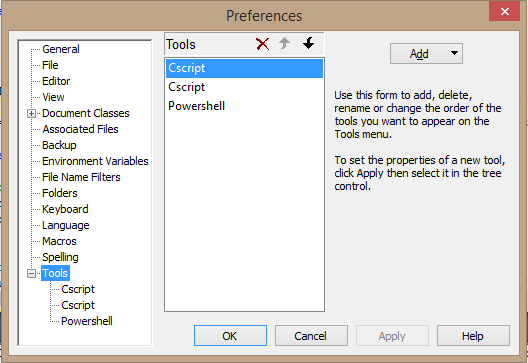
  2. Scroll down and expand "Tools"
  3. Click the 'Add" button, and select "Program..."
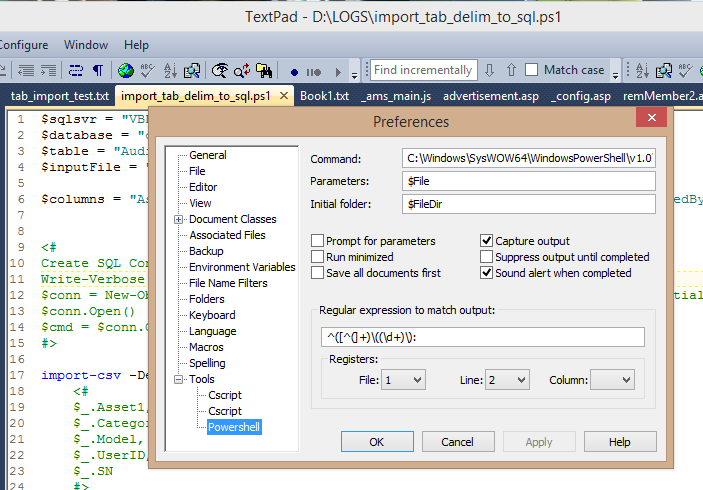
  4. In the "Command" box, past in the path to whichever PowerShell.exe you wish to map (I provide the paths for each below.
  5. Click OK
You may want to rename the Tool after saving it (it doesn't offer the option to name it, oddly).  To do so, click directly on the "Tools" link, so the individual tools are shown in the middle selection box. Click on a Tool to rename it (e.g. "PowerShell 32" or "PowerShell 64", and so on).

You can edit the Tool preferences afterwards as well. So you can check options for "Prompt for parameters" and "Suppress output until completed", and so on.  The defaults usually work well enough for most nerds (like myself).

Paths:
32-bit - %WINDIR%\System32\WindowsPowerShell\v1.0\powershell.exe
64-bit - %WINDIR%\SysWow64\WindowsPowerShell\v1.0\powershell.exe

(note that the ISE flavors for each are in these same respective folder locations).

Disclaimer: I receive no compensation from Helios (makers of TextPad) whatsoever.  I just enjoy using their flagship product for all the wacky coding I do, from HTML to LISP to PHP, to ASP and VBScript, to Javascript, XHTML T-SQL, Batch, and now PowerShell.

You can download the trialware from http://www.textpad.com and a license is only $27 (USD).  A bargain.

Sunday, April 1, 2012

TextPad Clip Library Updates

Some of you may be aware that I post my custom TextPad Clip Libraries, as well as Syntax Definition files, up on my downloads site.  I've had a few people e-mail me about a nagging issue where they download the files, drop them into the "%ProgramFiles%\TextPad 5\Samples" folder, but do not see the version number change in the Clip Libraries side bar heading (click the "_ About (x.x)" clip item.

The reason for this is that the Clip Libraries are copied into the folder path "%UserProfile%\AppData\Roaming\Helios\TextPad\5.0", so that comply with Microsoft's Windows 7 compatibility guidelines (makes the files manageable by non-administrator users).

A quick way to update the Clip Library file is to right-click on the the name, on the drop-down button at the top of the Clip Library panel, and select "Edit book".


This will open the .TCL (TextPad Clip Library) file in the main editor panel.  Then you can open the updated version, select all (CTRL+A), and copy (CTRL+C), and then select all in the destination copy and paste over it (CTRL+V) before saving the changes (CTRL+S). To see the updated results, simply select a different Clip Library and then select the updated one again (toggle away from it temporarily).  That will force it to reload from the updated copy.

Monday, November 29, 2010

My Arsenal of Packaging and Deployment

I had just finished my third coffee and pondering why it was having no effect on me, when I realized it was because I had no sleep the night before.  The lack of sleep, combined with an overdose of caffeine and sugar led my brain to a big empty thought cloud.  The kind that would have made Beevis proud. Then I look started thinking about what are all the things I use to prepare a software package for deployment. Here goes:

Office 2007 Custom Installation Wizard

Office 2010 Customization Tool + Office ADM/ADMX templates

Autodesk Deployment Wizard (AutoCAD, Inventor, 3DS Max, etc.)

Adobe Custom Installation Wizard (CS5 products)

Adobe AAMEE for patch downloads and deployments

Wise Package Studio 8.0 and make a snapshot capture into .MSI

Run setup.exe and grab the .MSI from %temp%

Run setup.exe with –r and capture the setup.iss

Direct Files: .MSI, .MST, .MSP

CACLS.exe

REGINI.exe

Orca

Sysinternals PStools, Procmon, Process Explorer

TextPad 5 (for scripting)

SMS Trace32 (log viewing)

7-Zip

Thursday, November 11, 2010

TextPad Tip: Assign F5 to Refresh View

You can use tools like log viewers, even SMS Trace, to view dynamic log files in real time, but sometimes you need to view files for which there is no logical associated editor/viewer which can parse the structure syntactically. This is where TextPad kicks major amounts of ass.  I'm talking truckloads, no, shiploads of buttocks.  Because it's a programmable editor, you can mold and shape it to your needs.  I've talked about this product before, but I wanted to cover one small feature: keyboard assignments.

I use the "Revert" feature quite a lot.  I can setup custom file parsers using Custom document classes and syntax definitions to format the information to suit my needs.  Then I turn off dynamic refresh (to avoid application hangs when the file objects vanish or the connection is transient).  Then I can use my F5 key to refresh the view when I want to.  Here's how…

Open Preferences and click on the Keyboard option (see below)

image

Select the File category, and scroll down to select the "FileRevert" command.  Then press your F5 key to add it to the key assignment box.

image

Finally, click the "Assign" button to set the mapping of F5 to "FileRevert".  Then click Apply and OK.  That's it.

image

To test this out, run a task that generates a lengthy log or data file output.  Open the file and press F5 every few seconds or minutes to refresh the display.

More

You can easily assign key combinations as well.  So you can assign Shift+F5, or CTRL+F9 or whatever.  There are many assignments already defined by default, which you can also change to suit your preferences.

Monday, November 8, 2010

TextPad 5.4 Released

Somehow I missed the news that TextPad 5.4 was released on October 17, 2010.  It seems like fairly minor updates/changes, but it's still my hands-down FAVORITE code editor of all time.  Deathmatch, caged fury smack-down, full duplex and body slam and I hate pro wrestling, so that alone says a lot.  Download it and give it a try.  Then go download my custom syntax and clip library files for TextPad.  Enjoy!

Monday, October 11, 2010

File Downloads are Back

I decided to put my file downloads back online at my “other” site.  I could be mean and make you go find it, like some “where’s Waldo?” skit, but I’m not that mean, at least not this late at night.  This is where I will be posting my TextPad support files (syntax defs, clip libraries, etc.), Notepad++ files (ok, only one at this point), Active Directory XML (LDAP) queries, and other geeky nerdy codey icky sticky programmy stuff.  I’ll watch the traffic reports to see if this turns out to be of interest to anyone or not.  If it looks like people use it, I will continue to beef it up.  Comments and suggestions (nice ones, please) are always welcome.

http://sites.google.com/site/skatterbrainz/downloads

TextPad. How I Love Thee. Let Me Count Thy Ways…

Since the 1980’s I’ve used a variety of code editors to do my programming horrors.  But the only one I’ve managed to stick with has been TextPad.  There are other nice editors out there, but for me, for the price, the features just stomp ass like a 5 year old on Red Bull wearing ice climbing boots left alone in a glass shop.  Ok, maybe that’s a little extreme.  Nah.  It’s actually pretty correct.

But I have found that each time I “slick-n-reload” my home computer, I go through a standard ritual of setting it up to handle the work I do.  The work I do involves editing ASP, PHP, CSS, XML/XSLT, JavaScript, BAT/CMD script, KiXtart script, T-SQL and PowerShell.  For years I worked with LISP and C++ as well, which is what drove me to TextPad in the first place: It was the only editor that handles all of these languages equally well and let’s me bend the rules to suit my needs (or overcome shortsighted vendor limitations).  Other editors are superior for specific features like auto-completion, syntax post-checking, pretty formatting, or pre-run validation.  But TextPad covers all bases pretty damn good.  It’s an example of “Jack of all trades” in some respects.

So, I thought I’d share my “ritual” and preferences settings with the world (or the half-dozen that are interested) in case it helps.  A “wishlist” item has been submitted for exporting and importing TextPad settings from one computer to another, which would really make it easier, but for now (as of version 5.3.1) the manual option is all there is.

As soon as I install TextPad, the first things I do are the following (and I do them in this order):

  1. Enter my license key
  2. Download my custom syntax defs and clip libraries (into %ProgramFiles%\TextPad5\Samples)
  3. Configure Preferences (see below)
  4. Create my Document Classes (see below)
  5. Set File Associations (see below)

Preferences:

  • General: Check “Replace Notepad” (why not?)
  • File: clear Default file extension
  • File: Change file-modify from Prompt to “Ignore”
  • File: Un-check “Check for file size changes”
  • View: Check “Line Numbers”
  • View: Un-check “Popup names on the document selector”
  • Document Classes / Default / Colors: 1=Blue, 2=Red, 3=Pink, 4=Orange, 5=Dark Purple, 6=Maroon ***
  • Document Classes / Default / Tabulation: tab-space=4, indent=4
  • File Name Filters: move “All Files (*.*)” to the top of the list
  • Keyboard: assign FileRevert to key [F5]
  • Tools: Add “cscript.exe” as Tool 1 (leave defaults for this tool)

Note: If you configure the “Default” document class before adding more classes, they will inherit the Default class properties, which saves a lot of time.

Custom Document Classes (just for me obviously):

  • ASP (*.asp / remove *.asp from the HTML class)
  • PHP (*.php / remove *.php from the HTML class)
  • BAT (*.bat, *.cmd)
  • KiXtart (*.kix, *.udf)
  • VBScript (*.vbs)
  • JavaScript (*.js)
  • PowerShell (*.msh, *.ps1)

Associated Files:

  • *.asp
  • *.php
  • *.bat
  • *.cmd
  • *.vbs
  • *.ps1
  • *.msh
  • *.txt
  • *.ini
  • *.js
  • *.kix
  • *.udf

Saturday, November 7, 2009

What Was “New” for Me This Past Week

  • Paint.NET 3.5 was finally released (download) – I really love it!
  • Testing SkyDriveExplorer.  Some (very) minor quirks, but nice (http://www.skydriveexplorer.com/)
  • Updated my AppleTV to 3.0.  Finally!
  • Updated my Blackberry 8830 to firmware 4.5.  Finally!
  • Adjusted my Twitter-Admin setup (control my home computers via Twitter from the Blackberry, and monitor events as well)
  • Posted updates to ASP and VBScript syntax definitions for TextPad (download)
  • Installed Tigo-Tago to manage IDv3 tags on my AVI library (download)
  • Got the family (only) van repaired.  Power steering pump and hoses, and water pump both failed.  Runs great now.
  • Caught up on podcasts: Adam Carolla Show, No Agenda, CarCast, and Tech5
  • Rode the bike for only 5 miles though.  Sucky.

Saturday, August 8, 2009

Save Time and Work: TextPad Clip Libraries and Custom Settings

TextPad is my all-time favorite code editor. I use it extensively for work with VBScript, Visual LISP (even with Autodesk's dying/dead VLIDE), KiXtart, ASP, PHP, PowerShell (even with newer tools like PowerGUI and PowerShell IDE v2, etc), XML, XHTML, XSLT, SQL, and trusty old BAT/CMD. I even use it in place of Notepad for editing TXT and INI files. Yes, it's that good.

But, more importantly, I can (and do) use ONE editor for all of these environments. The flexible nature of TextPad makes this a no-brainer. I don't even want to bother with tracking keyboard shortcuts, options settings, menu locations, command features, command names, etc. between incompatible code editors anymore. It's 2009 and I'm tired of that crap. TextPad works and works very well across all of those dialects, and many many more.

Sorry if I sound like Billy Mays trying to pitch it. I don't work for Helios, and they didn't pay me to say any of that. It's all my own testimonial.  I’ve spent years with PrimalScript, UltraDev, DevPad, UltraDev, Dev-This, Dev-That, all the way back to Aurora Edit in the early 1990’s.  Everyone has their preference.  My preference is TextPad.

The power of TextPad comes from the ability to configure custom Document Classes. Each class is a set of options you associate to a document type or set of document types. For example, you can create a class called "KiXtart" and associate it with *.kix, and *.udf document types. This is not to be confused with how Windows associates document types to applications, but that is also a set of options you can configure within TextPad. The document class simply loads a set of behaviors into TextPad when you open a document of that class. So when you open a .kix file, it sets the active syntax definition file and keyword coloring, tab spacing, font characteristics, and so on for that class.

One catch to this is that it's too easy to waste time setting up each document class individually when some options can be configured globally. This is especially true when you prefer some features to be the same regardless of document class. Such as fonts, tab spacing or keyword coloring.

textpad1

The most efficient way I’ve found is to (first) configure the “Default” document class.  Then create your custom document classes, which inherit most of the settings (aside from syntax definition, since that varies by class).  That way, you configure the tab spacing, font settings, print settings, trailing space options, keyword coloring and so on, just one time.  You only need to set the syntax option for each class and you’re done.  You can see some of these options I’m talking about in the images below.

textpad2 textpad3
I’m still looking for a quick and easy way to back up all my settings, tools, macros, and so forth so when I have to reload or replace my computer I can put things back with less hassle.  Right now I’m using scripts and ZIP files to do that, which is not ideal.  Drop me a comment if you have some suggestions about how to do this properly?  Thanks!

Friday, June 26, 2009

Scripting Resources Updated - Again

Just a heads-up that I posted updates to the ASP and PHP clip library files for TextPad up on my Scripting Resources site. Major re-write of the PHP clip library. I hope they are useful to you.

Thursday, June 4, 2009

Scripting Resources Updated

I have another web site where I maintain a homegrown index of resources related to Windows platform scripting. One of the aspects of that is that I post TextPad clip library files and TextPad syntax definitions for various scripting languages. This (so far) includes ASP, PHP, KiXtart, PowerShell, VBScript and most recently DOS BAT/CMD languages. I don't post and update these for the heck of it. I actually rely on them to do most of my projects and find myself updating them frequently. So I figured it might be of some use to someone, so I post them to the site each time I update them. The web page is at http://www.steinvb.net/scripting.php I hope you find it useful. If you have ideas for improving or adding to it please let me know?

Tuesday, May 12, 2009

Micro Macros: A Microscopic Macrocosm

To append the previous post about deriving the path of the active/executing script, I wanted to point out that (of the three amigos) only VBScript makes it difficult. KiXtart and PowerShell do not.

KiXtart:

$p = @scriptdir
? $p

PowerShell v2:

$p = Split-Path -Path $MyInvocation.MyCommand.Definition -Parent
write-host $p


(Thanks to
Serge van den Oever for the PowerShell insights)

More Goodness:

I just uploaded a new VBScript syntax definition file for TextPad 5.  I also updated the Zip package file and the links for both.  You can download them at http://www.steinvb.net/scripting.php  

Saturday, June 14, 2008

Cool TextPad 5 trick: Google Search with Firefox

I was poking around the TextPad forums again, home of my favorite code editor, and ran across a tip on setting up a custom tool for executing a Google phrase search from within TextPad which launches IE. I played around and got it working with Firefox 3 (RC) and it works great.

The steps are:
  1. Click on the "Configure" menu
  2. Click "Preferences"
  3. Click on "Tools" in the feature tree. Then click the "Add" button and select "Program"
  4. Browse to select "firefox.exe" (usually under C:\Program Files\Mozilla Firefox)
  5. Click "Apply" then click twice on the new "Firefox" entry (slowly) to enter Rename mode
  6. Rename the tool to something like "Firefox Google"
  7. In the feature tree, under Tools, select the new tool entry to display the details in the main panel.
  8. Replace the "parameters" entry with "http://www.google.com/search?q=$SEL"
  9. Save and close the Configuration dialog form.
  10. Now you can highlight text in the editor and run a direct Google search on it with Firefox.
You can also make a toolbar button to this tool to make it even quicker to access.