Showing posts with label virtualization. Show all posts

Wednesday, June 11, 2014

Asset Inventory 101 - Myths and Realities

This post is the result of trying to explain IT inventory to multiple people, multiple times, and them still not "getting it".  Rather than wear myself out, which I will probably still do anyway, I plan on pointing them here to read my thoughts on it, and I can then go back to babbling incoherently to myself.  I promised to post a "tech-oriented" article soon, but this is borderline, so nanny-nanny-boo-boo, I'm counting it as tech-oriented.

If you ask me about Inventory, I will ask if you read this article.  If you say "no", I will tell you to read this article and walk away, probably while laughing.  If you say "yes", I will say "go back and read it again", and laugh even louder.

What is Inventory?

Definition...

(noun):  A complete list of the things in a place".

(verb):  the act or process of making a complete list of the things that are in a place : the act or process of making an inventory". - Merriam-Webster's Dictionary

Go back and read that again.  Got it memorized? Okay, let's look at the noun side...

Inventory Science 101

What is "inventory" really?  Basically, it's supposed to be about tracking and reporting what you own, or what you have, and where it's located.  But there's usually a lot more to it than that.  Who's using it.  What it's used for.  Who bought it.  Who pays for it.  How it is configured.  What it's related to, or associated with.

There's also the Manufacturer. Model. Part Number.  Serial Number.  Contract number(s). Department/Division/Sector/Group/Team/Project names and numbers. And let's not forget the abstracts like category, type, family, class, species, and all that.

The goal of inventory, and inventory tracking efforts is, or should be, to confirm existence, disposition and ownership of assets.  The real goal being a financial implication of course.  What do you own?  Where is it?  Who is using it?  What is it used for?  Who's paying for it?  When does it "expire"?

The most common method for gathering and tracking inventory is what is commonly referred to as "input-output differential".  Capture what comes in (purchase order, or birth certificate), what goes out (inventory record audit, or death certificate) and finding the gaps.  The gaps are where the fun really begins.

What happened to it?  Lost? Stolen?  Transgender operation?  Was it really the property of the organization, or was it loaned to them for temporary use?  Was it a demo from a vendor?  The list goes on and on.

Just as a Census tries to verify you're still among the living, breathing creatures, who are paying taxes and adding to landfills... so are the aims of products like Microsoft System Center Configuration Manager, Solarwinds, Tivoli, Kaseya, LabTech, and (cough-cough) several products I've developed in the past as well.

So, in addition to what came in the door, and what is known to have departed, there is now a third status of "what's it doing now?"  Things that can be poked at to verify where and what an asset is, include Active Directory, network monitoring systems, PING, and so on.  An "Asset Manager" job title can often involve a lot of legwork.

What Constitutes "Things" and "Places"?

If we use YOU as a metaphor, then a human being is an inventory asset or item.  The place would be (or could be), your home address.  It could also be your employer's address, or your car (VIN or license plate).

Now, think of all the "things" that pertain to labeling YOU as an entity.  Your birth certificate.  Driver's license.  Voter registration.  Tax bills.  Credit cards.  Bank accounts.  On and on.

Do any of those things GUARANTEE your existence?  No.  Do they confirm you are still among the "living" (I'll leave that for you to decide on the definition)?  No.  They are simply artifacts that help SUPPORT the assertion that you exist.

Metaphorically Speaking:  Computers

Now that we've strolled off into metaphor-land, let's bring it back to the meat-and-potatoes: Computer assets.  Desktops, laptops, tablets, smartphones, appliances, routers, hubs, switches, printers, power supplies, storage units, MODEM's, peripherals of all kinds, you name it.

What is the birth date of a computer?  The date it was purchased?  The vendor warranty start date?  The OS installation date?  The technician-installation date?  If you base it on the OS install date, and you reinstall the operating system, what happens to the birth date then?  Does it fall back to something else?

If you purchase it, and it takes a while to get from the warehouse, to the workbench, to the truck, to the technician to being delivered and setup, which event date are you picking as the "start" or "birth" date of that asset?  Have you consulted your Finance folks about this?  Your attorneys?  You should.

When you record the purchase and deployment of this asset, what then?  Do you track it during the rest of its life?  Do you track the retirement and disposal of it too?  Some places do.  Some don't.  Some are required by law to track some, or all of this.  Which are you required to track?

Just because you "Can", does that mean you "Should"?

If you are an IT person working for someone else (i.e. not self-employed), and you haven't sat down (or consulted with) someone in a legal and/or financial role in your organization, I strongly recommend you do so before embarking on any effort to track and report inventory of any kind.  I cannot stress that enough.

Even if you are self-employed, talk to an accountant or legal advisor about whether you need to track thigns, and what to track.

Some questions to ask:

  • What are the tax implications?  
  • What are the support contract and cost implications?  
  • What are the regulatory compliance implications?  
  • What are the IT support implications?  
Did you notice I put IT last in the list?

From my experiences, most businesses track more than they need to, and ignore things they shouldn't ignore as well.

Ah, Yes:  Software

Just when the folks feel good about their grasp of tangible hardware inventory, we open the gates and let the starving lions and alligators into the arena:  software licensing.

Definition:  Software = "the programs that run on a computer and perform certain functions" - Merriam-Webster's Dictionary

What does that mean?  What is a program?  Is that Microsoft Word?  Is that the Snipping Tool or Narrator feature?  Is that .NET Framework 4.5?  Is that Java Runtime?  Is that a DLL or COM file?  Is it a locally stored App-V or ThinApp reference?  Is that a shortcut to a MED-V or remote VDI resource (desktop or application)?  Is that a URL to a web application?  What is it?

What does that mean?

If you query a computer for what software it has installed, where do you begin?  Does it all exist in the Control "Add or Remove Programs" list?  Usually.  But not always.  How about crawling through that icky Registry?  More stuff, sure, but is it easy to parse and understand?  Hmm.  How about crawling the good old file system and parsing through EVERY SINGLE FILE that is known to have an executable capability?

The answer is yes.

Configuration Manager, and products similar to it, often dissect a computer from many angles.

This includes files, folders, the Registry, and my personal favorite: WMI.  Slithering through the various CIM repository stacks can yield all sorts of juicy bits of data about hardware and software.

But... Is this really what you're after?

So you have a product installed.  Now what?  Does that constitute a 'license'?  What is a license?  What kind of license is it?  Per-machine?  Per-user?  Per-CPU?  Per-network?  Per-domain or site?  Per-company?  Open Source?  What?  And what about FlexLM type licensing, where the node doesn't matter as much as the total, concurrent usage limit?

If you have the option to use floating/network licensing for groups of similar products, I always recommend that option if you can afford it.

Software Licensing Audits

If you've ever witnessed a license audit from an external investigation, it's not fun.  They tend to come in one of two flavors:  Vendor and BSA.  If the vendor audits you, that's good.  They want to keep your business, so they will try to negotiate terms to help avoid losing your business, if possible.  If the BSA, or another third-party entity, comes knocking, swallow whatever pills you have left and take a deep breath.  It may very well be an unpleasant experience, as they are paid by levied penalties and have no need to retain your business.

So, while you can get sloppy about hardware inventory, I would not recommend you take the same light-hearted approach to software inventory.  I've seen "settlements" applied that nearly ended a business due to the costs, but thankfully, in none of those situations was I aware or implicated of the neglect prior to the doors getting kicked down.  Don't be one of those businesses.

Okay, so that covers a bit of hardware and software.

Simple as multivariate Calculus and molecular bonding, and clear as mud.

Are you starting to drink yet?  You will.

Summary

If anyone says there is, or should be, "one inventory source" to answer all of these questions, they are brain damaged or stupid.  The desire is noble.  The reality is clear: a singular source of "authoritative" inventory data is impossible.  It has to be derived and reconciled from multiple angles.

Think about that every time you're walking through CostCo, Sam's Club or BJ's and you see a clerk scanning shelves to do "spot check inventory".  If there was one system to track and verify all of it, that wouldn't be required.

Every time I sit in a meeting where some vendor comes in to pitch some magical product to report all of their inventory without any outside help, I look at my shoes, smile and think about my next alcoholic beverage, saying to myself "here we go again..."


Thursday, September 27, 2012

VMWare vs. Hyper-V on the Desktop

This is a "review" in my own words, based entirely on my own personal experiences.  I have not been compensated or rewarded in any way whatsoever by anyone for what I write (although, I sure wouldn't mind it if someone wanted to compensate me for my stupid ramblings).  So, here goes...

I upgraded my computer to Windows 8, and decided to add the Hyper-V "role" because my CPU supports Second Level Address Translation (SLAT).  There were (ok, ARE) two main reasons I wanted to try out Hyper-V 3.0:

  1. Hyper-V is included with Windows 8 at no additional charge
  2. VMware Workstation 8.x has been annoying as shit to me for too long

Annoying?  Really?  Yes!  I run VMware Workstation 8.x on a Windows 7 SP1 64-bit machine with 16 GB of memory, and a separate, dedicated internal hard disk for my guest machines.  Even so, I've been dealing with problems such as hanging when trying to power-down guest machines (especially 64-bit guest machines), and issues with guest machines not opening after installing incremental updates such as 8.0.4, etc.

So, after reading articles like this one on TechNet, this one on Windows IT Pro, and this one on 4SysOps, and hearing podcasts give glowing reviews about how awesome Hyper-V 3.0 is, I decided I have to give it a try.  I have been using VMware Workstation since the first public release.  I've also used GSX Server, VMware Server, VMware Player, ESX Server, but never used any of the vSphere product line.  I've never used Virtual Server or Hyper-V either, so I've been kind of immersed in the world of VMware for a long time.

When I finished loading up and configuring my Windows 8 desktop, I added Hyper-V and started kicking the tires.  By the way, if you want to run Hyper-V 3.0 and VMware Workstation 8.x "side by side" on Windows 8, it can be done, but you need to configure a few things.  Here's a rather good rundown on how to do that.

A Little Background

Keep in mind that one of my primary job functions is software "packaging", "re-packaging" and testing software installation and configuration "deployments".  These are basically fancy terms for preparing some crappy software from a half-assed software vendor so that it can be installed "silently" on thousands of computers over a single night.  By "silent" I am referring to making a pre-configured installation that doesn't display any dialog forms or require any user input.  They just install quietly and hopefully all is well on the other end when the user shows up and double-clicks the shiny new shortcut in the morning.

A fairly typical "setup" for doing this sort of work involves building several virtual machines (aka "guest" computers), or "VM's" to suit a variety of environmental conditions to support the packaging process.  This often includes having one VM that is set for "host-only" networking (can't connect to any outside resources, remote servers, the Internet, nothing at all), another that is set for NAT, and another set for Bridged mode, which mimics being a "real" computer directly on the network LAN with it's own IP address.

The "host-only" VM is helpful for ensuring the desktop environment within the VM is isolated and protected from outside influences and manipulation.  This includes anti-virus scanning, firewall issues, Group Policy, outside scripts and programs, unplanned remote connections, and pretty much anything that could possible interfere with a "clean" state analysis and state capture. (note: a "state capture" is when you capture two states of the configuration and compare them to identify every single change that occurred in between).  Outside influences and ruin attempts to capture a clean system state when dealing with complicated software installation and configuration analysis.

The "NAT" or "Bridged" VM is helpful for testing the final deployment package to ensure it (A) installs properly on a computer that is configured identical to a "real" production computer, and (B) provides a non-production target that won't impact anyone else if it crashes, fails or needs to be rebooted multiple times.

Absolute Essential Features

There are some basic features that are critical to have available within each of these VM configurations:

  • Snapshots
  • Client/Host Integration (i.e. clipboard, shared folders, etc.)
  • Dynamic ISO mounting
Both VMware Workstation 8.x and Hyper-V 3.0 support all three of these features, however, there are some HUGE differences that really surprised me.

Snapshots

A "snapshot" is simply a captured state of a virtual guest machine that allows you to return to it at a later time, after, say, you've hosed it up really bad and need to get "back" to a point where it was in good shape.  VMware Workstation supports making multiple (read: limited only by available disk space) snapshots.  Hyper-V 3.0, as far as I can tell, only allows you to maintain one snapshot per virtual guest machine.

VMware Workstation gives you a fairly decent little GUI dialog form to browse your library of snapshots to help you organize and decide which to use at any given point in time.  It also makes it easier to "clone" a guest machine to create another by selecting a particular snapshot to make the clone from.

As far as I can tell, Hyper-V 3.0 not only limits you to one snapshot per guest machine, but provides no GUI interface for dealing with the snapshot, nor does it provide a "cloning" feature.


Client/Host Integration

One of the features I rely upon heavily is the ability to copy objects (files, folders, etc.) from my physical computer environment into my virtual guest machines, and do the same in reverse.  This isn't just a "nice feature".  This is a MUST.  I need to quickly copy files into my "host-only" virtual guest in order to perform installations, run configuration changes, collect diagnostic and state information, and extract the results back out to other environments to support the repackaging process and the testing process.

VMware Workstation provides two features to help with this:  Guest Isolation and Shared Folders.  Hyper-V 3.0 offers a "text-only" clipboard, and only in one direction:  Host-into-Guest.  Not useful for my needs at all.


The "Shared Folders" feature is a feature in VMware Workstation that lets you connect a network location inside the virtual guest machine to a physical folder or share, either on the physical host (the computer running VMware Workstation), or a UNC share path on a remote server.  Hyper-V 3.0 does not offer this feature.

Mounting ISO Files

This term refers to controlling the use of the CD/DVD drive within a virtual guest computer by configuring it to open a .ISO file rather than connect to the physical CD/DVD drive on the physical host computer.  Both Hyper-V 3.0 and VMware Workstation (and the "free" VMware Player product) support mounting .ISO files to the virtual CD/DVD drive.

Conclusion

We've all heard the Microsoft gets things right by version 3.0, but not in this case.  Yes, it's "free", sort of, but does not kick VMware Workstation off the playground?  Maybe if you just like to play around in virtual machines, which it handles just fine.  But if you do serious work that requires any of the features I've discussed above, the answer is NO.  I simply cannot dump VMware Workstation right now, it does what I need, while Hyper-V 3.0 does not.  In fact, I may have to consider upgrading to VMware Workstation 9.

Am I giving up on Hyper-V 3.0?  No.  I will keep using it, because I want to gain familiarity with it and learn some new tricks (I'm not dead yet, after all).  I may follow-up on this as I learn new things along the way.

What would change my mind?  If Hyper-V 3.x (or 4.x) were to provide the following features I would probably switch over:
  • Drag-and-Drop clipboard between host and guest
  • Shared Folders
  • Multiple Snapshots
  • A GUI snapshot manager
Until that happens however, I will continue to play around with Hyper-V but I can't rely on it for getting my daily work done on time.

Wednesday, October 26, 2011

So, You Wanna Be a Software Repackager?

I'm guessing the answer to this question is "No!".  That's ok, I'm going to bore you to tears anyway.

The nexus of this article is derived from helping my company screen and interview potential candidates for various IT consulting jobs around our area (Hampton Roads, Virginia).  The process has been daunting, to say the least.  Not because it is difficult to screen or interview, it's not.  Entertaining and interesting are two words that sum up that exercise actually (interviews are particularly entertaining at times).  The daunting part is finding good candidates.

After months of wrangling and let-downs (we are very careful and discerning about who we hire, after all), we decided it might be worthwhile to find a "junior-level" candidate and train them ourselves.  In most scenarios, this wouldn't be cost effective for a small consulting firm to consider such an idea, but our contracts are making it worthwhile and we have a reputation to uphold, so it may indeed be cost effective in our case.

The other nexus is that this might be part of a forthcoming book, but that's not for certain yet.  You tell me: is this worthy of a book subject?


The Crux

During a recent interview to fill a software repackaging position, the candidate responded to my questions aimed at determining what he/she knows about the fine art of repackaging software.  I asked the usual questions about msiexec, setup.exe, silent installs, uninstall methods, logging, upgrades, and patches.  I realized that my line of questioning was following a similar pattern used in previous interviews so it dawned on me that it might be smart to at least try and document it.  When the candidate asked me "what's the difference between packaging and repackaging" I knew I had to do this.


What is Packaging and Repackaging?

Software Packaging is basically the process of bundling software into a cohesive installation for others to be able to install it more easily.    Software Repackaging is basically taking a mix of packaged and unpacked software (or any ratio in between) and making a new, customized, installation.  Most software packaging you'll find is in places where they write original software products and sell or share them (shareware, retail, freeware, open source, etc.).  Think of Microsoft, Symantec, Adobe, Autodesk, and Apple, to name a few.  Most software repackaging you'll find is in places that typically "use" those packaged products, but need to customize them for their own needs.  Corporate customer environments are the most common places to find this, since they have the budget and resources to staff an operation to devote to the value-added process of customizing software installations.  Small shops do it as well, but to a much lesser extent, and with smaller budgets, often cannot afford to purchase expensive products like InstallShield AdminStudio.

What do you need to know?

It is vital (repeat: VITAL) that you understand what a "silent installation" is, and what it is used for.  Don't forget to have an appreciation of a "silent uninstall" as well.

It helps to have some familiarity (ok, a STRONG familiarity) with how the msiexec.exe feature works.  It is important to understand all the available command-line parameters like "/qb" or "/quiet" and "/norestart" among all the others, and what each of them does.  Not just "/i" for installations, but "/x" for uninstalls, and "/update" for applying .msp patch updates, or "/f" for repairs, or "TRANSFORMS=" for applying .mst transformations.


It is important that you understand how "legacy" InstallShield [setup.exe] installations work, and how to use the various "switches" to perform custom actions, such as the -r switch to capture an unattend answer file, as well as the /s (silent) and /f (script file) switches, for performing unattended "silent" installations.  It's also helpful to know how older versions of InstallScript handle switches as compared with newer versions.


It's important that you understand basic software forensics:  How to determine what is installed, what versions, where the installation paths are, what components are placed where (folders and files), what registry keys and values are added or modified, and what services (and processes) are created and activated.  Be able to diagnose what an installation does to the state of a computer, before installation, after installation, and after being uninstalled.  You need to be able to determine what gets left behind from an installation so you can determine how to properly clean up behind it.


You need to understand, CLEARLY, what user context is, and what it means for both installing software and using it.  What things can be modified under "limited" user rights, and what requires elevated or special permissions.  If you understand how to effectively use Microsoft Application Compatibility Toolkit (ACT), you should have a strong understanding of this already.


Scripting knowledge is enormously helpful, but really necessary.  It can help with understand basic logic and decision processing (if this is true, then do that, etc.)


Understand what things a software product installation CAN do to a given computer:
  • Creates folders and files
  • Creates registry keys and values
  • Registers DLL components
  • Registers .NET assemblies
  • Creates new Windows Services
  • Modifies built-in Windows Services
  • Modifies security permissions on folders or files
  • Modifies security permissions on registry keys
  • Creates Start Menu program groups and shortcuts
  • Creates Desktop program groups or shortcuts
  • Adds WMI namespaces and classes
  • Adds local user accounts or groups
  • Modifies local groups
  • Installs device drivers
  • Modifies Windows Firewall exceptions
  • Creates or modifies ODBC or OLEDB data sources
Some environments do not place much (or any) value or weight on some of these aspects.  Some place an extremely high value on some of them.  Few place a high value on all of them.  BUT - it always helps to at least understand these aspects, and how to probe and manage each of these.

What's the End Game?

What exactly is the goal here? What is the desired end result for all this effort?  The goal is to automate a tedious task to the point of being almost ignored.  Let's face it, walking around to 50, 500, 5000, or 50,000 computers and inserting a DVD to install Microsoft Office 2010, or AutoCAD 2012 (ok, multiple DVD's), is not very cost effective.  Most IT workers would jump in front of a speeding bus before getting half-way through the list.  Most IT folks know this, so I'm preaching to the choir I know.  But for folks with only a passing involvement with IT stuff this might be a revelation.  Automation is king.  Automation is how you squash one pest and have time for more interesting/important things.

What does repackaging do for automation?  It allows you to configure options BEFORE you install the products.  It lets you install the products silently, without any required input or button clicking.  It lets you control how your log files are created, where they're created and when.
  • Want to install Office 2010 without InfoPath or OneNote?  No problem.
  • Want to install AutoCAD 2012 with pre-configured FlexLM server lists?  Easy.
  • Want to install Firefox so it doesn't check for updates automatically?  Piece of cake.
  • Want to create a folder, copy a bunch of files into it, modify the permissions on the folder, add some registry keys, set some registry values, create shortcuts, add some ODBC settings, create a service and reboot the computer at the end of it all?  Not a problem.
Or... you could sit down at each computer and do it manually.  If you'd rather do it manually, as a rule, not as the exception, I cannot help you.  You need to be sent to another planet where the creatures find that to be a logical view.

What You're Given

The biggest part of repackaging is dealing with what you have to work with.  By that, I mean what the vendor provides for installation.  They might provide a nice, simple, MSI package file.  They might provide a MSI with an associated CAB file (or several).  They might provide a setup.exe that supports making an answer file using setup.exe -r and might work with /s /f to use the answer file to execute a silent installation.  It might be a .ZIP or .7z, file that simply needs to be extracted into a specific location.  Maybe it's a Microsoft One-Click installer.  Maybe it has an ACT "shim" that needs to be installed afterwards.  Maybe it it's a .MSP patch file, the vendor provides a .MST transform.

Some vendors, like Autodesk and Adobe, provide dedicated tools for building silent installation packages.  Some provide built-in functionality such as how the Office 2010 administrative install process works, and the  building of the .MSP and a custom .XML manifest.

Then there's the shitheads.  The idiot rubes that make crappy installers that support neither silent installations nor customization.  For those sticks-and-mud piles of dung, you often end up doing a knuckle dragging "snapshot" or "capture" process to build a new installer package from the delta analysis.


The Tools

  • Sysinternals (Microsoft) - ProcMon, ProcExp, PSList, AutoRuns
  • Orca - an age-old MSI editor utility, also decent for making transforms
  • InstallShield - The de facto standard of packaging and repackaging products
  • Wise Package Studio - Once a great product, now gradually decaying in the abandoned field of neglected products acquired by Symantec
  • SC.exe and PSService
  • CACLS/XCACLS - modify permissions on files and folders
  • REGINI - modify permissions on registry keys, the old-fashioned way
  • Scripting - easy/effective/free way to bundle multiple tasks into a single "package"
  • SMSTrace32 - legacy (and nice) log viewer utility
  • Virtual Machines - Vmware Workstation, Hyper-V, or anything that supports "snapshots" or the means to save point-in-time state captures which can be reverted to at any time.  If it doesn't support snapshots, DO NOT USE IT (yes, this means you: Virtual PC).
The Rub

The rub here is that hardly anyone considers themselves a "packager", much less a "repackager".  99.999% of people I know that invest serious time in this stuff do not call themselves anything close to it.  Most go by the titles of "Systems Administrator", or "Systems Engineer" or "IT Manager" or "Programmer".  They're still aiming for the same admirable goal: save time and headache by investing the work up front, to save 10x the work later.  There are a lot of available software packaging jobs around the U.S.  I know, because I get calls and emails every week asking if I want to apply, or if I know anyone else.  Talking to recruiters it's obvious that there's a major shortage of this skill set in the U.S., which usually means employers will soon seek out foreign labor or outsource the work overseas.  Like a lot of jobs that aren't big-name titles on TV ads for tech schools, the demand is outpacing the supply, and businesses will be forced to fill those jobs with whoever steps up to the plate.

Still Interested?  Live in the area?  :)

Saturday, September 17, 2011

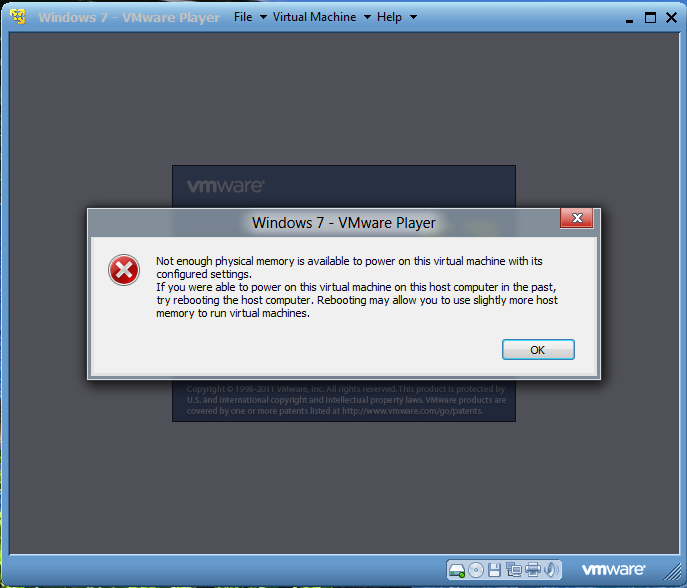
Windows 8 Dev Prev - VMware Player Error

This is a bit interesting.  Apparently something changed with respect to how applications query for available memory on the physical host.  At least, as far as how VMware products query for it.  I created a rather mundane Windows 7 32-bit guest machine and tried to launch it, but it won't launch.  Even though I have 8 GB of physical memory on the host, assigning 1 GB to the guest blows its mind.

Monday, August 29, 2011

FLEXlm and your IT Department

I really wish more people using FLEXlm would at least sit down and talk with their IT department and act like a "team".  You know: Act like they work for the same damn company.  One of the most common mistakes I've seen is when the CAD group and the IT department develop an animosity towards each other, and any hope of cooperative planning and execution is pretty much destroyed.  It puts the company in the position of setting the baby in the street waiting for a truck to come along and run it over.

When you involve your IT department, you gain the advantages of expanded resources, greater oversight, and better fault tolerance.  I mean REAL fault tolerance.  One example is backups, especially backing up the FLEXlm license files, but also option files, service configurations, and so on.  More than that, you gain the advantages of putting the entire server into a virtual environment (Hyper-V or vSphere, for example).  One of the most common risk scenarios I've seen is running all your licenses on ONE physical server.  Even two physical servers is not a good idea.  Sure, it works.  But when it fails, it means a lot of unnecessary work ahead of you.

When servers are virtualized properly (e.g. distributed, SANs, failover, etc.) you make your license availabilty resilient.  That word has been overused and burned out by marketing pukes after a few too many Martinis and golf course sunburns, but the word has a real meaning to IT architects and engineers.  It means that your systems can bounce back from potential failure.  When all licenses are on one physical server, not only are you facing the task of rebuilding a failed box, but reinstalling the licenses and dealing with hardware changes (i.e. a failed NIC or hard drive).  In the virtual world those things remain portable and tied to the virtual guest.  But WAAAAAAAAY more important than that is the ability to use VMotion or Live Migration, which automatically, and seamlessly moves a virtual guest to a different physical host node when problems occur.

Most small engineering shops don't often bother with network licensing, so it's usually medium to large shops that have a real "IT department".  If you have "servers", hopefully some are "virtual" (if none of your servers are virtual, it may be time to have a discussion with your IT staff), and if you have virtual servers, you should be considering that approach for your FLEXlm servers.

Monday, May 9, 2011

I'm Almost Semi-Famous!

Shaan Hurley asked me to write something for his blog as a guest, so I wrote about the significance of Autodesk announcing support for AutoCAD 2012 on Citrix XenApp.

Read the article here: http://autodesk.blogs.com/between_the_lines/2011/05/autocad-2012-citrix-xenapp.html?utm_source=feedburner&utm_medium=feed&utm_campaign=Feed%3A+blogs%2Fbtl+%28Between+the+Lines+RSS+Main%29

Thanks Shaan!

And, in case you haven't read Shaan's blog, you should.  He also takes incredible photos of places he travels to, which I highly recommend checking out.

Tuesday, April 26, 2011

When to SnapShot your VMware Guests

To non-nerds that title probably sounds like a mental meltdown, or some bizarre Xbox 360 game tactic.  I've learned the hard way, that when you create a new guest virtual machine, to do the following:

  • Snapshot BEFORE installing the guest operating system
  • Snapshot AFTER installing and patching it up to date
  • Snapshot BEFORE installing any non-standard roles/features or add-ons
  • Snapshot BEFORE installing any third-party products

If you're going to use the guest to perform SYSPREP and WIM capturing:

  • Snapshot it BEFORE running SYSPREP

That last one has saved me more time and headache than I can count.  In fact, I really cannot count.  I just fake it pretty well.

Wednesday, March 2, 2011

What I've Accomplished This Week

  • Packaged Office 2010 using OCT and Config.XML modification to deploy with SCCM
  • Wrote scripts to customize MED-V client deployments via SCCM
  • Wrote scripts to customize MED-V client workspace management features
  • Worked on integrating SCCM with a web interface and SQL
  • Installed and testing IE9 RC, Chrome 11, and Firefox 4
  • Testing the IE9 Developer Tool (F12) Network Trace toolset (very nice!)
  • Updated my Google Chromebook CR-48 to the Dev Channel (0.10.x)
  • Finished reading a few books:
    • Dan Brown's "The Lost Symbol"
    • Laura Hilldebrand's "Unbroken" (very good!)
  • Started reading "The Accidental Billionaires"
  • Reading samples of several books to decide on which to buy next:
    • Don Rumsfeld: "Known and Unknown"
    • Dan Brown: "Digital Fortress"
    • a few others
  • Watched "The Town"
  • Ironed four shirts
  • Polished one pair of brown shoes
  • Ran my first full mile, without a break, since I was in my 20's - just last night!

Thursday, December 23, 2010

Virtualization Tips

USB External Drives

If you bought yourself a nifty USB external hard drive to hold your VM files, you may find it sometimes acts a little sluggish, even occasionally crashing the VM host app (VMware, Virtual Box, whatever).  One thing you might want to try is setting the performance mode of the USB device.  To do this on Windows 7, right-click on the drive assignment in Windows Explorer, and select 'Properties".  Then click the Hardware tab, and select the specific device in the disk drives list.  Then click the "Properties" button at the bottom.  Then click the "Change Settings" button, select the "Policies" tab and set the Removal policy to "Better performance" instead of "Quick removal"

Active Directory Synchronization

If your VM guests are joined to an AD domain and you find that the guests drop off the domain every few weeks, it's most likely due to the computer account password synchronization getting wacked.  This can happen if the machines are powered off longer than the default resync cycle period, or if you reset (roll-back) to a snapshot from prior to the last resync.  You can modify this as follows:

HKLM\System\CurrentControlSet\Services\Netlogon\Parameters\DisablePasswordChange

Change this from 0 to 1.

If you are working with snapshots, you may need to implement this on each snapshot up to the parent state.

Merry Christmas!

Wednesday, December 8, 2010

Book Follow-Ups

As I expected, no sooner would I get this published than I would get some corrections and reviews coming in.  This is good!  Tom Stoeckel and Dan Scales whipped out a rather interesting script to "Uninstall AutoCAD 2011" (which goes much farther into detail than my own).  Although, I may post something soon akin to this (by the way: *never* hard-code local paths or C:\ in scripts).  Anyhow, this is all good and it means progress is being made and good things are being shared.  End result:  YOU win.  This is the best outcome, right?  I think so.

One correction that came in from review is in regards to the statement on pages 23-24 in the book, about Autodesk's official stance on virtualization.  I stated, as they have published regarding 2010 products, that virtualization environments for their products (with the exception of two named situations) are prohibited by the EULA terms.  I am now told, by a credible source, that this has been relaxed for 2011 products.

What didn't make it in the book:

Some things I just didn't get done in time or flat-out overlooked, until after it was published.  These items will be posted on this blog in the coming weeks.  Some have to do with FlexLM® and FlexNet® topics.  Some have to do with System Center Configuration Manager 2007 topics.  Some have to do with mass deployments.  I think, however, that I got the bulk of what I wanted to say published.  The rest is basically embellishment or extension from that.  Anyhow, I am glad people are reading it and giving me feedback.  I really appreciate that!

Friday, October 15, 2010

Pros and Cons of Virtual Test Machines

Most people know what I’m talking about when I say “virtual test machines”, but I’m sure some of you do not.  Or aren’t 100 percent sure anyway.  In any case, it is simply the practice of setting up virtual machines (aka “guest” computers) to support testing of various things.  In my particular case, it involves software packaging and deployment testing, but I’ve used this for modeling Active Directory migrations, SMS and ConfigMgr deployments, Group Policy modeling and management, scripting, and just plain old diabolical fun.

Most anyone working in IT that uses VMware, VirtualPC or Virtual Box, or whatever, is well aware of the good things it provides.  It makes life easier.  But there are always caveates.  Nothing in IT is a panacea of pure goodness. There is always something to be careful to avoid or prepare for.  Virtualization is no different.

I will say that there are more good things (benefits) than bad things (drawbacks, disadvantages), so in the end: proceed.  All I’m doing is shining a flashlight on a few creeky boards you may step on eventually, so keep your eyes open.

Pros

  • Protected isolation
  • Faster provisioning
  • Faster roll-back via Snapshots
  • Multiple test platforms via Cloning
  • Portability
  • Less hardware, reduced footprint/power/heat

Most of these are self-explanatory.  Virtualized computers provide a protected bubble in which to do things that would otherwise cause changes that are difficult (or impossible) to recover from.  A mistake with a Group Policy in a production environment can be disasterous and ugly.  The same mistake in a virtual environment is much more easily undone.  The usual advantages cited for data center virtualization apply equally to desktop virtualization. 

I will say that I give a slight tip of the hat to VMware Workstation for “snapshots” over VirtualPC.  I don’t recal VirtualBox providing this feature either, but it’s a HUGE benefit to virtual testing.  Not just for being able to “roll back” (aka “revert”) but also for easily building state trees which allow you to fork one virtual machine into many in short time, each having a unique delta over the previous.  For example: a baseline machine, then snapshots for adding various applications, service packs, and combinations, maybe six or seven machine states you can jump to at any time.

But as I said: there are caveates.

Cons

  • Domain synchronization
  • Tools / Additions updates
  • Hardware Interfaces
  • Isolate “test” from “production” for availability/management

Let me explain these a bit more:

Domain synchronization comes into play if you join your virtual machines to a functional Active Directory domain.  Each computer in a domain environment synchronizes its own password with the AD on a regular schedule.  If you roll a virtual machine back to a state that preceeds the most recent synchronization, guess what happens?  It’s like trying to logon with your older password.  BZZZT!  Fail!  The computer will display messages at logon stating the the domain controller could not be found and so on.  Simply rejoin the virtual machine to the domain to reset it, then re-snapshot it and delete the older snapshot (so you don’t do it again).  You will need to do this about once per month typically.

Tools (aka “Additions”) updates.  These are special installations that come with the virtual machine software which are installed into the virtual “guest” computers.  These packages provide enhanced interface between the virtual machine and the physical host.  Usually they update the video and network drivers, but may also add things like drag-n-drop or clipboard support, USB plug-n-play support and so on.  VMware updates these fairly often (a few times a year).  If you update VMware Workstation from 7.0 to 7.1 or 7.1.2 (etc.) it will also prompt you to update the tools installations in each virtual machine.  The more virtual machines you have, the more work you have waiting for you.  And when you use snapshot trees you will need to open each captured state in the tree and update the tools as well.  A bit of a pain, but it scales with the number of virtual guests you use.

Hardware interfaces.  Some software requires connecting to a hardware device which may or may not behave well with a virtual machine.  Some older (“legacy”) parallel and serial port devices, or certain USB devices, may not auto-detect between the physical port and the software running in a virtual machine.  In some cases, you will still need to maintain a physical test computer for such purposes.  This is not at all uncommon.  If you support hundreds of applications, you won’t typically be able to go completely virtual with your testing.  But as Confucius said: “any virtual is better than none”.  Ok, he might not have said that.

Isolate “test” from “production”.  If you plan on virtualizing desktop computers for testing, that’s one thing.  If you’re going to do that with production computers, that’s different.  I won’t go into all the issues, because the list is forever long and I’m still burning my candle at both ends on a big project, but thinks of these aspects to your production environment:

  • Anti-virus and anti-malware centralized management (when VM’s rollback state constantly)
  • Active Directory and Group Policy settings (same)
  • Running push scans from a server (when VM’s are offline)
  • Deploying service packs and application updates (and VM’s rollback constantly or are offline)

It can be messy to manage.  It’s usually best for controlled testing.  I’m not talking about VDI implementations or MED-V or anything like that.  This is with desktop-oriented, virtualization of computers on top of physical computers.

I’m not at all trying to discourage anyone from virtualizing computers, especially for testing purposes.  I’m just saying that it’s not something to walk into blindly.  Plan ahead and it will be a smooth journey.

Dear Microsoft App-V Folks:

If you were really serious about putting this gem of a product to widespread use, you would get busy doing the following:

1. Make the client free to download for all Windows 7 users

2. Make App-V available like Hyper-V currently is (licensing and cost)

3. Initiate a vendor partnership program to offer incentives to provide sequenced applications, maybe as part of a subscription "Fast-Track" advantage program.

4. Actually get behind the whole program instead just paying lip service.

Thank you!

Yours truly: Tired software packagers of the world

Friday, September 3, 2010

Building Your Own Group Policy Virtual Lab

It's a been a long time since I wrote anything about Group Policy.  I'm sure some of you are happy about that, and maybe wish I'd take even longer, but oh well.  You must endure the torture that my second-rate writing brings to unsuspecting eyeballs and those with challenged mouse clicking fingers.

Lot's of folks are skiddish (not Yiddish, an entirely different thing) about practicing and learning about Group Policy in a "safe" and protected environment.  Some will simply create a few "test" OU's and test user and group accounts in their production Active Directory environment.  That's risky.  It can actually be downright "stupid-dangerous".  Two words that go together like bacon and eggs, Tom and Jerry, politics and lying, and a few others.  The key word is "tatooing", which can render your environment, in technical terms: fucked up beyond all repair (that's FUBAR).

The better, smarter, safer way to go is using a virtual environment.  If you haven't used a virtual machine setup before, maybe you've just read and heard about the concept, it's very easy.  VERY easy indeed.  And not only cheap, but FREE.  I have to assume that if you're working with Group Policy, then you have an Active Directory environment nearby.  If you have Active Directory, then chances are you have Windows Server handy.  You are ready to go.

  1. Install a Virtual Machine product.  There are several free products to choose from, including VMware Player, Sun VirtualBox, and the ubiquitously sucky-ass VirtualPC from Microsoft, among others.  I prefer VMware Player or VirtualBox.  If you can afford VMware Workstation that's a better option since it supports "snapshots", which are very VERY helpful.
  2. Create your Virtual Machines.  You will need at least one Windows Server VM and at least one or two Windows client VM's.  For our examples, and because I **LOVE** Group Policy Preferences (or GPP's), I will recommend Windows Server 2008 or 2008 R2, and Windows 7.  If you need to support XP in your environment, then by all means: add a Windows XP VM to your mix.
  3. Prepare the Virtual Machines.  Go ahead and install the operating systems and name the computers and install any/all updates.  I also recommend downloading any utilities like Admin Tools, Resource Kits, Sysinternals tools, and so on.  Be sure to consider item #4 during this step as well.
  4. Be Careful with Network Settings!  While you are building each VM, you can leave the network setting to "bridged" or "NAT", so that you can download updates and utilities, etc.  But before you make the jump to creating the AD domain environment, move all your VM's into a private virtual network.  This is VERY important!  I won't dive into the procedure for this because it's best left to the documentation for your chosen product.  It's not difficult.
  5. Promote the first AD Domain Controller.  Go ahead and add the AD Domain Services role and run DCPROMO to create the first domain controller.  Make sure you are running in a private virtual network first!!  If you use Windows for DHCP management be sure to disable the built-in DHCP service provided by the virtual machine software.  Document the settings!  The Forest/Domain names, IP addresses, server names, admin and DSRM recovery passwords, etc.  After the DC is promoted and rebooted, be sure to give it some time to settle in, then run through your diagnostics to make sure it is operating properly.
  6. Join Desktop VM's to the Virtual Domain.  Set up each desktop VM and join them to the new domain.  Make sure they join properly and everything connects together.  This will feel like putting together a playset for your kids.
  7. Snapshot or Backup.  If you have VMware Workstation make snapshots of each VM to provide a fall-back restore point so you don't lose all the work you've done to this point.  If you don't have snapshots available, you can simply power down each VM (using the internal "Shutdown" not just killing the VM) and copy the pertinent config and disk files to another location.  The intent here is to avoid losing all the work you've done.  If you screw up your lab, or the physical host crashes, you can rebuild and get your lab back to this point in time and save yourself a lot of pain.
  8. Start Playing.  Now that you've got your lab up and running, and you have the safety net of a backup or snapshot, you should be ready to start trying things out.

As a standard practice, I recommend installing RSAT on one of your Windows 7 VM's so you can manage AD and Group Policy features from a desktop, rather than relying on logging into a DC every time.  This is usually more realistic.  It's not usually recommended to constantly log into a DC to do daily check-ups and modifications unless you have to.  This is especially true if the DC has other roles on it like File/Print, Web services and so on.

Even though you are in a VM environment, it is still a good idea to create test OU's and test user accounts, test groups, test computers, shares, and so on.  This offers you additional layers of safety.  It's easier to blow off a bad GPO configuration against a test OU and test accounts, than it is to recover the entire VM environment.

The scope and scale of your virtual environment is only limited by two things: disk space and memory.  Those are both limited by budget.  If you have the budget to expand your disk storage capacity (and redundancy) and add memory, do it.  It's worth it if you intend on making this a serious project.  There is no such thing as too much memory or storage capacity.  The more you have available, the more you will consume.  That's a fact of nature.

If you have enough resources available you can expand your environment and your testing to include things like sub-domains, multiple forests, multiple sites and site link replication, DNS configurations, DHCP scopes and options, VLAN's and so on.  You can also add other products to your environment such as Sharepoint/MOSS, System Center products like Config Mgr, SCOM, DPM, as well as Exchange, WSUS, and other products (not to mention scripting and non-Microsoft products).  It's also perfect for practicing those topics for your upcoming certification exam that you may not even have in your production environment.

But I digress.

The point of this article was to help with building a virtual lab to work with Group Policy.  I got a little sidetracked, but hopefully in a good way.  I hear from people all the time that say they are hesitant to practice with Group Policy settings for fear of breaking their environment or creating a mess they might have to dig their way out of (adding yet more work to their already busy day).  Having a virtual environment allows you to try things and not impact your real environment, so you can move ahead without the worries.  Take an afternoon, stay after work, or a weekend morning, and build your virtual lab.  It'll pay off for you, I promise.

Wednesday, August 25, 2010

Skinning Cats the Nerd Way

Today I got a walk-up request: "We need to put a unique INI file on 500 machines and then invoke a client-side utility to import the INI into a client-side database which is part of a client-side application that uses that configuration data to establish secure connections to a remote server.  The clients are running inside Microsoft MED-V.  We have a spreadsheet with the unique ID-pairs for each of the 500 computers, but there's no names.  We need to fetch the names from AD and populate the spreadsheet to match them up and then use that to generate the INI files."

Piece of cake.  Um… ok…

  1. Add a column to the spreadsheet for the computer names
  2. Run a query to collect the computer names from a specific OU in our AD environment and push the names into the column in the spreadsheet.  Save the spreadsheet (it doesn't change ever again after this point, except to add future names… maybe).
  3. Obtain a template of the INI format.  Replace the unique values with sentinel strings (e.g. "PID1" and "PID2", etc.)
  4. Read the INI template into memory
  5. Read the spreadsheet rows, and for each row, create a copy of the INI template cache by substituting the sentinel values with actual values.  Save the copy to a unique INI file in a designated folder.
  6. Run a PSEXEC (Sysinternals) remote process to invoke the client-side .exe utility to import the INI data from a specific INI file from the shared folder across the network.

Questions: 

  1. How many scripts will it (did it) take to accomplish this?
  2. How long will it (did it) take to write it / them?

Answers:

  1. Whatever works for you.  For me it was three scripts:  One to query AD and populate the spreadsheet column.  Another to read the spreadsheet and generate the INI files.  And another to iterate through each of the INI file names and execute PsExec with the appropriate command syntax for the utility and the unique INI file and path.
  2. Who cares.  I can (and will) say that if it takes anyone more than 2 hours they're taking too long.

Tid-bits:  MED-V runs a virtual client which is joined to the domain as its own unique name, so you can access it like any other computer provided you have sufficient permissions and the access gateways are opened up (firewalls, services, etc.)  So the PsExec script is aimed at the MED-V clients, not the physical clients.

Friday, July 23, 2010

How Cool it *Can* Be

So, as a proof of concept, a few months ago I setup a lab with the following ingredients:

  • A Windows Server 2008 AD domain controller
  • A Windows Server 2008 App-V / File server
  • A Windows 7 client
  • App-V packages for Office 2007, Paint.NET, FireFox
  • Group Policy Preferences: Drive Mappings, Desktop Shortcuts (to the server-based App-V shortcuts)

Net result:

Take a new computer, load it with Windows 7, join it to the domain.  Reboot it.  When the first user logs on they have all their drive mappings and shortcuts to the applications (the shortcuts appear as if they're already installed).  When they double-click a shortcut, the App-V client briefly says it's caching the package and then it launches like a normal installed application.  After that, it essentially *is* a normal installed application (after being cached once).

Almost zero-touch.

Add to this MDT and SCCM with OSD and you can absolutely have "zero-touch" deployments.  Yes Virginia: It is possible.

This is obviously a basic setup and wouldn't work in a business environment without some adjustments and tweaking.  But with Group Policy Preferences and Item Level Targeting, you can tailor policy settings to specific groups or computers with minimal effort.  It can also help to determine which applications should be in the layer "0" image (WIM+sequence), and which should be in layers "1" and higher, and let Group Policy and App-V handle those.  Keep in mind that applications which are managed by their own concurrent licensing service (think FlexLM and FlexNet Manager) can be deployed in layer "0" using a sequence and you can avoid pushing 10 Gb packages over the network (think Autodesk 3DS Max, Civil 3D or Inventor).

To me, this is where Microsoft shines, and they rarely get credit from mass media for how much they've accomplished at such a relatively low cost.  If we were still on IBM and DEC technology it would cost millions of dollars to do this.  Microsoft made it possible to do this for even the largest companies for basically chump change.

Thursday, December 31, 2009

Software Deployment: Old vs New

I’m pumped on some really kick-ass strong coffee right now, so I may be typing way ahead of my brain, but I can’t be sure.  Anyhow, here goes…

Part of (or most of, depending upon whom you ask) my “day job” revolves around packaging software for mass deployment.  What does that mean? (you ask).  In layman’s terms it means we take a commercial software product (not always, but usually) and wrap it with some programming code (aka “script”) to make it so it will install without prompting for any input or clicking any “next” buttons along the way.  We do more than that also.  We remove or create shortcuts, we copy additional files and modify registry keys, etc.   Anything we need to do so that it installs in a way that suits the needs of our customer.  Our customer is a huge, 10,000 headed beast that beats on computers with four hands and never looks at the keyboard.  So we have to be sure we nail everything down to weather the storm ahead of time.

The Old Way: Package and Install

Because we’re pushing out unattended installations, we have to take enough time early on to predict problems, scenarios, and build in solutions to handle them without any eyeballs watching it “go”.  We find out later how it went by collecting log files and looking at reports.  It’s a laborous process and involves following a meticulous path from start to finish. 

Questions that need to be addressed along the way:

  • Is this a new install or an upgrade?
  • Does it depend on any other products or components?
  • Are there any previous versions on the clients?
  • Do previous versions need to be removed before running the install?
  • Are there issues with machine vs user settings?
  • Are there pre-requisite issues like JRE, .NET, etc. to worry about?
  • Does it install with an MSI package or older Setup.exe garbage?
  • Does the vendor even support an unattended installation?
  • What system requirements need to be validated?
  • What conflicts are known with other products or components?
  • Does the product create or rely on any services running?
  • How does the product behave on first-launch for a limited-rights user?
  • Does it run properly with a limited-rights user?

And this is only dealing with the installation.  We also have to build in the logic and code to handle a requested uninstall.  That involves other steps:

  • How does the product handle uninstalls?  MSI or Setup.exe?
  • What is left behind? Folders? Files? Registry keys? Services?
  • Does it leave behind user-profile components that need to be removed?

So our installation code might typically follow this logic path:

  1. Check user rights
  2. Check system requirements
  3. Check for existing previous versions
  4. Remove (and clean-up) existing previous versions
  5. Install new version
  6. Configure, Tweak, Adjust
  7. Request a new client inventory scan
  8. Exit

Each and every step along the way involves a lot of code and a lot of log file output.  The log file output is necessary to support deployment assessment and troubleshooting.

When the product is replacing a long ancestry of previous versions, the code can get quite ugly and long, as it has to check for each and every version and most often approaches the removal and clean-up in unique ways for each version.

The New Way – Application Virtualization

Before I get started, let me say that App-Virt is not a panacea.  It will not work with every single software product on the market.  But it works with the majority of them, with caveates of course.  Since each vendor has their own unique way of smoking crack and snorting acid as they write their product code and (even worse) shooting up heroin and peanut butter as they develop their installation packaging.  Some examples I like to toss out are Adobe and Oracle.  For whatever reason, these two come to mind as being some of the worst writers of installation packaging code, but whatever, I digress.

Because of how (most) application virtualization technology works, most of the headaches involved with the “old way” are simple non-existent.  There are still some issues to deal with, and it varies by product and vendor, but the level of effort is typically much lower and the consistency of reliability is typically much higher, so I’d call anyone who dismisses the technology without actually having put it to use is simply a complete fucking idiot.  But alas, I digress again. :)

I will summarize application virtualization as follows (mainly because there’s already 40 bazillion web sites and articles that explain it better and in more detail):

It places an abstraction layer between the application and the operating system environment.  It doesn’t even matter if the operating system environment is “physical” or “virtual”.  Anywhere that the application wants to reach out and write to, or read from, the registry, a system folder, etc. it is intercepted by the abstraction layer and everything is fine.  Even though, under the hood, in a dark alley filled with smoke and bad guys, the requests are simply redirected to safer places which do not impact or even rub up against the real host system.  So the application wants to read or write to something in HKEY_LOCAL_MACHINE, or C:\WINDOWS\SYSTEM32 or \PROGRAM FILES\ or whatever, the AppVirt layer redirects that to files within the user’s profile.  The entire application is housed in a logical bubble that remains intact and cohesive yet has no direct impact on the host system.

What does this mean?  What does this solve?

  • The new application doesn’t “see” or even care about any previous versions of the application.
  • The application might require Administrator rights but works fine even when launched by a user with limited rights
  • The installation has ZERO impact on the host
  • The removal has ZERO impact on the host
  • There is much less (usually ZERO) effort involved with chasing down conflicts, versions, clean-up, etc.
  • Removals are simple, clean, effortless
  • Upgrades are easier than picking your nose (assuming you have a normal nose, and hands with working fingers)

What does a typical “packaging” scenario look like then?

Well, first off, they don’t always call it “packaging”.  Some vendors assign different names, such as “sequencing” and so on.  But the process works much like the older “capture” process used for older Wise install Setup.exe packaging processes.

Put simply, you start a capture process on a clean “reference” computer.  You run your product installation, perform any after-install tweaks, clean-ups, and so on.  Then you “end the capture” and it rolls up a sequence of what changed from the initial capture point.  It then offers you a logical dialog interface in which to make additional adjustments and then you save it and post it for deployment.  The deployment process varies from one vendor to another. 

For example, Microsoft App-V (formerly SoftGrid) requires pre-deploying a client agent that allows you to “stream” new product packages to clients on a bit-by-bit level, using RTS or RTSP (for secure, over the web deployments), or you can wrap the package in an MSI and deploy it using traditional means like scripts, Group Policy, SMS/SCCM/Altiris/Tivoli/whatever. 

VMware ThinApp (formerly Thinstall) bundles the client agent inside the package itself, making it completely portable.  So you can deploy it using file shares, web pages (HTTP or SSL for web deployments), Group Policy, scripts, etc.

There are others and each provides additional features and caveates to address deployment issues such as bandwidth concerns, restarted deployments (think laptops), access control (Active Directory, etc.), versioning and so on.

So in the case of App-V using streaming:

  • Launch a clean reference computer (I prefer within VMware)
  • Launch the App-V sequence capture
  • Launch the vendor software product installation
  • Run the product
  • Adjust settings, modify files, folders, registry, etc.
  • End the sequence capture
  • Adjust the package in the sequencer utility
  • Post the package to your streaming server
  • Clients request the package and stream it to their desktop

Using ThinApp:

  • Launch a clean reference computer
  • Launch the ThinApp capture process
  • Launch the vendor software product installation
  • Run the product
  • Adjust settings, modify files, folders, registry, etc.
  • End the capture
  • Adjust the package in the capture utility
  • Save the package and post it to a file share or web folder

The Deployment

Let’s say you have Windows Server 2008, even on one domain controller, so you now have Group Policy Preferences in your environment.  Use it.  Configure a GPO to place a shortcut on the user’s desktop or start menu.  They click the shortcut to a ThinApp package which resides on a shared folder or web folder.  It streams down in the background and launches.

But what if you don’t have Windows Server 2008 and don’t have GPP?  No problem, you can place the shortcut, or even download the entire application package, using scripts, Group Policy or other tools at your disposal like SMS, System Center ConfigMgr, Tivoli, Altiris, etc.

Updates

So now you need to deploy “service pack 1” to all these clients?

No problem. 

  • Open the package within the package sequencer/editor
  • Install the service pack
  • End the capture
  • Increment the package “version” number
  • Post it back on the deployment share

Clients automatically check for a newer version number each time the package is launched.  If the source location has a newer version number, it’s automatically downloaded and cached and launched.  User now has SP-1.

Summary

The biggest differences between traditional scripted/packaged deployments and virtualized deployments, is that the latter provides:

  • Shorter preparation and deployment cycle
  • Shorter upgrade and update deployment cycle
  • Shorter removal/clean-up time
  • Reduce or Eliminate application conflicts
  • Reduce or Eliminate user rights “holes” for admin-only apps
  • Running otherwise incompatible products on the same desktop (at the same time)

Caveates

Nothing is perfect.  Not even Kim Kardashian.  The only “downside” to most of the App-Virt products is that they’re aimed (and priced) at larger customers.  I’m talking large enough to where you actually use Microsoft SELECT or EA licensing (even if you plan on using VMware products, it’s about the scale of your environment).  You can look at the pricing yourself and see what I’m talking about.  It’s cool enough for a shop with only 30 desktops or laptops to support, but may not be worth the price tag until you get to a much larger number.  It’s one of the peaves I have with Microsoft and EMC/VMware.

Tuesday, January 20, 2009

Virtual Box 2.1 on Windows 7

I couldn't get VMware Workstation 6.5.1 32-bit to install on 32-bit Windows 7 Ultimate.  It just died every time I tried.  Then I tried VirtualPC 2007, same result.  Ugh!

Then I went to run the Virtual Box 2.1 installer (32-bit) and it choked also, but then Windows tossed this bad-boy at me...

Solve a problem with Windows 7 beta

An issue with the Customer Experience Improvement Program (CEIP) client in Windows 7 beta is causing Explorer and some MSI-based installers to stop working properly.

To solve this problem, follow these steps:

  1. Click the Start button , click All Programs, and then click Accessories.

  2. Right-click Command Prompt, and then click Run as administrator. In the User Account Control window, verify that Program name is Windows Command Processor, and then click Yes.

  3. In the Administrator: Command Prompt window, type or paste the following text at the prompt:

    reg delete HKLM\SOFTWARE\Microsoft\SQMClient\Windows\DisabledSessions /va /f

  4. Press Enter to install the solution.

  5. If The operation completed successfully displays, close the Administrator: Command Prompt window to complete this procedure. If "ERROR: Access is denied" displays, repeat this procedure from the top, making sure you clicked Run as administrator in step two.


    It works!  Now, I'm off to try out Virtual Box...


    EDIT:  I really like Vbox.  The interface is kind of a best-of-breed between what works in VirtualPC 2007 and VMware Player and VMware Workstation.  Sort of.  Very "web 2.0" looking.  I like it.  It also opens .VMDK and .VHD disks without any problem and boots them just fine.  All of my VPC and VMWare guests work fine in it.

Thursday, November 27, 2008

Patching Offline VM's. Not Just Yet.

Sheesh.  I saw this recent post about the 2.0 version of the "Microsoft Offline Virtual Machine Servicing Tool" and thought: "Wow!  Patch offline VM's?  Cool!"

Not so fast.

After reading the docs (one short doc actually) it turns out that it simply works with SCVMM to iteratively launch each offline VM, initiate a wuauclt scan, then fire off the update process and then shuts down the VM.  Smoke and mirrors.  I was really expecting something uber cooler than that.  Not that this isn't useful, it is.  But being able to inspect dormant VM's to generate a list of needed updates and then (drum roll please) be able to somehow slipstream the patches into the VM's while still being dormant.  

The patch process could simply stuff in a "run-once" registry entry to kick off a standard client bootstrap to download and install patches upon the next start-up.  That doesn't seem too impossible.  The VHD's are simply file-based encapsulations of the disk image.  It should be possible to mount the VHD like you would "slave" a physical disk, and comb through it to do what you need and then unmount it.  Why is it necessary to boot the whole VM to do this?  Doesn't make sense to me.

Friday, October 17, 2008

Obstacles to Business Environment Virtualization


A lot has already been said and written about why many business customers have not climbed aboard the virtualization bandwagon.  VMware has probably spent more time and effort on analyzing that perplexing issue than anyone, but all of the newer players have begun to scratch their heads as well.  Adding the already-difficult aspects to the ever-tightening gauntlet of economic uncertainty and constraint, the result is an ever-more skeptical view about the virtues and practicality.

Anyone that's spent time dissecting the ramp-up costs, knows about the work it takes to convince the budgetmeisters of jumping into datacenter virtualization.  This is the most likely environment where it takes hold from an IT perspective.  Desktop virtualization has become so common as a testing environment that it's as boring as LAN cabling these days.  It's the jump from that level to actually consolidating servers and server roles that makes everyone hold their breath and hope for the best outcome.  The stated benefits are well known:  space and resource consolidation, reduced energy costs, reduced footprint management, increased flexibility and redundancy, and so on.

So, with all that great stuff, why aren't ALL businesses rushing to move their physical servers into virtual environments?

You might say it's the economic mess causing it.  But this has been a problem for vendors long before the economy turned sour.  Long before that.  There's always a segment of the landscape that rushes the beach first.  Eager to take the fortification and put up a flag as an "early adopter", followed closely by the "avante garde" customers.  But all of those combined account for a small portion of the entire market which has a room with physical servers, albeit a "data center", which could (possibly) benefit from going virtual.

So why is it?

Here's what I think... It's the vendors' fault.   The vendors have retracted from face-to-face marketing in favor of "marketing from a distance".  The costs of travel, salaries, resources and sheer logistics have all ganged up on the finance department to rethink priorities and that's been a powerful force against the mobile salesperson.  Taking current and potential customers out for the fancy lunch was a nice job perk, and probably didnt' hurt sales much, but finance folks only care about "COSTS".  The problem is that focusing on one side of the equation creates an imbalance, and the imbalance here is that customers aren't seeing as much "in-your-face" marketing of their products and services.

I work in the IT department for a major corporation that spans the globe, and after having been inside that environment for years I can easily see the impact and difference of this.  In the 1990's dot-com boom, vendors were hanging around like flies at a Summer picnic.  They were just everywhere.  They became as commonplace as the guys that stock the drink machines.  Demos seemed to be much more common also.  Not online WebEx or Placeware (heh, remember Placeware?  *sigh*...) but actual demonstration held in a conference room, a hotel banquet room or whatever.  Swag was handed out like campaign buttons at a convention.

Times have changed.  Results have also changed.

With things going the way are in the credit and financial markets, the squeaze is definitely being felt all up and down the supply and consumer chain.  Technology markets have enjoyed a delay in some respects that other markets have taken on the chin (auto sales, real estate, etc.)  How long our industry will remain bouyant is anyone's guess.  I've already taken a hit on the chin with a layoff earlier this year.  I'm just starting to breathe again, but I don't take anything for granted anymore.  I may never look at life the same way.  It was my 9-11 wake-up.  One of the things it helped me see better is how important it is to market aggressively.

VMware is facing a huge, HUGE threat from Microsoft.  This is pretty obvious.  And it's not unthinkable that like past Microsoft adversaries, they too will fall by the wayside.  But there will be others in line to either join or fight.  Being as vertical as they are, VMware can't afford to stand still, or even march in the same direction too much longer.  They seem to be making strong effort at diversifying and grabbing some acquisitions along the way, but they're still too narrowly defined to battle indefinitely against Microsoft.  They will have to adapt to new strategies or whither away.

The list of fallen foes is long enough that VMware should know better.  So why then is Microsoft gaining ground so much faster than they are?  Because Microsoft starts with a "name" and a huge customer base, for one.  Then there's the "free factor" which Microsoft is very good at playing.  They did it with IE against Netscape, and WMP, and Outlook Express and games and utilities and so on.  They're doing it again with virtualization.  First it was Virtual PC.  Now it's Hyper-V.  VMware is scrambling to counter this strategy but they can only give away so much before it starts to cut into their bottom line to the point that they hemorage and then the staff starts running for the exits.

Microsoft is vastly more diversified and therefore more resilient to revenue loss in isolated business segments.  The only limitation is litigation (the DOJ and EU).  They will continue to circle their wagons on VMware until they implode or get acquired by someone either bigger than EMC or someone on another channel, out of Microsoft's way.  If we truly aspire to a "Free Market" system, the laws of economic nature will not bode well for VMware in the months and years ahead.  VMware arguably has superior, more mature products and technologies than Microsoft does.  But Microsoft never stands still and they're famous for closing the gap and going for the throat.

Did I just reiterate what everyone else already has?  Yep.   But why?

Because it's reason enough to make it even more imperative that VMware get a salesforce out on the road (or in the air) and meeting customers face-to-face.  Doing demos in their faces.  Handing them goodies again.  Bring back the firm handshake.  It's the only way to buy more time, and possibly turn the tide in their favor.  It's a long shot, but it's their only shot.

Wednesday, October 1, 2008

Time for VMware To Go Viral

I've been watching the chess-like moves of Microsoft, Citrix and EMC/VMware since all entered the ring and began their testosterone-fest pose-down months ago. It seems like each contender has their eye on the championship belt wrapped around the midsection of VMware, weighing in at 500 lbs, but rapidly losing weight. If they don't do something soon, they're going to get knocked down to the welterweight class, maybe featherweight.

Let's face it, VMware is not a diverse company in terms of product streams. Everything they do and offer, comes down one pipeline into one general market: virtualization. Diversity is EVERYTHING in the tech world. History is a great teacher. Lotus, Netscape, WordPerfect, need I say more? VMware is walking in the same footsteps as those guys and they've attracted intense attention from the same adversary: Microsoft. But this is 2008, and Microsoft isn't the only player in that space. In the past, whenever they stepped into the ring, others stepped out or figured out how to partner with them and survive. Like Remora cleaning a Shark.

Not this time. More have stepped in along with Microsoft and all are gunning after the same target: VMware. The problem is that it doesn't look like VMware has learned anything from past Microsoft battles and conquests. Nothing at all. Rather than diversifying, they're still expanding into the same narrow market space. Rather than getting innovative with licensing and pricing, they're sticking to the same flagship model and trying desperately to protect it. I don't see it working much longer. The rapid exits of top-level management and talent is a clear sign that people are seeing bad things ahead.

Don't get me wrong. There's nothing wrong with VMware's products. They make very solid products and their marketshare is clear proof that the world understands that. However, the economy is weighing extremely heavy on the tech industry,and even heavier on customer budgets and budget plans. Microsoft is indisputibly better positioned to cut prices and make more aggressive changes to out-flank their competitors. They simply have more eggs in more baskets and more resources to make more eggs and more baskets in shorter time. As with everything Microsoft does, their 1.0 products get an eye and a lot of scorn and disrespect. Most of the time deservedly so. Then comes 2.0 and they get a serious consideration. And then 3.0 when they usually choke off the competition.

VMware surely sees SCVMM and Hyper-V as Microsoft's 2.0 attempt (following Virtual Server as being 1.0). When the next iteration of Hyper-V and SCVMM arrive, it will only take clever pricing, licensing and marketing for Microsoft to begin choking off VMware, whether slowly or rapidly. That only depends on how much effort Microsoft exerts and what the economy is like when they do it.

What VMware needs to do right now is get crazy. Un-shackle their enterprise-oriented licensing model and steep pricing to allow SMB's to benefit from their goods. Right now, a small business can't even begin to play with ThinApp or Virtual Center, simply because of the entry-point licensing requirements and the rather difficult pricing model. Microsoft has placed the same choke collar on App-V by requiring Software Assurance and MDOP, which almost no small business can even consider, let alone qualify for.

I've said it before: Small businesses (rather: SOHO) can benefit from ThinApp, XenApp, App-V, SVS, etc. in many ways. Disaster recovery comes to mind quickly. But there are other savings in terms of periodic updates, upgrades and roll-outs. But that's only the smallest example. Servers and desktops may be a no-brainer for large enterprise customers, but they can be of great use to smaller environments as well.

The fork in the road is approaching fast for VMware. They'd better figure out something innovative soon, or they may be yet another notch on the bed post for Microsoft.

Disclaimer: Everything you read above (if you stayed awake that long) is only the opinion of this author and is based on nothing of any substance or importance in the grand scheme of things. Any references or links made to this article may risk your professional credibility and general peer respect. Comes with everything you see here, batteries not included.