I've been so "head-down" into multiple projects, work life, home life, no life, that I haven't really put any effort into my other techie-centric blog: "Scriptzilla". It's worth noting that there are other web sites and products using that name, but I am only affiliated with the one mentioned/linked herein.
I will be putting more work into the Scriptzilla blog as a means for offloading tons and tons of script code I've amassed over the past 30 years in I've spent in IT. Some of it will be mundane, common stuff, which is very similar to what could be found in a Google search. Some of it will be very unique and uncommon. And some will just be somewhere in the middle. But it will be.
Showing posts with label scripting. Show all posts
Wednesday, August 27, 2014
Tuesday, May 20, 2014
SCCM Lab Setup Laziness with PowerShell and Duct Tape
I've been dusting off my pointy little head with another round of "lets play set up with Configuration Manager!" and, well, I hate using GUI tools or command line stuff if a script will save me time. The time invested in smacking the keyboard and making grunting noises and laughing hysterically is recouped later with spare change and coffee spilling, so it pays off.
Disclaimer: I really don't have any duct tape right now, so you'll have to go without on this one.
Anyhow, I've been following along with a template procedure my buddy and trusted ass-kicking extraordinaire colleague and uber-technowunderkind: Chris DeCarlo compiled. One part of this procedure has me creating a bunch of AD user accounts to tie to various things. Some are for SQL services, others for AD tasks, and obviously some are for SCCM itself. (btw- Chris, you did an outstanding job on this document. Kudos!)
Here's the accounts (sorry man, but I modified a few names out of brain-damaged habit). The short names on the left are the sAMAccountName values, and to the right are their descriptions / explanations.
Disclaimer: I really don't have any duct tape right now, so you'll have to go without on this one.
Anyhow, I've been following along with a template procedure my buddy and trusted ass-kicking extraordinaire colleague and uber-technowunderkind: Chris DeCarlo compiled. One part of this procedure has me creating a bunch of AD user accounts to tie to various things. Some are for SQL services, others for AD tasks, and obviously some are for SCCM itself. (btw- Chris, you did an outstanding job on this document. Kudos!)
Here's the accounts (sorry man, but I modified a few names out of brain-damaged habit). The short names on the left are the sAMAccountName values, and to the right are their descriptions / explanations.
- SCCMRS - SQL Reporting Services publishing account
- SCCMNA - SCCM network access account
- SCCMInstall - SCCM site server install account
- SCCMDomJoin - SCCM domain joining account
- SCCMClient - SCCM client push account
- SCCMSQLSvc - SCCM SQL Server service account
- SCCMSQLAgent - SCCM SQL Agent service account
- SCCMOSD - SCCM OSD deploy and capture account
You may or may not need (or want) to create all of these, but I have the keyboard so this plane is going into the mountain and I'm the captain... so hold on.
In addition to this, I'm lazy. Yes, I know that's a shock. I'll wait as you pick your jaw off the floor. (tap tap tap tap - eyes on phone,...) ok. Rather than doing this the "right way", I do it (for lab purposes only) the "easy unrecommended way", which is to stuff all of these accounts into the "Domain Admins" group and then laugh as loud as possible.
You need two files (okay, you don't really NEED two files, but for this example it works):
- A Comma-Separated Values file (.csv)
- A PowerShell script (v3 or v4)
Assumptions
- Domain is "fubar.local"
- OU is created at root of the domain as "ServiceAccounts"
- You are logged onto the server/desktop in the LAB as a Domain Admin user
- You have faith in what I'm telling you (rotfl! okay, just kidding)
I built and tested this cardboard thing using Windows Server 2012 R2 with PowerShell v4 and some coffee, chewing gum and a few chicken drumsticks my wife just cooked (damn good too).
[CrappyCode]
$inputFile = Import-CSV "useraccounts.csv"
$strPwd = "Tarfu123"
$ouPath = "OU=ServiceAccounts,DC=fubar,DC=local"
foreach($strLine in $inputFile) {
$cn = $strLine.cn
$samid = $strLine.sAMAccountName
$ln = $strLine.sn
$fn = $strLine.givenname
$dn = $strLine.displayname
$desc = $strLine.description
$upn = $strLine.UserPrincipalName
New-ADUser -SamAccountName $samid -Name "$cn" -UserPrincipalName $upn -AccountPassword (ConvertTo-SecureString -AsPlainText "$strPwd" -Force) -Enabled $true -PasswordNeverExpires $true -Path "$ouPath" -Description "$desc"
}
$inputFile | % {Add-ADGroupMember -Identity "Domain Admins" -Member $_.sAMAccountName }
[/CrappyCode]
If you're not familiar with PowerShell, or scripting in general, you don't need to copy the [CrappyCode]. and [/CrappyCode] end tags. Those are just for entertainment. You will want to edit the domain names to protect the innocent, and whatever else you feel like modifying to suit your environmental needs. The items in red are likely the items you will want to change for your needs.
Also, the last line redirects the CSV piped content through a PowerShell pipeline into Add-ADGroupMember to stuff the new accounts into the Domain Admins group. So easy, and cheap too. Be careful of the line-wrapping headaches that come with copying from web browser windows. :)
The next piece is the CSV file (below). Note that the first line contains the logical column headings, while the remaining lines are the actual data. As long as the values are in the same relative order from left-to-right, it should work fine. If you have values that contain apostrophes or commas be careful to "escape" them properly so they don't choke out the code like a backyard wrestling match gone wrong.
[CSV]
cn,givenname,sn,sAMAccountName,displayname,UserPrincipalName,description
SCCMRS,,,sccmrs,SCCM Reporting Services,sccmrs@fubar.local,SCCM SQL Reporting Services Account
SCCMNA,,,sccmna,SCCM Network Access,sccmna@fubar.local,SCCM Network Access Account
SCCM Install,,,sccminstall,SCCM Install,sccminstall@fubar.local,SCCM Server Installation Account
SCCMDomJoin,,,sccmdomjoin,SCCM Dom Join,sccmdomjoin@fubar.local,SCCM Domain Join Account
SCCMClient,,,sccmclient,SCCM Client Push,sccmclient@fubar.local,SCCM Client Push Account
SCCMSqlSvc,,,sccmsqlsvc,SCCM SQL Service,sccmsqlsvc@fubar.local,SCCM SQL Server Account
SCCMSqlAgent,,,sccmsqlagent,SCCM SQL Agent,sccmsqlagent@fubar.local,SCCM SQL Agent Account
SCCMOSD,,,sccmosd,SCCM OSD,sccmosd@fubar.local,SCCM OSD Deploy and Capture Account
[/CSV]
Then, in your LAB environment (do not do this in production unless you like spending a lot of time in a courtroom with ugly people in suits), log on as a Domain Admin user, open the PowerShell console (right-click and select "Run as administrator"), and CD (change directory) to the path where you saved both of these files.
Then type in "powershell.exe -ExecutionPolicy Unrestricted -File useraccounts.csv
If you see a bunch of red text, you screwed up (probably as a result of believing what I tell you), but don't freak, go into the code and verify everything is neat and clean and the quotes are matched, etc. Standard scripting/programming drudgery stuff.
When you're done, and assuming it works as intended (it did for me), you should see those accounts in the designated OU and each is a member of the "Domain Admins" group.
Cheers!
Friday, April 11, 2014
Code Catasrophies
Dave's top five (5) reasons your code will crash and burn:
1. You didn't close a string value in matching quotes.
2. You didn't close a block of code in matching curly braces or parenthesis.
3. You forgot a comma somewhere.
4. You got your variable names crossed up somewhere.
5. You lost sight of the end game and became engulfed in one chunk of code.
1. You didn't close a string value in matching quotes.
2. You didn't close a block of code in matching curly braces or parenthesis.
3. You forgot a comma somewhere.
4. You got your variable names crossed up somewhere.
5. You lost sight of the end game and became engulfed in one chunk of code.
Monday, March 31, 2014
RoboCopy RoboCopy Where For Art Thou RoboCopy
Comparing exit codes with exit codes...
Why fix something when you can easily order a battalion of coders to just move on to build a new fort?
[vbscript: windows 8.1 64-bit]
Set objShell = CreateObject("Wscript.Shell") cmdstr = "robocopy \\server1\d$\path1 /xo /s \\server2\f$\path1 /xf *.db *.bak" result = objShell.Run(cmdstr, 1, True) exitcode = err.Number wscript.echo "result is " & result wscript.echo "exit code is " & exitcode
[/vbscript]
If the [source] or [target] path are bogus (e.g. do not exist), it makes result = 16, but if both are valid, result = 2. In every case, exitcode = 0.
Why fix something when you can easily order a battalion of coders to just move on to build a new fort?
Tuesday, March 25, 2014
Factors of Refactoring
Even if you've never written a line of program or script code in your life, you know what refactoring is. You may not have known it, but you knew it. Confused yet? Let me help.
Refactoring is basically "refinement" or "optimization" or "streamlining".
Let's try this analogy on:
You build a book case from scraps of wood and some hand tools in your garage. After the first shelf, you decide you want to build another one. But this time you modify the design to change some of the parts and how they're joined together. Maybe you change it so there are fewer parts overall. The first one was assembled from eight (8) pieces of wood, and sixty-four (64) screws. The second one from six (6) pieces, and thirty-two (32) screws. After a few more, you realize you can rearrange the cut patterns on a sheet of raw plywood to get more parts from each sheet with less wasted scraps. Eventually, you have a sturdier product, requiring less material and lower cost to build each one.
Or how about this:
You cook meals and find that you tend to make mostly Italian recipes. After several dinners you realize that by reorganizing the pantry and spice rack you can more easily get the ingredients to the stove top in less time and with less confusion. As time goes on, you move things around: pot racks, islands, roller carts, etc. After a month of "trial and error" you now have the most streamlined kitchen setup imaginable. Everything from the cookware, cooking area and ingredients to the paths you traverse moving from one station to another is now as good as it can be. Eventually, you realize you've reduced the time and effort required to cook most meals by 50% and lowered your costs as well.
Or how about this:
You wrote a script, and it does a lot of separate, but sequentially-dependent tasks in order to arrive at a desired result. The first draft contains 12 distinct custom function blocks, and repeated "for" or "while" loops on the same of data. The second draft contains 10 distinct custom function blocks and the repeated iteration blocks are now calls to one of the custom functions. By the third draft, the total number of code lines has been reduced from 1034 to 811 and down to 643.
Going back to look for ways to accomplish the same task in fewer steps. With better quality results. Improved reliability, predictability, dependability. All those other -ilities. Reusing things instead of making new ones all the time. Getting more out of same effort than you did before.
This is refactoring.
Case in Point: Program Files Example 101
Phase 1 - two files, one does option "A" and the other option "B"
Phase 2 - files are combined and use input parameter (i.e. "switches") to drive the code workflow.
Phase 3 - instead of distinct blocks of code, sections are combined into calls to one function with input params.
Phase 4 - instead of forked code paths in each function, the function now passes the input params through to drive external interfaces via concatenated references (e.g. you call one SQL view or another by passing in the param as the view name itself)
Phase 5 - SQL view is replaced with a stored procedure or db function that builds expression with input param directly.
Phase 6 - your work day now goes from 6 hours of keyboard banging and eating at your desk, to 4 hours of enjoyable keystrokes and going out for lunch.
For those of you who already knew this and are staring at this page like you're witnessing a cat eating a pig, whole, I apologize for your agony.
Refactoring is basically "refinement" or "optimization" or "streamlining".
Let's try this analogy on:
You build a book case from scraps of wood and some hand tools in your garage. After the first shelf, you decide you want to build another one. But this time you modify the design to change some of the parts and how they're joined together. Maybe you change it so there are fewer parts overall. The first one was assembled from eight (8) pieces of wood, and sixty-four (64) screws. The second one from six (6) pieces, and thirty-two (32) screws. After a few more, you realize you can rearrange the cut patterns on a sheet of raw plywood to get more parts from each sheet with less wasted scraps. Eventually, you have a sturdier product, requiring less material and lower cost to build each one.
Or how about this:
You cook meals and find that you tend to make mostly Italian recipes. After several dinners you realize that by reorganizing the pantry and spice rack you can more easily get the ingredients to the stove top in less time and with less confusion. As time goes on, you move things around: pot racks, islands, roller carts, etc. After a month of "trial and error" you now have the most streamlined kitchen setup imaginable. Everything from the cookware, cooking area and ingredients to the paths you traverse moving from one station to another is now as good as it can be. Eventually, you realize you've reduced the time and effort required to cook most meals by 50% and lowered your costs as well.
Or how about this:
You wrote a script, and it does a lot of separate, but sequentially-dependent tasks in order to arrive at a desired result. The first draft contains 12 distinct custom function blocks, and repeated "for" or "while" loops on the same of data. The second draft contains 10 distinct custom function blocks and the repeated iteration blocks are now calls to one of the custom functions. By the third draft, the total number of code lines has been reduced from 1034 to 811 and down to 643.
Going back to look for ways to accomplish the same task in fewer steps. With better quality results. Improved reliability, predictability, dependability. All those other -ilities. Reusing things instead of making new ones all the time. Getting more out of same effort than you did before.
This is refactoring.
Case in Point: Program Files Example 101
Phase 1 - two files, one does option "A" and the other option "B"
Phase 2 - files are combined and use input parameter (i.e. "switches") to drive the code workflow.
Phase 3 - instead of distinct blocks of code, sections are combined into calls to one function with input params.
Phase 4 - instead of forked code paths in each function, the function now passes the input params through to drive external interfaces via concatenated references (e.g. you call one SQL view or another by passing in the param as the view name itself)
Phase 5 - SQL view is replaced with a stored procedure or db function that builds expression with input param directly.
Phase 6 - your work day now goes from 6 hours of keyboard banging and eating at your desk, to 4 hours of enjoyable keystrokes and going out for lunch.
For those of you who already knew this and are staring at this page like you're witnessing a cat eating a pig, whole, I apologize for your agony.
Monday, March 3, 2014
Dastardly Dissections: Recipe for Cooking a Web-Based SCCM "ReRun Advertisement" Tool
This post is just a slightly different spin on the typical "how-to" article concept, and comes with a slight twist: I'm not giving the code away. I find it more fun to follow a treasure map and find the goodies at the end. So I will guide you through the process and you can connect the dots. If you're half-way decent at scripting and know how to make a table in a database you should be fine. If not, there are plenty of web sites you can scour to get help.
It's sleeting and snowing outside today and will continue through the night. Yesterday, it was 68 F and I was on a bike ride in shorts and a t-shirt. I still have a light sunburn to remind me it wasn't a dream. After a glass of wine I'm ready to get all verbose on yo ass, so you've been warned. Enjoy. :)
Since most of Configuration Manager is accessible, and manageable, from "under-the-hood" using command-line and API features, it makes it really nice to build a "kit" to suit your own needs. This is just one such "kit". Apologies for the "icky-looking" formatting, but Google seems to have put Blogger on hold while it focuses on Drive updates. Hopefully they'll come around to improving Blogger editing tools soon.
The Goal
To be able to run a Configuration Manager Advertisement on a remote computer at-will, using a web browser as the interface. This makes it possible access and use the capability from anywhere you have access to a web browser and sufficient permissions to invoke the process. More on that last part later. The benefits are slim, but include not having to install anything on any computer where you wish to leverage this feature. You can remote in from home and use it. Open it on your phone or tablet, and use it, and so on.The Ingredients
- System Center Configuration Manager 2007 or 2012
- An Active Directory environment
- A computer running Windows 7, 8.x, Server 2008 R2 or Server 2012 (or higher)
- A database (preferably SQL Server, but SQL Express will just fine)
- A little scripting
- A little time and coffee
The Process
The way a "re-run" request works is actually a bit odd, but it makes senses once you think it through. Basically, an Advertisement has properties you can configure regarding re-run behavior, but they can be overridden in certain situations. In short, you capture the current "rerunBehavior" setting, replace it with "always" (as in always let it be re-run), run it again, and then set it back to the original setting.
This requires you to have an account within the SCCM environment (site) that allows you to create and/or modify Advertisements and their settings. If not, stop right here and take care of that or switch into a lab environment where you have more control over things. Actually, I should say here: Do this in a lab or "non-production" environment before you try it in the real production environment. Okay, back to the cooking show...
The Building Blocks - Part 1: The Database Side
- Create a new Database and create a Table inside of it. I chose the name "SCCMTools" for the database name, and "ClientActions" for the table name. If you already have a database to play with (hopefully SQL Server or SQL Server Express), you can simply add a new table (see step 2)
- The Table should have some basic fields. I've suggested a few below:
- ID (to identify the unique row. I prefer making this an Integer value, and assigning it as the primary key and also making it a Identity(1,1) setting, akin to the old MS-Access "autonumber" fields. This should be NOT NULL of course)
- ComputerName (to identify the computer on which the advertisement will be launched. This can be a Varchar or nVarchar data type, but only has to be as long as your longest client computer name. Generally, the default of 50 is fine. This should be NOT NULL)
- AdvID (to identify the Configuration Manager Advertisement ID. This can also be a Varchar or nVarchar value and should be NOT NULL. The length is always going to be less than 12 chars due to the format of Site Code + 5 chars = 8 but you never know)
- DateAdded (to record when you submitted the request. This should be a SmallDateTime value, but that's up to you. NOT NULL also)
- AddedBy (to record who added it; in case you share this with others. In most cases this will contain a user account name (aka sAMAccountName value). This is an optional field, but should be Varchar or nVarchar and NOT NULL if you're going to use it at all).
- ResultCode (to record the exit code or result value from your attempt to re-run the Advertisement on each computer. This should be NULL and could be an Integer value).
- DateProcessed (to record when the request was actually completed. Since this won't contain a value until the request is processed, this can be left as a NULL column)
- You can add other columns/fields as you prefer. The list above is only a suggestion, not a mandatory requirement or anything. Some other columns you might consider include "Comment", or "Site" or "Group" or whatever. Be creative, but be careful to not over-complicate it too soon as well.
- Grant permissions to the Database and the Table for access by whomever you will allow to use it. That same account will be used for setting up the web interface later on. You can (and probably should) use a Security Group instead of an individual user, or you could use a SQL user account and secure password, but that's entirely up to you. Regardless, the account, group or role assignment you use should have rights to the table for select, insert, delete and update.
- After step 4 I strongly recommend you test the connectivity by using a small script. First, shove some sample data into the table, it doesn't matter what as long as it makes sense. Then use the script to run a "select * from whatever" query and see if you get anything back. Make sure you consider the security "context" under which the script is running, as well as whether you employ internal credentials within the script itself. I hope that makes sense. If not, drink up and it'll either make sense or you'll pass out and forget what the question was.
As a sample, assuming your SCCM Site code is "ABC" and the remote computer which has already run a given advertisement is named "12345DT", your table row might look like this:
ID: 1
ComputerName: 12345DT
AdvID: ABC0012D
DateAdded: 2014-03-03 20:07:01AddedBy: dstein
DateProcessed: (NULL)
ComputerName: 12345DT
AdvID: ABC0012D
DateAdded: 2014-03-03 20:07:01AddedBy: dstein
DateProcessed: (NULL)
Part 2 - The Electric Web Side Boogaloo
This is where you put some rubber to the electronic pavement. You can build this with whatever web platform/language/toolkit you prefer. The only basic needs are that it must support interfacing with the database and the Configuration Manager site Management Point server via WMI/SWBEM scripting. If you are comfortable with .NET and use the framework tools to connect and interact that, have a blast. It doesn't matter as long as it works for you.
I would recommend Visual Studio Web Express, or Visual Studio (full-blown) if you have access to it. However, if Java, PHP or Ruby is your thing, go for it.
The web code is simple and all it really needs to provide is few files/pages as follows:
- A "home" page of some sort (so you can put a picture of your cat or dog and a spiffy looking logo thing), and include links to...
- A list / table report that shows current table entries. This is important to see what has already been completed and what is still waiting to be run.
- A "new request" form for submitting, well, a new request. It should include a box (or even better: a drop-down list) to specify the target computer (or computers), as well as a box (or still even more better: a drop-down list) to specify the Advertisement to re-run on the selected computer(s).
- Optional pages/files for inserting the request records, or deleting pending requests (which haven't yet been processed, obviously).
- Feel free to go nuts. Maybe add files to truncate or clear table entries, batch update rows, etc. It's your baby, raise however you want.
Part 3 - The 12-Cylinder Engine with NOS
Okay, that's a little excessive, but this is really where it all "happens".
This is actually a combination of two things: A script that performs the actual operation, and a scheduled task the repeatedly checks the database for pending requests, and then runs those pending requests through the script process. The actual process is as follows, and it's not complicated, trust me:
- Query the database table for rows, using something like "Select * from ClientActions WHERE DateProcessed IS NULL".
- Loop through the recordset (do-while or do-until, etc.), and for each record grab the "ComputerName" and "AdvID" values.
- Pass those two values to the script, and run that script under a context which has access into both the SCCM site and the remote client desktop. It needs local admin rights (or something suitable enough to allow it to invoke COM operations remotely) and that means you may need to tinker with firewall stuff, but you already knew that, right? Mmmhmmm. Okay.
- The script connects to the remote client computer, does it's thing, and if the exit code (return/result value) is 0 (zero, or "success", etc.) update the matching table row to enter the current Date/Time into the "DateProcessed" column.
- Capturing the exit or result code is very important. This is why I suggested the ResultCode" column earlier. It allows you to capture the successes and failures as well. If you just have a "DateProcessed" value, you can't really distinguish successes from failures.
If you need some pointers for making the script processor part, here are just a few links that I found by entering "re-run SCCM advertisement script" in a Google or Bing search:
- http://www.classictriple.com/sccm-re-run-advertisement/
- http://marco-difeo.de/2011/10/13/powershell-sccm-readvertise-a-previously-installed-softwarepackage-remotly/
- Need more?
Baking Time - 2 - 4 Hours
Okay, sooner if your brain is a microwave and you've consumed some caffeine.
Fetch a computer from your SCCM environment and get a list of the Advertisements it has already run. Identify one of the Advertisements which can be re-run on it without causing any harm to the computer. You might want to make a fake or shell package that just runs a script to create a log file on the client. Something to demonstrate it was run once and that will leave a trace when it's run again afterwards.
Using the computer name and the Advertisement ID value, enter that information into your database table using your web form. It's okay if you just directly edit the table using something like SQL Server Management Studio, or the database tools in Visual Studio. It's just nice to test it all together if you can.
Place the script in a folder on a computer where you intend to host it for future use. Use that computer to configure the scheduled task, along with the credentials to run the script itself, and save it.
Run the scheduled task. This will help you verify the following:
- The script can connect to the database and obtain records
- The script can connect to the remote client computer
- The script can modify the Advertisement properties for re-run behavior
- The script can invoke the SCCM client agent actions to re-run the Advertisement
- The script can update the matching rows in the database table to indicate completion
- The script can do all of this under the security context by which the task scheduler is invoking it
Now, it's time for a desert. Post a comment to let me know how this works out for you?
Tuesday, February 11, 2014
Plugging Your VBScript Brain into PowerShell
It started with diapers and bottles of milk and soft food. Then cereal and TV dinners in frotn of a real TV. Then it was on to C, then C++, then I moved into LISP and Scheme, and AutoLISP and Visual Basic. Then T-SQL and Batch/Cmd scripting. Then coffee, and on to Javascript and KiXtart and Perl, and after mor coffee: VBscript. And after the coffee ran out, it was beer and then PowerShell. Quick tips, based on my self-conversion efforts thus far:
- Start naming your Sub and Function items using PowerShell syntax, but keeping in mind to glue the Noun/Verb scheme using an underscore ("_"), since you cannot use a hyphen for such things in VBScript. Example:
Function ComputerModel()
...
End Function
...renamed...
Function Get_ComputerModel()
...
End Function - Use consistent commenting throughout your code. If you do that, you can more-easily "port" your code between languages (any language, actually). It also allows for automated self-documentation. While that may seem like an impressive phrase to toss around at parties (it is, by the say, haw haw, cough cough...) when you starting stacking up code into more complex "solutions", it will pay off handsomely when the suits come knocking for professional-looking docs.
- Eat. Drink. Sleep. Find a reason to laugh.
Thursday, February 6, 2014
Let's Talk About Software Repackaging. Mmmm kay?
For some unknown reason, there seems to be a noticeable uptick with regards to business interest in this thing called "software packaging". It's often bundled with "/software deployment" or "software repackaging". The problem seems (to me, anyway) that the more I talk with folks, the more it seems they have it wrong. Really wrong.
Why?
Part of the problem is that, akin to software development, the aspects of the job role involve a VERY broad set of skills and experience. Many of which are unrealistic to expect in a typical "IT" role. The folks that do this work rarely planned to do it. They fell into it. Some like it. Some do not. But it is one rare place in the contemporary IT engineering world that crosses almost every discipline from tier 1 level to network engineering, Infosec, application development, systems administration, Active Directory, imaging, and years of basic troubleshooting injected with steroids and caffeine.
The other part, and it's a crucial one: There are NO certifications to quantify this role whatsoever. Having an MCTS or MCP helps. So does MCITP/MCSA/MCSE or MCSD or even MCSE/Desktop. So does A+, Network+ and Security+. So does a VMware VCP. But if you're thinking of listing all of those under the "Required" or "Preferred" skills section: good luck.
I bet you may be thinking: "But, Dave, most modern apps are easy to deploy." That's true. Usually. But the problems are not with most modern apps. It's with dragging along the suitcase of legacy crap that most large-scale enterprise organizations still contend with. They have oddball requirements that require an assortment of oddball products. Those oddball products range from obscure garage-ware, to in-house "home-grown" crap, to stuff retired or replaced years ago by a vendor that no longer exists. Add to that many products which were developed for Windows NT or Windows XP, but have no modern counterpart to use for running on Windows 8.
That leaves you with app-virtualization (App-V, ThinApp, XenApp, etc.) or some VDI infrastructure muscle (Remote App, Citrix and XenApp, etc.). If you have those tools to use, great. If not, you may be cracking open this dusty old book of repackaging. Eye of newt. Tongue of toad. Mmmm.
Clarification Time: To Package or Repackage?
Software Packaging is the process and practice of building a new installation bundle for a software application. The most common result is the age-old "setup.exe", but is more commonly being produced as a .MSI package file. It may also include accompanying binaries, either compressed internally, or provided in sub-folders, etc. A vendor-provided installation is one of the most common examples of a "software package".
Software Repackaging is the process and practice of taking a software package and modifying it to provide a reconfigured/customized installation package. Examples include creating a MST (transform), a setup wrapper, a script, task sequence, Group Policy Object, or even embedding it within an OS image.
Why do I bother trying to explain these stupidly-confusing terms? Because 99.99999999% of recruiters, IT managers, and housewives don't have a clue about what the differences are.
In short: A Software Package is like a car bought from a local dealership lot. A Software Repackage is like taking that car to the chop shop to install custom NOS, traction control, dash controls, roll cages and cloaking devices (okay, I made that up). Hopefully, that makes it more understandable for you.
Skills? What Skills?
What ingredients does a decent software packager/repackager require to cook up a good career soup?
Why?
Part of the problem is that, akin to software development, the aspects of the job role involve a VERY broad set of skills and experience. Many of which are unrealistic to expect in a typical "IT" role. The folks that do this work rarely planned to do it. They fell into it. Some like it. Some do not. But it is one rare place in the contemporary IT engineering world that crosses almost every discipline from tier 1 level to network engineering, Infosec, application development, systems administration, Active Directory, imaging, and years of basic troubleshooting injected with steroids and caffeine.
The other part, and it's a crucial one: There are NO certifications to quantify this role whatsoever. Having an MCTS or MCP helps. So does MCITP/MCSA/MCSE or MCSD or even MCSE/Desktop. So does A+, Network+ and Security+. So does a VMware VCP. But if you're thinking of listing all of those under the "Required" or "Preferred" skills section: good luck.
I bet you may be thinking: "But, Dave, most modern apps are easy to deploy." That's true. Usually. But the problems are not with most modern apps. It's with dragging along the suitcase of legacy crap that most large-scale enterprise organizations still contend with. They have oddball requirements that require an assortment of oddball products. Those oddball products range from obscure garage-ware, to in-house "home-grown" crap, to stuff retired or replaced years ago by a vendor that no longer exists. Add to that many products which were developed for Windows NT or Windows XP, but have no modern counterpart to use for running on Windows 8.
That leaves you with app-virtualization (App-V, ThinApp, XenApp, etc.) or some VDI infrastructure muscle (Remote App, Citrix and XenApp, etc.). If you have those tools to use, great. If not, you may be cracking open this dusty old book of repackaging. Eye of newt. Tongue of toad. Mmmm.
Clarification Time: To Package or Repackage?
Software Packaging is the process and practice of building a new installation bundle for a software application. The most common result is the age-old "setup.exe", but is more commonly being produced as a .MSI package file. It may also include accompanying binaries, either compressed internally, or provided in sub-folders, etc. A vendor-provided installation is one of the most common examples of a "software package".
Software Repackaging is the process and practice of taking a software package and modifying it to provide a reconfigured/customized installation package. Examples include creating a MST (transform), a setup wrapper, a script, task sequence, Group Policy Object, or even embedding it within an OS image.
Why do I bother trying to explain these stupidly-confusing terms? Because 99.99999999% of recruiters, IT managers, and housewives don't have a clue about what the differences are.
In short: A Software Package is like a car bought from a local dealership lot. A Software Repackage is like taking that car to the chop shop to install custom NOS, traction control, dash controls, roll cages and cloaking devices (okay, I made that up). Hopefully, that makes it more understandable for you.
Skills? What Skills?
What ingredients does a decent software packager/repackager require to cook up a good career soup?
- Experience with Windows Installer (command syntax, logging, exit codes, troubleshooting, etc.)
- Experience with InstallShield EXE packages (silent commands, answer files, etc.)
- Experience with a repackaging product like AdminStudio, InstallShield or Wise Installer (if that's still around). Familiarity with other, similar products doesn't hurt, but those AdminStudio and InstallShield are the most desired.
- Windows Event Logs. The ins and outs. Exporting. Searching. Filtering, etc.
- Windows Environment Variables (%username%, %computername%, blah blah)
- Windows Path Assignments (%windir%, %appdata%, all that mess)
- NTFS File System aspects: ACLs, SACLs, DACLs, etc.
- ACLs with regards to the Registry
- The Registry (know it. love it. live it.)
- Windows Services (configuration, status monitoring, troubleshooting)
- Familiarity with Security Contexts (what accounts are running what things, etc.)
- Lot's and Lot's and Lot's of scripting experience: BAT, VBscript, Javascript, KiXtart or PowerShell. Others will help, but mostly BAT, VBscript and PowerShell.
- Familiarity with Group Policy Objects and how they are processed on a computer.
- STRONG familiarity with Windows command-line tools: REG, REGSVR32, CACLS/XCACLS, REGINI, SET, SHUTDOWN, LOGOFF, SC, NETSH, PING, NSLOOKUP, and START. All the newer stuff helps too, like WMIC, WEVTUTIL, DSQUERY/DSGET
- PSTools. In fact, if you don't know who Mark Russinovich is, you're not getting hired. Sorry.
- Orca
- ROBOCOPY and all of it's drippy goodness.
- Familiarity with Virtual Machines (VMware Workstation, Hyper-V, Xen, blah blah) for testing and rollback, etc.
Absolutely Most-Basic Skills:
- Making a Windows Installer Transform
- Making a SETUP.EXE response file (.iss file)
- Basic script skills: If/then/else, loops, etc.
- Command Tools:
- Querying and modifying folders, files and Registry keys and values
- Manipulating security permissions on files, folders and Registry values
- Stopping and starting Services
- Restarting a computer (local or remote)
- Using Process Monitor (and why)
- Using TASKLIST or PSLIST effectively (and why)
- MSIEXEC command syntax (seriously! double-seriously actually)
Double Extra Bonus
- Familiarity with deployment automation products like Microsoft System Center Configuration Manager. Particularly: the creating, maintaining and troubleshooting of:
- Collections (and queries)
- Packages and Programs
- Applications (SCCM 2012)
- Advertisements
- Maintenance Windows
- Group Policy Preferences. Item-Level Targeting (aka WMI Filtering). Blocking and Inheritance, sequence ordering, RSOP, blah blah.
- Deep understanding of the differences between snapshot capturing and snapshot/monitoring captures.
- MDT (Microsoft Deployment Toolkit) and ADK tools
- Logon, Logoff, Startup and Shutdown scripts
- Active Setup
- Application Compatibility Toolkit (ACT) and building shims (know what shims are also)
- DISM
- Using and Mounting ISO and WIM files
Will you have to use all of these all of the time? No. Will you need to use these a lot? Maybe. But the more familiar you are with this list the better you will be at planning, preparing, developing, testing and deploying application packages.
Triple Extra Double Bonus
- Great customer relation skills.
- Being able to have a sincere conversation with users who have almost zero understanding of the effort you put into making things work for them which appear to be effortless.
- Great note-taking skills
- Patience, especially when sitting through long meetings
- Following-up on things (customer responses, meetings, reports, etc.)
- Prioritizing (projects, tasks and personal tasks)
- Scheduling (personal and group/team events)
- Sticking to your guns
- Developing a deep and loving relationship with coffee or tea
- Developing a deep and loving relationship with beer, wine and/or liquor
- Being consistent, dependable, and on-time
- Focusing on documentation and organization of notes and materials
- Having the ability to calm down panicked users/managers during a crisis and methodically gathering the facts to diagnose the problem properly.
Toughest Challenges?
- User Acceptance Testing (UAT)
- Vendor Tech Support discussions (or email threads). Especially the kind where you ask for help and they promise to "get back to you" and never do.
- Customers who insist they CANNOT function without that MS-Access 2003 "application" or the entire company will fold and close. (bonus points for FoxPro 9 apps)
- Hours and hours of reading the most excruciatingly boring manuals.
- Hours and hours of searching web sites for troubleshooting tips for that one niche app "Fubar 1997" that won't seem to work on Windows 8.1
- Decaf coffee, and Ice Cream-flavored store brand coffee.
- Bowls of sugary junk food sitting around for weeks on end.
- Hours of conversation with coworkers who are either (A) uber-religious or (B) uber-atheist, and neither can wait to remind you just how awesomely correct their views are.
- Recaps of last nights sports event or draft picks, especially those incredibly important fantasy league trade discussions.
- Listening to arguments over which sport is the toughest or which TV show is best, or which car is fastest or which asshole has the toughest job and most difficult customers.
- Tearing off in a panic to the closest restroom, ripping off your clothes quickly, sitting down, letting loose, closing your eyes, exhaling slowly, and then opening your eyes to discover there's no toilet tissue.
- Traffic (except for you lucky assholes that work from home)
- Cold, stale coffee... but only if it already has that white fuzzy mold on it. Otherwise it's just fine.
The Yellow Brick Road
I've tried several times to get an effort off the ground to offer training in this regard, but there doesn't seem to be much public interest. Developing a cohesive and coherent training outline is a challenge, but my colleague Chris DeCarlo and I have worked pretty hard to build a decent syllabus. We've even developed a faux exam to cross-exam hapless victims (aka prospective applicants). Maybe things will change. But for now it seems there's a nail waiting for the right hammer to come along.
TextPad Tip O-The Day: Adding a PowerShell Tool Link
I loves me some TextPad! I'm fully aware that code editors are near to religion in terms of sincerity and defensiveness on the part of programmers (those of whom that are of spiritual or religious leaning, that is). Maybe it would be better to compare/relate it to caffeine sources? Anyhow, onward...
One of the many nice aspects of TextPad 7 is the extensible "Tools" feature. This is where you can add links to invoke external tools to execute your code. So if you like working with VBScript, you can create a Tool that points to %windir%\System32\cscript.exe. If you like KiXtart, you can point it to wherever Kix32.exe resides (the one biggest and coolest feature of age-old Kix is that it is one of the few *truly* portable script engines alive today). But, what about PowerShell?
On a typical Windows 8 or 8.1 computer, there may be two (2) distinct PowerShell environments you can use: 32-bit and 64-bit. They are separate and live in separate houses with their own separate dinner times and kitchens. You heard right. One of my frustrations is that I have to configure "Set-ExecutionPolicy" for each of two separately in order to invoke them as I wish. In my case, I set them both to Unrestricted. I live on the edge.
My favorite part is the wonderfully-formatted warning message you see when setting the execution policy to Unrestricted...
(Word-wrap wasn't yet invented I suppose.)
Anyhow, to set up a new "Tool" for each PowerShell executable, do the following:
One of the many nice aspects of TextPad 7 is the extensible "Tools" feature. This is where you can add links to invoke external tools to execute your code. So if you like working with VBScript, you can create a Tool that points to %windir%\System32\cscript.exe. If you like KiXtart, you can point it to wherever Kix32.exe resides (the one biggest and coolest feature of age-old Kix is that it is one of the few *truly* portable script engines alive today). But, what about PowerShell?
On a typical Windows 8 or 8.1 computer, there may be two (2) distinct PowerShell environments you can use: 32-bit and 64-bit. They are separate and live in separate houses with their own separate dinner times and kitchens. You heard right. One of my frustrations is that I have to configure "Set-ExecutionPolicy" for each of two separately in order to invoke them as I wish. In my case, I set them both to Unrestricted. I live on the edge.
My favorite part is the wonderfully-formatted warning message you see when setting the execution policy to Unrestricted...
(Word-wrap wasn't yet invented I suppose.)
Anyhow, to set up a new "Tool" for each PowerShell executable, do the following:
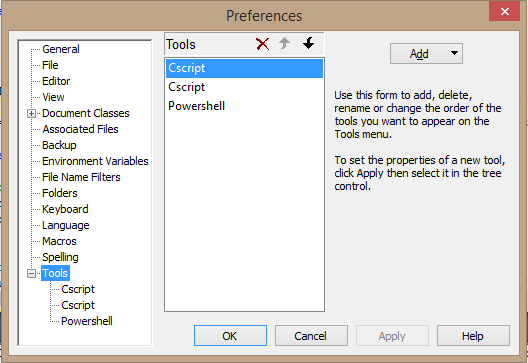
- Select the "Configure" menu option, and click "Preferences"
- Scroll down and expand "Tools"
- Click the 'Add" button, and select "Program..."
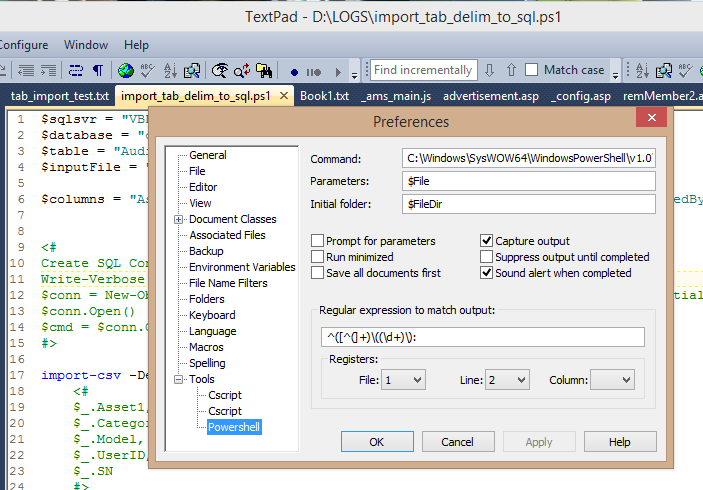
- In the "Command" box, past in the path to whichever PowerShell.exe you wish to map (I provide the paths for each below.
- Click OK
You may want to rename the Tool after saving it (it doesn't offer the option to name it, oddly). To do so, click directly on the "Tools" link, so the individual tools are shown in the middle selection box. Click on a Tool to rename it (e.g. "PowerShell 32" or "PowerShell 64", and so on).
You can edit the Tool preferences afterwards as well. So you can check options for "Prompt for parameters" and "Suppress output until completed", and so on. The defaults usually work well enough for most nerds (like myself).
Paths:
32-bit - %WINDIR%\System32\WindowsPowerShell\v1.0\powershell.exe
64-bit - %WINDIR%\SysWow64\WindowsPowerShell\v1.0\powershell.exe
(note that the ISE flavors for each are in these same respective folder locations).
Disclaimer: I receive no compensation from Helios (makers of TextPad) whatsoever. I just enjoy using their flagship product for all the wacky coding I do, from HTML to LISP to PHP, to ASP and VBScript, to Javascript, XHTML T-SQL, Batch, and now PowerShell.
You can download the trialware from http://www.textpad.com and a license is only $27 (USD). A bargain.
Wednesday, February 5, 2014
BPA. Again? Yes. and THIS time with Fries and a Drink
The Challenge
Your tech staff wants to be able to swap-out existing desktop computers with the least amount of administrative overhead. Basically, they want to be able to walk up with a new computer, unplug the old one, plug in the new one, turn it on and walk away. The stuff on the existing computer should magically end up on the new computer (sans all the usual personal crap that shouldn't be stored on a local computer in the first place).
What are these "stuff"? Applications, default/initial configuration settings, printer mappings, Outlook profile settings, etc.
The Tools at Hand
Active Directory (Windows Server 2012), Group Policy, System Center Configuration Manager (2007, but that's for another discussion), SCCM OSD+MDT+ADK+Coffee, SQL Server 2012, ASP (yes, the sticky, smelly old classic kind), Packaged Software (already loaded into SCCM), a tablet running Windows 8.1 and a bluetooth barcode scanner. Also, a van, a hand-truck, appropriate weather-oriented clothing, hydration substances and a fully-loaded firearm (okay, not for all situations).
Options
Options are good. This is just one option. One that I am fortunate to be working with actually.
If the computer is mapped into the appropriate collections within Configuration Manager, and managed and monitored via logical memberships and dispositional relationships (Active Directory Security Groups, Active Directory Organizational Unit location), you're in what NFL fans would call "the Red Zone".
The Binding Adhesives:
Your tech staff wants to be able to swap-out existing desktop computers with the least amount of administrative overhead. Basically, they want to be able to walk up with a new computer, unplug the old one, plug in the new one, turn it on and walk away. The stuff on the existing computer should magically end up on the new computer (sans all the usual personal crap that shouldn't be stored on a local computer in the first place).
What are these "stuff"? Applications, default/initial configuration settings, printer mappings, Outlook profile settings, etc.
The Tools at Hand
Active Directory (Windows Server 2012), Group Policy, System Center Configuration Manager (2007, but that's for another discussion), SCCM OSD+MDT+ADK+Coffee, SQL Server 2012, ASP (yes, the sticky, smelly old classic kind), Packaged Software (already loaded into SCCM), a tablet running Windows 8.1 and a bluetooth barcode scanner. Also, a van, a hand-truck, appropriate weather-oriented clothing, hydration substances and a fully-loaded firearm (okay, not for all situations).
Options
Options are good. This is just one option. One that I am fortunate to be working with actually.
If the computer is mapped into the appropriate collections within Configuration Manager, and managed and monitored via logical memberships and dispositional relationships (Active Directory Security Groups, Active Directory Organizational Unit location), you're in what NFL fans would call "the Red Zone".
The Binding Adhesives:
- Assuming that the existing computer finds its way into a functional or organizational related Collection within SCCM, you have a means for aiming things at it by function and/or organization (sector, department, division, business unit, etc.)
- Assuming that the existing computer has things configured via Group Policy, it is likely grouped under a logical OU environment.
- Assuming it is targeted via either query-based Collections (handy), or direct-membership Collections (a little more work but still handy) you have another means for aiming things at it in a logical manner.
- Assuming, and this is a reach for some environments, but very common in others: you have barcode labels on assets that are relational to their AD account names, oooh. You are in very good position to throw a touchdown now.
The Process Walk-Through
- Technician arrives at customer location with new computer, already imaged with a generic, standard "load" (Windows, Office, base applications, etc.) and joined to AD in a generic OU. It also has a functional SCCM client agent.
- The technician gets the existing barcode and the new barcode values. Enters them into a web form (from the computer itself or from a third device, such as a tablet or phone). Hit "submit". Swap-out the hardware, reconnect, power up the new stuff and run off with the old stuff.
In the background:
- The data is queued (in a relational database, such as SQL Server) for the "old" and "new" computer names. Since both already exist in AD and in Configuration Manager...
- A scheduled, or triggered, task invokes a script that queries the database for pending items (those which have not been swapped out yet)
- Step 1 is fetching the "old" computer information:
- AD OU
- AD Security Groups
- AD account description property (if desired)
- AD account location property (if desired)
- SCCM direct-membership Collections
- Step 2 is taking action:
- Move "new" computer into correct OU
- Add "new" computer to same AD groups
- Add "new" computer to same SCCM direct-membership Collections
- Update AD account properties (description, location, etc. if desired)
- Disable "old" computer AD account
- Remove "old' computer from AD security groups
- Move "old" computer AD account to special OU (for GPO management aspects)
- Update asset inventory tracking database (operational status, if relevant, etc.)
- Force a restart of the "new" computer (to force GPO updates, SCCM client policy polling and discovery updates)
- Step 3 - mopping up
- No process model is without exceptions: manual installations, special device installation, white-glove stuff, etc.
Suiting Up
All of this is not only possible, it's not that difficult with the right planning and testing. I'm currently using ASP on IIS from an internal Windows Server 2012 box. The queue is managed in SQL Server 2012. The script process uses VBscript, but will soon be ported to PowerShell. The interfaces are COM, WMI, SWBEM, ADO and LDAP/ADSI. All are very common building blocks in Windows environments.
When was the last time you played with a Lego kit or one of those car/ship/aircraft model kits?
Repeat after me: "It often comes with headaches, but I usually love what I do for a living."
:)
Tuesday, January 28, 2014
Why PowerShell is a Big Deal (In my own feeble words)
For a long time I ranted on about Autodesk products and AutoCAD customization, then it turned into Autodesk product installation and licensing management, and networks, and then I had an unplanned career change dropped on me from nowhere. I had to make a shift into the "mainstream" IT world and learn Microsoft tools and things entirely different than I was accustomed to. Since then, my professional and personal life has been a blender, tossed into a woodchipper and fed into a meat grinder. Messy, yes. A disaster? That depends on how you define the word. Blah blah blah, yes, I'm aiming for a point here somewhere, please be patient? Your call is important to us...
I started playing with program code back in 1986, while working as a drafter in the Marine Engineering field. That's fancy terminology for designing things that go on ships. In my case: U.S. Navy ships. Big. Heavy. Gray. Smelling like oil. And usually parked in some rather unappealing locations in the worst kinds of weather. We would go aboard, sketch up stuff, go back to our hotel, eat and drink (okay, mostly drink) and then return to the office and formalize a set of design drawings to accomplish a "retrofit" of something. A "retrofit" is basically replacing something to improve some aspect of the ship (performance, capability, living conditions, etc.)
After CAD took hold among the DoD world, it took much longer for the mainframe and workstation era to pass and open the door to the PC world, than it did in other industries (i.e. AEC). It wasn't until around 1987 that the Naval Shipyards would even "allow" the use of AutoCAD for any official drawing contracts. At first it was only allowed for title sheets, materials lists and anything "non detail design". Eventually, they gave in and began replacing all the old DEC, Sun and IBM crap with shiny new IBM-PC boxes and much cheaper software. In all, it saved them enough on budget to buy a small country (they probably did just that).
I got my first taste of "real" programming in 1987 from reading a book on AutoCAD R10 and learning AutoLISP and a little ADS later on. AutoLISP was it. Even while going to college for my IS degree, and soaking up C/C++, and all that, I couldn't ignore the flexibility and dynamic personality of LISP. At the time, it was like trying to remain focused on a mail delivery truck while I kept my eyes on the '67 Camaro SS parked on the side. Not much competition in my mind. But alas, marketing won and LISP began a slow decline from the 1990's into the mid 2000's. Microsoft's unstoppable licensing machine eventually mowed down the momentum behind anything besides Visual-This and That. I can't pick at the technological appeal either, so I'm just whining I suppose.
Soon after the mid 1980's I picked up BAT and KiXtart on the PC side, and Bash/Korn and Perl on the UNIX side (mostly at school). Then I ran into the database world and began mashing AutoLISP with AutoCAD CAO and ObjectDBX, which dropped me into a rat hole called Visual Basic. It was fun and lasted me through the mid 1990's very nicely.
Long story short: I gradually became jaded by every new programming language coming out. It seemed like yet another attempt to get the junkies hooked on a newer drug and keep the marketing departments employed. Tech conferences kept shoving one new language or toolset after another and spending tons on spiffy ads and graphics.
I thought PowerShell was just that.
I was dead wrong.
For years, my colleagues would roll their eyes at me, when I'd start pontificating about "Microsoft should __", following my third cup of coffee. As if anyone in Redmond gives a shit about some annoying guy named Dave out in the redneck state of Virginia. My usual rants involved the lack of cohesion and consistency among the various command tools. Things like NETSTAT, NET this-or-that, IPCONFIG, NTDSUTIL, DSGET/whatever, DIR, and then CMD and BAT scripting weirdness. I kept saying "they need to clean this shit up!" and then I would fade off into a muffled blubbering of incoherent words and slurping coffee (cold and stale, usually).
Even after I jumped on the Monad open preview bandwagon, I didn't get it.
I read articles and still didn't get it.
I bought books and still didn't get it.
I went to Microsoft TechEd 2011 and 2012 and didn't get it. (I did get a few t-shirts though)
Then I read a few blog posts by Jeffrey Hick, Jeffrey Snover, and Don Jones and a few others. And then after studying for some MCITP/MCSA exams, it hit me like a train: THIS is what I was begging for. Granted: It hasn't reached the goal line yet, but damn if it hasn't made it a long way down the field. In fact, from my poking and inspecting, I would dare to say it's in the Red Zone and there's still plenty of time on the clock. (sorry to all non-Football fans, I feel you - but I couldn't think of a better analogy this late at night).
I've been dragging ASP, BATch, VBscript and COM around like a two-year old child with a dead pet on the other end of a worn leash. Thinking it was still alive and wanting to go play outside. Now I know what that smell was.
I'm in. My focus from here on out will be to deprecate my use of anything besides PowerShell and ASP.NET. If your eyes are rolling in pity right now, I apologize. I'm really late to the party, so I have a lot of drinking to catch up on.
Namaste.
Monday, January 27, 2014
Dastardly Dissections: PowerShell and Software Deployment Dabbling
I was turned onto PowerShell several years ago, but like most music that I've held onto, it took awhile to grow on me. Until I had one of those "a-HA!" moments, which was just this past week. I have to give a double-extra "thank you!" to folks like Jeffery Hicks and Don Jones (among many others), as well as all the folks who patiently help others on sites like StackOverflow and Microsoft TechNet. If I had that much patience I'd be a therapist.
The Meat and Potatoes
I wanted to find a balance between efficiency and reusable code structures. Ever since I was forged in the fires of LISP programming by an incredible guru named Brad Hamilton, I've sought to make my code as refactoringly refined and reusable as possible. It should work like a Lego block, as he once mentioned to me. Another word he used was "organic". It should work and feel like it grew out of nature, not like a 7-legged cat trying to climb an ice mountain.
Much of what you will see below (and soon-after stab your own eyes out with a plastic fork, out of the sheer horror of it all) is my own personal seasoning. I like to put a nerdy block-style heading at the top, followed by a group of related custom variable assignments, and then start to work destroying any sense of productivity soon after.
In a nutshell: I define some variables to identify the product, the installer file, the source path, the target path that the installer creates on a typical client, and then move on.
The next part checks if the file is already present, indicating a previous installation was already completed and then exit if that's the case. If not found, go ahead and run the installation and return the exit code.
(Updated 1/28/2014: line in red below replaces the line just above it. Ensures script calls installer from the same location / path)
Why exit with code number 5000? Good question. I wanted to be able to filter in on that via System Center Configuration Manager, especially through direct T-SQL queries and BI reporting. I tend to "live" in the SQL Server environment more than anywhere else for some reason. It feels like wandering around a big-volume hardware store on a quiet night.
If I treated an existing install as a "failure" or exception, I would have to assign a non-zero result code. I could consider it a "success" and return 0 (zero) as well, but then I wouldn't be able to query for unnecessary attempts in my production environments. Artificial flavoring has its uses.
To invoke this from an non-Powershell state, I fire off the command string as follows...
powershell -Fileinstall-orca.ps1
Then I can fetch the result implicitly via the command pipeline or explicitly by interrogating %errorlevel% via the CMD shell interface.
Ripping It Out Again
So, what about the Uninstall flip-side of this? Let's try this out...
A few notes on the example above:
Test-Path "HKLM:\Software\Wow6432Node\Microsoft\Windows\CurrentVersion\Uninstall\{85F4CBCB-9BBC-4B50-A7D8-E1106771498D}"
(note that I had to wrap the path in matching double quotes; otherwise it tries to evaluate the { and } as code).
If you're not familiar with Windows Installer methods (e.g. msiexec syntax), that's okay. That means you're probably "normal". I'm not. You can invoke an uninstall using "/x" and provide a specific .msi package file, or you can locate the associated application GUID from the Registry (see HKLM\Software\Microsoft\Windows\CurrentVersion\Uninstall, or for 32-bit apps on a 64-bit client, like Orca, refer to HKLM\Software\Wow6432Node\Microsoft\Windows\CurrentVersion\Uninstall) and use that as well. Below is a screen capture of REGEDIT showing the key and value on my cheap laptop...
The Meat and Potatoes
I wanted to find a balance between efficiency and reusable code structures. Ever since I was forged in the fires of LISP programming by an incredible guru named Brad Hamilton, I've sought to make my code as refactoringly refined and reusable as possible. It should work like a Lego block, as he once mentioned to me. Another word he used was "organic". It should work and feel like it grew out of nature, not like a 7-legged cat trying to climb an ice mountain.
Much of what you will see below (and soon-after stab your own eyes out with a plastic fork, out of the sheer horror of it all) is my own personal seasoning. I like to put a nerdy block-style heading at the top, followed by a group of related custom variable assignments, and then start to work destroying any sense of productivity soon after.
In a nutshell: I define some variables to identify the product, the installer file, the source path, the target path that the installer creates on a typical client, and then move on.
The next part checks if the file is already present, indicating a previous installation was already completed and then exit if that's the case. If not found, go ahead and run the installation and return the exit code.
(Updated 1/28/2014: line in red below replaces the line just above it. Ensures script calls installer from the same location / path)
[powershell-begin-ugly-code]
#------------------------------------------------------------ # filename...: install-orca.ps1 # author.....: David M. Stein # date.......: 01/27/2014 # purpose....: install Microsoft Orca using PowerShell 3 #------------------------------------------------------------ # comment: define variables and assignments $appName = "Microsoft Orca" $msifile = "orca.msi" # $srcPath = "\\appserver3\utils\microsoft"
$srcPath = Split-Path -Parent $PSCommandPath $path32 = "C:\Program Files (x86)\Orca\orca.exe" $path64 = "" $f1 = get-location write-host "info: searching for existing installation of $appName..." if (test-path -Path $path32) { write-host "info: $appName is already installed (aborting install)" $retval = 5000 } else { write-host "info: installing $msiFile....." set-location $srcPath write-host "info: working path is $srcPath"
# comment: the following line may wrap incorrectly in a browser...
$retval = (start-process msiexec.exe -ArgumentList "/i $msifile /qn" -Wait -PassThru).ExitCode switch ($retval) { 0 {write-host "info: success"} 3010 {write-host "info: success (reboot pending)"}
1603 {write-host "fail: I hate 1603. A useless error code!"}
1605 {write-host "skip: target application was not found (uninstall abort)"}
default {write-host "fail: uh-oh? exit code is $retval"}
}
set-location $f1
write-host "info: installation complete."
}
exit $retval
[powershell-end-ugly-code]
Why exit with code number 5000? Good question. I wanted to be able to filter in on that via System Center Configuration Manager, especially through direct T-SQL queries and BI reporting. I tend to "live" in the SQL Server environment more than anywhere else for some reason. It feels like wandering around a big-volume hardware store on a quiet night.
If I treated an existing install as a "failure" or exception, I would have to assign a non-zero result code. I could consider it a "success" and return 0 (zero) as well, but then I wouldn't be able to query for unnecessary attempts in my production environments. Artificial flavoring has its uses.
To invoke this from an non-Powershell state, I fire off the command string as follows...
powershell -File
Then I can fetch the result implicitly via the command pipeline or explicitly by interrogating %errorlevel% via the CMD shell interface.
Ripping It Out Again
So, what about the Uninstall flip-side of this? Let's try this out...
[powershell-begin-stupid-code]
#------------------------------------------------------------ # filename...: uninstall-orca.ps1 # author.....: David M. Stein # date.......: 01/27/2014 # purpose....: uninstall Microsoft Orca using PowerShell 3 #------------------------------------------------------------ # comment: define variables and assignments $appName = "Microsoft Orca" $guid = "{85F4CBCB-9BBC-4B50-A7D8-E1106771498D}" $path32 = "C:\Program Files (x86)\Orca\orca.exe" $path64 = "" $f1 = get-location if (test-path -Path $path32) { write-host "info: $appName is installed. Uninstall it now..."
# comment: the following line may wrap incorrectly in a browser also...
$retval = (start-process msiexec.exe -ArgumentList "/x ""$guid"" /qn" -Wait -PassThru).ExitCode
switch ($retval) {
0 {
write-host "info: uninstallation was successful."
write-host "info: removing leftover files and folders..."
Remove-Item $path32 -Recurse
}
3010 {write-host "info: success (reboot pending)"}
1605 {write-host "info: target application was not found (uninstall abort)"}
default {write-host "fail: exit code is $retval"}
}
} else {
$retval = 0
write-host "info: $appName was not found on this computer (abort uninstall)"
}
write-host "info: completed"
exit $retval
[powershell-end-stupid-code]
A few notes on the example above:
- First, you may notice the additional code to remove leftover files and folders. That's because it's not uncommon to find leftover files and folders after a "successful" uninstall. The reasons are many, but in short: just clean them up if needed.
- Second, if the installation was not found, I force a 0 return value here. I could have also forced something like 5001 or 6000 or 227001 or whatever (as long as it's not in conflict with known result codes used by other apps or processes). I chose 0 because I'm tired and sitting in a realllllllly comfortable chair right now. Too lazy to use a longer value.
- I could have used Test-Path to find the Registry Key instead of a folder and file. That would work as well, and the example would look instead something like the following...
Test-Path "HKLM:\Software\Wow6432Node\Microsoft\Windows\CurrentVersion\Uninstall\{85F4CBCB-9BBC-4B50-A7D8-E1106771498D}"
(note that I had to wrap the path in matching double quotes; otherwise it tries to evaluate the { and } as code).
If you're not familiar with Windows Installer methods (e.g. msiexec syntax), that's okay. That means you're probably "normal". I'm not. You can invoke an uninstall using "/x" and provide a specific .msi package file, or you can locate the associated application GUID from the Registry (see HKLM\Software\Microsoft\Windows\CurrentVersion\Uninstall, or for 32-bit apps on a 64-bit client, like Orca, refer to HKLM\Software\Wow6432Node\Microsoft\Windows\CurrentVersion\Uninstall) and use that as well. Below is a screen capture of REGEDIT showing the key and value on my cheap laptop...
Find the "UninstallString" value and grab a copy to inspect. The irony is the "/I" prefix, which denotes "Install", but you can ignore that. Almost every product entry will have an "UninstallString" value and it will almost always contain "Msiexec /I{blahblahblah}". For an uninstall operation, you replace "/I" with "/X" (upper or lower case, doesn't matter), and move on. It's the rest of that string that matters. That's the GUID, and it is usually pretty reliable for use with msiexec to uninstall a known product entry.
More Mindless Notes:
- You may encounter cases where you do NOT want to delete leftover files and folders (I didn't even mention leftover Registry keys and value, did I?). Just comment that line and you're good to go.
- You may need to stop services in order to perform some tasks. You can use the Get-Service cmdlet or Stop-Service. To remove a service, you can use the ancient SC.EXE command (under \Windows\System32) to invoke the Delete method. Just don't forget that it may require a reboot.
- Be careful to validate every exit code before assuming anything other than 0 (zero) is "bad". 3010 for example is good. In some contexts (is that proper English?), the exit code 1605 could be considered "good" as well.
- I'm NOT a PowerShell expert. I'm still learning and very possibly farther behind on this stuff than you (in which case you're probably not reading sentence because you already left this page to find what you are really looking for). I hope I'm not the smartest guy in the room. That's a boring proposition to consider. I'd rather be learning.
Monday, January 6, 2014
Dastardly Dissections: When Scripting is just one Tool, not a Whole Tool Box
(Note: This may be the first of a new series of blognostications I'm thinking of calling "Dastardly Dissections". If I maintain my motivation, and caffeine intake, I will strive to use real world examples where technology was used to solve problems. Other than the kinds of technology that blow things up, that is).
For many IT folks, or folk, as they say in places I've never been, this may step into the murky, sticky muddy waters of borderline sacrilege, but give me a chance. I know a lot of scripters, script-kiddies, skittles-munching, bong-drinking coder geeks like to think of scripts as the holy grail to solving all IT challenges. And for many situations they can be very well-suited to that purpose indeed. But for me, I find it more interesting when script code plays the part of Mr. Glue (okay, Ms. Glue is fine too), and helps bind the forces of the technoverse into harmony. Kind of like magical fiber in the ethereal digestive tract of the processing world. Um, yeah.
Case in Point: Crapware needs a Crutch.
IT folks who get their fingers all sticky with repackaging and deployment should be well familiar with less-than-ideal packaging chores. One that comes to mind (and, NO, I'm not going to name the vendor or product. Mainly out of pants-wetting fear of law suits), is a software application that comes with a digital signature pad.
Those are the kinds of detachable devices where you whip out a plastic pen-like thing, often with an attached cable thing, which is then grasped by the authoritative human with firm, yet shaky hands to apply a soon-to-become-extinct thing called a "handwritten signature". I'm told people used to actually scribble words using their own hands to indicate who they are (or were). Amazing! I wonder how long it will be before it's commonplace to have a chip implanted at birth. Moving along...
Ok. I'll get to the point.
First Challenge: The software probes for the peripheral signature pad device connection and determines the COM port assignment. From that it writes a new .INI configuration file (yes, this is supposedly "Windows XP compliant, and they say, that it should work fine on Windows 7). It does this the first time it is plugged in and always uses that port from then on (as long as the SAME device is attached to the SAME computer with the SAME operating system configuration).
Bigger challenge: The customer purchased roughly 400 of these things. They need to be handed out to the field-workers, who each have a laptop running on Windows 7 Enterprise SP1. They rarely connect directly to the organization network, and they need to be able to plug these things in, and use them, while in the field. That means they are most often NOT on a VPN connection or connected to the Active Directory domain environment. But, that's not all!
Bigger than Bigger challenge: The INI file is created in, and will only work from within the C:\WINDOWS folder (e.g. %WINDIR%). That means UAC is giving them the big face-smack of security each time. KaBlam!! Thwack! Kazowwy! sorry, no more of that...
What to do?
Well, here's ONE way that happens to work:
[updated 1/7/2014]
As for the specific DEVCON syntax (thanks to Chris for this by the way)...
Next, using script code, open and parse the DEVCON output file to get the COM port number. Then open the copied INI file, read in the guts, replace the "ZZZZ" (or whatever you chose to use) with the "COMx" value, and write it back out to the C:\WINDOWS\crapplication.INI file, all under a suitable elevated user context (i.e. SYSTEM, would be fine), and let her rip!
Example of the DEVCON dump file...
Special thanks to my colleague and coworker extraordinaire: Chris. Because, he is extraordinary. And as they say, the difference between ordinary, and extraordinary, is that extra bit.
The dastardly code...
So, assuming the devcon output file has the right output, and the scripts are run under an administrative context, it works pretty well. The users can plug the device in and life is good. If bolted together properly it can be deployed via System Center Configuration Manager as an advertisement, or posted in the Application Catalog for self-install.
Next time I might delve into a scenario for converting VBscript into ASP for interfacing with Active Directory, WMI/WBEM and Configuration Manager via a web browser.
Cheers!
For many IT folks, or folk, as they say in places I've never been, this may step into the murky, sticky muddy waters of borderline sacrilege, but give me a chance. I know a lot of scripters, script-kiddies, skittles-munching, bong-drinking coder geeks like to think of scripts as the holy grail to solving all IT challenges. And for many situations they can be very well-suited to that purpose indeed. But for me, I find it more interesting when script code plays the part of Mr. Glue (okay, Ms. Glue is fine too), and helps bind the forces of the technoverse into harmony. Kind of like magical fiber in the ethereal digestive tract of the processing world. Um, yeah.
Case in Point: Crapware needs a Crutch.
IT folks who get their fingers all sticky with repackaging and deployment should be well familiar with less-than-ideal packaging chores. One that comes to mind (and, NO, I'm not going to name the vendor or product. Mainly out of pants-wetting fear of law suits), is a software application that comes with a digital signature pad.
Those are the kinds of detachable devices where you whip out a plastic pen-like thing, often with an attached cable thing, which is then grasped by the authoritative human with firm, yet shaky hands to apply a soon-to-become-extinct thing called a "handwritten signature". I'm told people used to actually scribble words using their own hands to indicate who they are (or were). Amazing! I wonder how long it will be before it's commonplace to have a chip implanted at birth. Moving along...
Ok. I'll get to the point.
First Challenge: The software probes for the peripheral signature pad device connection and determines the COM port assignment. From that it writes a new .INI configuration file (yes, this is supposedly "Windows XP compliant, and they say,
Bigger challenge: The customer purchased roughly 400 of these things. They need to be handed out to the field-workers, who each have a laptop running on Windows 7 Enterprise SP1. They rarely connect directly to the organization network, and they need to be able to plug these things in, and use them, while in the field. That means they are most often NOT on a VPN connection or connected to the Active Directory domain environment. But, that's not all!
Bigger than Bigger challenge: The INI file is created in, and will only work from within the C:\WINDOWS folder (e.g. %WINDIR%). That means UAC is giving them the big face-smack of security each time. KaBlam!! Thwack! Kazowwy! sorry, no more of that...
What to do?
Well, here's ONE way that happens to work:
- Perform a "manual" installation of the crapware application, or as some might call it: crapplication.
- Plug the device in. Wait for the UAC bitch-slap.
- Provide the suitable credentials to allow the crap-device to talk to the crapplication and update the crappy INI setting.
- Save a copy of the INI file.
- Locate the line which stores the COM port setting. Replace the value (e.g. "CrappyComPort=COM3") with a unique string value (e.g. "CrappyComPort=ZZZZZ") and save the copy.
[Tablet]
TabletComPort=ZZZZ
TabletType=0
TabletLCDMode=0
TabletModel=Crap_VR549
...Now, using (insert dramatic entrance music) script code, you pull on the chains of the old "DEVCON" command-line utility to probe for the device and COM port. Write the results to a text file (redirect or whatever you prefer). I'm sure you can probe it using WMI or crawling the Registry as well, but since I like old commands, because I'm also old, I go that route.
[updated 1/7/2014]
As for the specific DEVCON syntax (thanks to Chris for this by the way)...
devcon.exe" hwids *FTDIBUS* >>"%Windir%\CrapWare\devcon_dump.txt"
Next, using script code, open and parse the DEVCON output file to get the COM port number. Then open the copied INI file, read in the guts, replace the "ZZZZ" (or whatever you chose to use) with the "COMx" value, and write it back out to the C:\WINDOWS\crapplication.INI file, all under a suitable elevated user context (i.e. SYSTEM, would be fine), and let her rip!
Example of the DEVCON dump file...
FTDIBUS\VID_0403+PID_6001+A983498VX\0000
Name: USB Serial Port (COM4)
Hardware ID's:
FTDIBUS\COMPORT&VID_0403&PID_6001
1 matching device(s) found.
Special thanks to my colleague and coworker extraordinaire: Chris. Because, he is extraordinary. And as they say, the difference between ordinary, and extraordinary, is that extra bit.
The dastardly code...
[beginnen der codenhauzen]
'**************************************************************** ' Filename..: crapplication.vbs ' Author....: INSERT YOUR NAME HERE UNLESS IT BLOWS UP (then use another name) ' Date......: 01/05/2014 ' Purpose...: parse text file to obtain desired value, win the prize! '**************************************************************** Option Explicit Dim scriptPath, strTemplate, objFSO, objFile
Dim strLine, strPart, pos, strComPort, ts, t1 Dim objINIsource, strNew, strAll, objShell
t1 = Timer
scriptPath = Replace(wscript.ScriptFullName, "\" & wscript.ScriptName, "") strTemplate = scriptPath & "\crapware.ini" Const inputFile = "c:\windows\temp\devcon_dump.txt" Const outputfile = "c:\windows\crapware.ini" Const ForReading = 1 Const ForWriting = 2 Const TristateUseDefault = -2 Const TriStateTrue = -1 Const TriStateFalse = 0 wscript.echo "info: devcon file == " & inputfile wscript.echo "info: output file == " & outputfile wscript.echo "info: template == " & strTemplate strComPort = ""
' comment: read the COM port from the devcon output file...
Set objFSO = CreateObject("Scripting.FileSystemObject")
On Error Resume Next
Set objFile = objFSO.OpenTextFile(inputFile, ForReading)
If err.Number = 0 Then
Do Until objFile.AtEndOfStream
strLine = Trim(objFile.Readline)
pos = InStr(strLine, "(COM")
If pos > 0 Then
strPart = Trim(Mid(strLine, pos))
' comment: should return "(COMx)"
strPart = Replace(Replace(strPart, "(", ""), ")", "")
' comment: should be left with "COMx"
strComPort = Replace(strPart, "COM", "")
End If
Loop
objFile.Close
Else
wscript.echo "fail: error (" & err.Number & ") = " & err.Description
End If
wscript.echo "info: current COM port: " & strComPort
' comment: open and suck-in all text from the template file...
Set objINISource = objFSO.OpenTextFile(strTemplate, ForReading, False)
strAll = objINIsource.ReadAll()
strNew = Replace(strAll, "TabletComPort=ZZZZ", "TabletComPort=" & strComPort)
' comment: get the vendor's crappy ini or make a new one...
On Error Resume Next
Set objShell = CreateObject("Wscript.Shell")
wscript.echo "info: searching for default ini file... " & outputfile
Set objFile = objFSO.GetFile(outputFile)
If err.number <> 0 Then
err.Clear
wscript.echo "info: ini file not found. creating new one..."
wscript.echo "info: creating new file: " & outputfile
Set ts = objFSO.CreateTextFile(outputfile)
If err.Number <> 0 Then
wscript.echo "error: " & err.number & ": " & err.Description
Set objFSO = Nothing
wscript.quit err.Number
End If
wscript.echo "info: waiting for a second. why rush things?..."
objShell.Sleep 1000
Set objShell = Nothing
ts.Write strNew
ts.Close
wscript.echo "info: file created successfully!"
Else
err.Clear
wscript.echo "info: deleting old file... " & outputfile
objFSO.DeleteFile outputfile, True
wscript.echo "info: creating new file... " & outputfile
Set ts = objFSO.CreateTextFile(outputfile)
If err.Number <> 0 Then
wscript.echo "error: " & err.number & ": " & err.Description
Set objFSO = Nothing
wscript.quit err.Number
End If
ts.Write strNew
ts.Close
wscript.echo "info: file updated successfully!"
End If
Set ts = Nothing
Set objINISource = Nothing
Set objFSO = Nothing
Set ts = Nothing
wscript.echo "info: completed."
wscript.echo "info: runtime is " & Round(Timer - t1,2) & " seconds"
[terminaten der codenschnitzel]I know what you're thinking: My variable names suck and my error handling methods could use some improvement. I could also stand to cut back on some bad dietary habits, but ultimately, someone has to feed the worms. You're also probably upset that I didn't do this in PowerShell, which I could have, but I'm too lazy tonight and I have to be up early for work tomorrow.
So, assuming the devcon output file has the right output, and the scripts are run under an administrative context, it works pretty well. The users can plug the device in and life is good. If bolted together properly it can be deployed via System Center Configuration Manager as an advertisement, or posted in the Application Catalog for self-install.
Next time I might delve into a scenario for converting VBscript into ASP for interfacing with Active Directory, WMI/WBEM and Configuration Manager via a web browser.
Cheers!
Wednesday, August 21, 2013
10 Questions: with Jeffery Hicks
Jeffery Hicks
Introduction
There are no doubt a lot of computer-related "scripting" languages in the world today, which is only a subset of the "programming" languages that exist. Among the standouts today are the venerable Windows-platform related names like Batch, KiXtart, VBscript, JavaScript, as well as cross-platform names like Perl, Python, and one the came onto the IT scene relatively late: PowerShell.
Microsoft may take a few lumps along their way from one success to another, but they've so far managed to earn the trust and respect of the majority of developers, administrators and engineers with PowerShell. Now in its third version of existence, it has gained quite a lot with regards to both functionality and maturity.
Among the short list of people renown for pushing ahead in this newer realm are names like Jeffrey Snover, Don Jones, and one that I've come to know better in recent years: Jeffery Hicks.
Author, speaker, and an all-around nice guy, Jeff is another example that we don't have to shed our personality in order to master a new technology. He remains very active on multiple web sites and forums; offering advice and help to both the experienced and the noobs. One thing I will say is that if you get any PowerShell-related advice from Jeff, you should consider it.
Jeff's Profile (from his web site)
Jeffery Hicks is a Microsoft MVP in Windows PowerShell, Microsoft Certified Trainer and an IT veteran with 20 years of experience, much of it spent as an IT consultant specializing in Microsoft server technologies. He works today as an independent author, trainer and consultant. Jeff writes the popular Prof. PowerShell column for MPCMag.com and is a regular contributor to SMB IT Simplified and the Petri IT Knowledgebase.
Jeff is a regular speaker at conferences such as TechMentor, TechEd and WinConnections, often speaking about PowerShell, Active Directory, Group Policy and anything else than can make IT Pros more efficient and productive.
Jeff's Books include:
You can keep up with Jeff at his blog, on Twitter and on Google Plus
The Questions
Dave: Your name is very well known in the circles of PowerShell programming. What other programming languages do you like to work with (if any)?
Jeff: I started with automation way back in the dark days of DOS 3.3 and batch files. From there it was to VBScript and eventually PowerShell. Back in the day I was a master of WordPerfect 5.1 macros!
Dave: PowerShell seems to be mix of both powerful features and enough complexity to give some IT folks a bit of pause. What do you feel is the most misunderstood aspect of that language?
Jeff: People think it is a scripting language like VBScript, or they think the blue console that they see is PowerShell. PowerShell is a management engine that is hosted by applications like CMD.EXE or the PowerShell ISE. It can be experienced interactively or the language can be scripted.
Dave: If you were put in charge of the architecture and development of PowerShell, both as a language, and the associated tools and services, back in the "early days", would it be: (a) pretty much the same as it looks now, (b) a little bit different, but not radically different, or (c) radically different? If (c): how so?
Jeff: Jeffrey Snover is famous for saying "to ship is to choose" so I'm not sure what else could have been done differently. Sure, remoting would have been nicer to have early on. The only other thing I might have done differently is not allow cryptic aliases like % and ?. But that's a personal taste issue more than anything. I know people see PowerShell examples using all sorts of cryptic aliases and think that they can never learn it.
Dave: In the course of your travels, are there any particular places that rank as your "favorite" or those that you'd rather not return to?
Jeff: Most of my favorite places probably come down to a great food scene like Las Vegas, Seattle and San Francisco. I also like places with great public transport, especially from the airport like Portland, OR. Also a good foodie city. And certainly training in places like Australia have to rank up there as a favorite destination.
Dave: Where do you see PowerShell in five or ten years from now? Bigger and Fatter (with respect to features and capabilities, not bloat), or more Modular? Are you aware of any "huge" changes or improvements coming in the near future? (you don't have to give details)
Jeff: I have no personal knowledge of anything that isn't already publicly available in PowerShell 4.0, but one area that I think we'll see a change is the ability to use PowerShell everywhere in the enterprise with the ability to manage more than just Windows servers. We want to be able to manage switches, routers, *nix boxes and more from our Windows 10 desktop using PowerShell vX. This doesn't take into account some new disruptive technology that barely exists now. The "cloud" as we know it today barely existed when PowerShell 1.0 was released.
Dave: Are you the kind of geek that prefers to write code with music or TV in the background, absolute quiet, or something else?
Jeff: I can't do TV or anything visual because I'm too easily distracted. But sometimes I'll put music on. I work at home so there are times I need music to mask what else is happening in the rest of the house.
Dave: If you could merge any other programming or scripting language, or parts of it, into PowerShell, what would it be?
Jeff: I don't think I have enough developer background to really answer this. PowerShell works just great for managing Windows systems because it is based on technologies, like the .NET Framework, that make Windows work in the first place.
Dave: If you had never stepped into the world of computers and software, what do you think you would likely be doing for a living today?
Jeff: Theater directing. Seriously. I have a MFA from Syracuse University but as they say, "Life is what happens while you're busy making other plans."
Dave: How do you feel the rising interest in "cloud" services will affect or impact the scripting world?
Jeff: I think there will be more of a demand. If your compute environment is in Azure or your users are locked into Office 365 and you want to manage everything efficiently, you'll need an automation engine like PowerShell. The days of going into the datacenter to logon to a server, or even using a remote desktop connection should be behind us. If they are not, you are most likely working harder than you need to.
Dave: What do you feel the open source world could learn from the Microsoft world as it pertains to purely technological aspects? What about the reverse??
Jeff: Again, not having much a developer background I'm not sure what I can add here. I don't think it is a matter of saying that one is better than the other or that one produces superior code. My take on open source is that if there is a problem, or someone wants to innovate, that it can happen much faster.
It also seems to me that many open source projects don't try to be everything to all people and accomodate all situations. Microsoft is often forced, in my opinion, to develop products and code that are backwards compatible. What could Microsoft create if they said, here's the new server and operating systems invented anew with noties to anything that came before.
Conclusion
I hope you enjoyed this second installment of "10 Questions" as much as I did. If you are interested in learning more about Jeff's offerings, I encourage you to explore the links below. Thank you!
JDH IT Solutions
Book: PowerShell Deep Dives (Manning Press, 2013)
Book: Windows PowerShell 2.0: TFM (SAPIEN Press 2010)
Book: Advanced VBScript for Windows Administrators (Microsoft Press 2006)
Book: WSH and VBScript Core: TFM (SAPIEN Press 2007)
Book: Managing Active Directory with Windows PowerShell 2.0: TFM 2nd Ed. (SAPIEN Press 2011)
TrainSignal
Jeff's Blog
Twitter
Google Plus
Introduction
There are no doubt a lot of computer-related "scripting" languages in the world today, which is only a subset of the "programming" languages that exist. Among the standouts today are the venerable Windows-platform related names like Batch, KiXtart, VBscript, JavaScript, as well as cross-platform names like Perl, Python, and one the came onto the IT scene relatively late: PowerShell.
Microsoft may take a few lumps along their way from one success to another, but they've so far managed to earn the trust and respect of the majority of developers, administrators and engineers with PowerShell. Now in its third version of existence, it has gained quite a lot with regards to both functionality and maturity.
Among the short list of people renown for pushing ahead in this newer realm are names like Jeffrey Snover, Don Jones, and one that I've come to know better in recent years: Jeffery Hicks.
Author, speaker, and an all-around nice guy, Jeff is another example that we don't have to shed our personality in order to master a new technology. He remains very active on multiple web sites and forums; offering advice and help to both the experienced and the noobs. One thing I will say is that if you get any PowerShell-related advice from Jeff, you should consider it.
Jeff's Profile (from his web site)
Jeffery Hicks is a Microsoft MVP in Windows PowerShell, Microsoft Certified Trainer and an IT veteran with 20 years of experience, much of it spent as an IT consultant specializing in Microsoft server technologies. He works today as an independent author, trainer and consultant. Jeff writes the popular Prof. PowerShell column for MPCMag.com and is a regular contributor to SMB IT Simplified and the Petri IT Knowledgebase.
Jeff is a regular speaker at conferences such as TechMentor, TechEd and WinConnections, often speaking about PowerShell, Active Directory, Group Policy and anything else than can make IT Pros more efficient and productive.
Jeff's Books include:
- Windows PowerShell 2.0: TFM (SAPIEN Press 2010)
- Advanced VBScript for Windows Administrators (Microsoft Press 2006)
- WSH and VBScript Core: TFM (SAPIEN Press 2007)
- Managing Active Directory with Windows PowerShell 2.0: TFM 2nd Ed. (SAPIEN Press 2011)
You can keep up with Jeff at his blog, on Twitter and on Google Plus
The Questions
Dave: Your name is very well known in the circles of PowerShell programming. What other programming languages do you like to work with (if any)?
Jeff: I started with automation way back in the dark days of DOS 3.3 and batch files. From there it was to VBScript and eventually PowerShell. Back in the day I was a master of WordPerfect 5.1 macros!
Dave: PowerShell seems to be mix of both powerful features and enough complexity to give some IT folks a bit of pause. What do you feel is the most misunderstood aspect of that language?
Jeff: People think it is a scripting language like VBScript, or they think the blue console that they see is PowerShell. PowerShell is a management engine that is hosted by applications like CMD.EXE or the PowerShell ISE. It can be experienced interactively or the language can be scripted.
Dave: If you were put in charge of the architecture and development of PowerShell, both as a language, and the associated tools and services, back in the "early days", would it be: (a) pretty much the same as it looks now, (b) a little bit different, but not radically different, or (c) radically different? If (c): how so?
Jeff: Jeffrey Snover is famous for saying "to ship is to choose" so I'm not sure what else could have been done differently. Sure, remoting would have been nicer to have early on. The only other thing I might have done differently is not allow cryptic aliases like % and ?. But that's a personal taste issue more than anything. I know people see PowerShell examples using all sorts of cryptic aliases and think that they can never learn it.
Dave: In the course of your travels, are there any particular places that rank as your "favorite" or those that you'd rather not return to?
Jeff: Most of my favorite places probably come down to a great food scene like Las Vegas, Seattle and San Francisco. I also like places with great public transport, especially from the airport like Portland, OR. Also a good foodie city. And certainly training in places like Australia have to rank up there as a favorite destination.
Dave: Where do you see PowerShell in five or ten years from now? Bigger and Fatter (with respect to features and capabilities, not bloat), or more Modular? Are you aware of any "huge" changes or improvements coming in the near future? (you don't have to give details)
Jeff: I have no personal knowledge of anything that isn't already publicly available in PowerShell 4.0, but one area that I think we'll see a change is the ability to use PowerShell everywhere in the enterprise with the ability to manage more than just Windows servers. We want to be able to manage switches, routers, *nix boxes and more from our Windows 10 desktop using PowerShell vX. This doesn't take into account some new disruptive technology that barely exists now. The "cloud" as we know it today barely existed when PowerShell 1.0 was released.
Dave: Are you the kind of geek that prefers to write code with music or TV in the background, absolute quiet, or something else?
Jeff: I can't do TV or anything visual because I'm too easily distracted. But sometimes I'll put music on. I work at home so there are times I need music to mask what else is happening in the rest of the house.
Dave: If you could merge any other programming or scripting language, or parts of it, into PowerShell, what would it be?
Jeff: I don't think I have enough developer background to really answer this. PowerShell works just great for managing Windows systems because it is based on technologies, like the .NET Framework, that make Windows work in the first place.
Dave: If you had never stepped into the world of computers and software, what do you think you would likely be doing for a living today?
Jeff: Theater directing. Seriously. I have a MFA from Syracuse University but as they say, "Life is what happens while you're busy making other plans."
Dave: How do you feel the rising interest in "cloud" services will affect or impact the scripting world?
Jeff: I think there will be more of a demand. If your compute environment is in Azure or your users are locked into Office 365 and you want to manage everything efficiently, you'll need an automation engine like PowerShell. The days of going into the datacenter to logon to a server, or even using a remote desktop connection should be behind us. If they are not, you are most likely working harder than you need to.
Dave: What do you feel the open source world could learn from the Microsoft world as it pertains to purely technological aspects? What about the reverse??
Jeff: Again, not having much a developer background I'm not sure what I can add here. I don't think it is a matter of saying that one is better than the other or that one produces superior code. My take on open source is that if there is a problem, or someone wants to innovate, that it can happen much faster.
It also seems to me that many open source projects don't try to be everything to all people and accomodate all situations. Microsoft is often forced, in my opinion, to develop products and code that are backwards compatible. What could Microsoft create if they said, here's the new server and operating systems invented anew with noties to anything that came before.
Conclusion
I hope you enjoyed this second installment of "10 Questions" as much as I did. If you are interested in learning more about Jeff's offerings, I encourage you to explore the links below. Thank you!
JDH IT Solutions
Book: PowerShell Deep Dives (Manning Press, 2013)
Book: Windows PowerShell 2.0: TFM (SAPIEN Press 2010)
Book: Advanced VBScript for Windows Administrators (Microsoft Press 2006)
Book: WSH and VBScript Core: TFM (SAPIEN Press 2007)
Book: Managing Active Directory with Windows PowerShell 2.0: TFM 2nd Ed. (SAPIEN Press 2011)
TrainSignal
Jeff's Blog
Google Plus
Subscribe to:
Posts (Atom)