Showing posts with label windows8. Show all posts

Thursday, March 20, 2014

Dave's Top 10 Windows Command-Line Goodies

I'll admit it, I like geeky "Top 10" lists.  The irony of saying "Windows" and "command-line" in the same sentence also fits nicely with how my wobbly brain works, so I couldn't resist.  While scripting is obviously in a class of its own with regards to flexibility, scale and so on, the built-in tool set provided within Windows 8 (and Windows Server 2012) is still worthy of some healthy respect.

The commands listed below are some that I use quite often, and by that I mean pretty much every day. On a typical day I will have two CMD consoles open, a PowerShell ISE console and at least one or two instances of some code editor application like TextPad or Visual Studio Express.  Regardless, I will often jump back to one of my CMD consoles to do something that involves one of the items mentioned below.  Maybe there's a few in here you haven't tried yet.

1. CMDKEY

I use this for managing my credential mappings between my laptop, my home domain environment, my various "work" environments, and TS/RDP environments.  To list saved credentials, use "cmdkey /list".  You can narrow down the list to one target, such as a server you connect to by SMB or RDP named "fubar", by typing "cmdkey /list:fubar".  To add a new explicit mapping, such as connecting to server "fubar" from your tablet which is not part of the same domain or workgroup, use "cmdkey /add:fubar /user:dave /pass:p00rb@$taRd".  For more information about this command, type "cmdkey" and press Enter.

Example: save login credentials for domain server "serverXYZ" from your workgroup laptop...
cmdkey /add:serverXYZ /user:dave /pass:Ih@teP@$$wordZ

2. WINRS

This is another command I find extremely helpful.  There are a few times where it doesn't shine as brightly as I'd like, but that's rare.  One such example (and don't let this put you off) is invoking a utility like "SendSchedule.exe" on a remote box, even when the associated XML config file is in the appropriate location.  You just get nothing.  Again, this is not worth tarnishing this powerful utility.

What does it do?  Magical stuff.  That's what.  It's basically a remote shell wrapper, and lets you execute tasks on the remote computer as if you're on that remote computer.  So if you have a script, say "dosomething.ps1" sitting in the c:\stuff folder on serverXYZ, and you're on your laptop named "dingy8", you can open a command console (or PowerShell console) and type:

winrs -r:serverXYZ powershell.exe c:\stuff\dosomething.ps1

Then watch the results unfold as if you were logged onto serverXYZ and running the script directly.

There's way more to this command than I can possibly blurt out here, so try "winrs -?" to begin exploring.

3. PUSHD and POPD

This one has been around almost as long as me.  Same for its cousin: popd.  The pushd command creates a temporary "ad hoc" drive mapping to a specified share.  So if just need a drive letter, under the context of whatever the command console is running as, just type "pushd " and bang! you have a Z: drive and it's the current drive as well.  So why does this do any better than "net use"?  Well, to disconnect "net use" you have to use "net use" again and provide some more key strokes.  In some cases, you forget and leave the drive mapped even after repeated logins.  The pushd command only lasts until you either log off (or "sign out" in Windows 8 parlance), or use "popd" to release any pushd mappings.

Example: map a temp drive to share \\serverXYZ\stuff --> pushd \\serverXYZ\stuff

4. SC

The sc command is another golden-age oldie that provides command-line control over the Windows Services environment.  SC allows you to stop, start, create, delete, and modify Windows Services.  Nuff said.

Example: Check on the status of the WinRM service --> sc query winrm
Example: Stop the WinRM service -->  sc stop winrm
Example: Change WinRM startup to manual -->  sc config winrm start:demand

for more information, type "sc /?"

5. SCHTASKS

Like the sc command, this is one is a counterpart to a common GUI tool.  This one provides management features for Scheduled Tasks (hence the abbreviated name: "SCHeduled TASKS").  You create, delete, modify, list, export and import scheduled task jobs with incredible detail and control.  In many cases, it's easier to shove a command string using schtasks through a shell operation from within a script, than to use the direct API alternatives like WMI and .NET, but it depends on your circumstances of course.

Example: List all scheduled tasks on remote computer "Abc123": schtasks /s abc123 /query
Example: Run task "doit" on remote computer "abc123":  schtasks /s abc123 /run /tn doit

6. SHUTDOWN

Ah, this is a most powerful, yet most simple command tool.  Almost as flexible as "psshutdown" and some other third-party tools, it lets you request or "force" a shutdown, logoff or restart of a remote computer, as well as the local computer.

Example: Restart remote computer "abc123" in 30 seconds --> shutdown -m abc123 -r -f -t 30
Example: Restart "abc123" with a custom display message to the current users...
shutdown -m abc123 -r -f -t 30 -c "IT rulers are kicking you minions off in 30 seconds!"

7. REG

If you haven't heard of this command already, you might have guessed that it has something to do with the Registry.  Yep.  This cool gadget provides command-line capabilities for reading, writing, importing and export registry keys and values and a little more as well.

Example: Display installed apps...
reg query hklm\software\microsoft\windows\currentversion\uninstall /s

Example: Import a .reg file
reg import regfile.reg

Example: Import a .reg file into 32-bit view on a 64-bit computer:
reg import regfile.reg /reg:32

8. ROBOCOPY

Oh boy.  What can I say about this command that hasn't already been said?  Once you get used to it, xcopy and the like will be flushed down the drain for good.  Powerful.  Flexible.  Simple.  Incredibly useful.  And it was one command I was happy to see rolled into the base operating system configuration, where it was once relegated to Resource Kit add-ons.

One scenario I use this in quite often is wrapping in a .bat script to synchronize remote project folders to a central location, and then invoke the 7-Zip command-line interface to archive the backup content into .zip files and offload them to attached or removable storage.  For me it's just another redundant redundancy of backups, in addition to server backups, DropBox, Google Drive and One Drive.

Example: backup only .vbs and .ps1 files which are newer than those already backed up, or added since last backup, from \\server123\stuff to d:\archives\scripts...
robocopy \\server123\stuff *.vbs *.ps1 d:\archives\scripts /xo /s

One interesting aspect to robocopy is showing the "help" information.  On older versions, "robocopy  /?" or "robocopy /???" and get very different results.  However, on Windows 8 and Windows Server 2012 both options were merged to produce the same results.

9. MSG

This sneaky little turd hijacked the old "net send" command like a stealthy ninja.  Not quite a easy to implement due to the choke collar placed on the messenger service since Windows XP was taken out in a boat and shot in the head (GodFather homage).  I wrote a blog post some years back on nothing but how to implement msg in a Windows 7 environment and enable the plumbing using a GPO.

If you don't have a GUI IM product in use, such as Communicator or Lync (same thing, different lipstick), and don't have an IRC app in use, this is another means to annoy your coworkers.

Example: tell my son Zach to get to bed, while he's uploading guitar demos at his computer in his bedroom...  msg zachary /server:zachspc /v "bed time dude!"  (the /v option says to wait for him to click the 'ok' button to indicate he read it).

10. MSTSC and MSRA

Holy crap, these are powerful and offer everything from really simple/basic/easy usage to up arguably complex yet powerful usage.  MSTSC is the Remote Desktop utility.  So instead of navigating the Start Menu or Start Screen for Remote Desktop, and entering a computer name to access, you can invoke it from a command-line aspect.  It also offers command-line options for dealing with multiple monitors (/span and /multimon), shielding credentials (/restrictedAdmin) and invoking a preconfigured connection file.

Example: Remote into serverXYZ -->  mstsc /v serverXYZ

MSRA is the command-line counterpart to Windows Remote Assistance.  There are ton of options for this command (type msra /? for a list of them), but /offerra is the most commonly used of them.

Example: Initiate a Remote Assistance offer to the user on computer "fubar5"...
msra /offerra fubar5

You can go crazy with msra and invoke email invitations, password protection on assistance offers, and much more.

Conclusion

There are obviously many more command-line tools available on Windows 8 and Windows Server 2012 I could have included.  Some that come to mind, which I also use quite often, include MSIEXEC, WEVTUTIL, WBADMIN, WMIC, OPENFILES, FTYPE, DRIVERQUERY, REGINI and FINDSTR.  I won't argue that there aren't better alternatives outside of what comes built into Windows, even many that are "free", but it's nice that these still exist for times when you need them.

Cheers!

Friday, August 16, 2013

The Windows XP Dilemma - Part 1

I apologize for not having posted anything of significance in quite a while.  My life has been a roller coaster lately and I haven't had time to focus on writing as much as I used to.  But here goes...

Rod Trent got my attention today when he posted a link to a humorous article about "Top 10 Reasons to Keep Windows XP", over on Windows IT Pro Magazine's web site.  It is pretty funny, and I encourage you to take a break from any serious crap going on around you and read it.  However, I have more to say on this subject, so I also encourage you to continue reading below.  Keep in mind that I'm walking a fine line between end-user and IT professional, as it pertains to my wording.  I may put some of the IT pros to sleep here, but don't worry, I'm going to pour more sauce into it to keep things alive.  Read on....


That said (or written), I had some other thoughts on this Windows XP issue.  Some of which may have been mentioned by others before me, but I will layer my thoughts with my own sauce to make it more tasty.

Why are ANY companies still on Windows XP?  Never mind that there are still more of them are still using (and relying upon) Windows XP than you, or I (or Microsoft) would want to believe.  From my own personal standpoint: If I couldn't afford to purchase a new version of Windows, I would replace it with some flavor of Linux.  Drastic?  Sure.  A bit hyped?  Maybe.  But let me slather some Dave sauce on it here a bit...

I'm sure you've heard enough about how Windows Vista, Windows 7, and Windows 8, all provide better security, reliability, performance and more exciting features, than Windows XP.  I'm sure you've seen the "deals" offered at every retail shop from BestBuy to whomever.  I'm sure you've seen the ads on every web site, from Acer, Asus, Dell, HP, Lenovo, Samsung, and every manufacturer ever imagined.

But, think about this for a moment, as you read this from your Windows XP computer sitting at home, in the office, or some fast food place, or coffee shop:

A Real World Test

In 2007, when I had the luxury of a "testing lab" network at the place I was working at, I decided to see if my suspicions were valid about how vulnerable a "stock/generic" Windows XP Professional installation would be if it were connected "directly" to the Internet.  No firewalls of any kind.  No anti-virus or anti-malware protection of any kind.  Just regular, vanilla, reseller-agnostic version of Windows XP Professional, with Service Pack 2 "slipstreamed" into the base installation.

I repeated this test six (6) times over the course of two (2) weeks.  The same installation process was used on two different pieces of hardware: A Dell OptiPlex GX260 and a Dell OptiPlex GX270.  Those were the standard-issue platforms for all of our corporate employees at that time.  Three (3) installs on each of the two (2) machines (like I said: six tests overall).

The average time it took for someone outside to port scan, probe, identify a hole, exploit it, and install something malicious was 2.5 minutes.  Some took longer.  One was "owned" by an outsider in less than one minute. And this is on relatively slow hardware, by today's standards anyway.

Four (4) of those involved a variant of the most-popular root kit of that time.

The short end of this was that none of the installations could be reliably recovered.  All of them required a completely new re-install, in an isolated or firewalled environment, in order to provide any reasonable assurance of "security".

When Windows Vista was released, I tried the same test, but only on one piece of hardware, repeated twice (2 times).  I couldn't use more hardware, nor could I repeat the test more times, because we were in the midst of being acquired by another company.  The new owners ordered an immediate shutdown, disconnect, and dismantling of the "test lab". NO questions were to be asked.  Just "do it" and do it "now!", I was told.

(Side note: It's a little bit ironic that a week later I was chided for not being able to test a patch before it was to be pushed out in to production.  When they asked me why I hadn't tested it, I said because I no longer had a "test lab".  They asked me "Why" and I said, "Because YOU told me to get rid of it.  Would you like me to print and show you your own e-mail?".  Good times).

Longer story made short:  The tests with Windows Vista went much better, mainly as a result of having (a) a better firewall feature in place, and (b) fewer "attack surfaces" left open by default.  Windows 7  and Windows 8, respectively, have continued on in that direction of battening down the hatches for greater security, while at the same time, making better use of the current hardware capabilities.  The net result is a much better, and much SAFER experience for YOU, your family members and loved ones, your sports teammates, your alumni members, and your business.

Why Continue Using It?

So why do people remain on such an insecure, unprotected operating system?  Two reasons:  Budget (or, lack thereof), and Laziness.

But, there's more to it than just those two excuses.  If you turn off your 1998-2002 era piece of computer garbage (oops, I meant to say "computer hardware", my bad), and run down to a store to buy a new version of Windows for your old decrepit computer, will that take care of it all?

No.

Why not?

Because there's more to it than just the operating system.  There are additional concerns like drivers (programs that help your Windows operating system "see" and work properly with various other hardware gadgets inside and connected to your computer), your software programs, and so on.

(shameless plug: I'm writing another book related to this subject, but you're not required to buy it - psssssst, but doing so would help me feed my four kids, just sayin')...

Situation 1 - Applications

You've been relying upon TurboTax 1998 Edition, Doom II, and Lotus 123 for all your serious work on your old, rusted-out Windows XP machine.  You drive over to BestBuy and discover that Lotus is gone from the shelves; there's only TurboTax Premium 2014 Edition, and the mention of Doom II just makes all of the teen-aged clerks scratch their heads in confusion.  Now what?  You have to buy a  (dum-de-dum-dum-DUMMMM! music goes here) NEW COMPUTER.  Bad news for your bank account.

Situation 2 - Hardware

Those tax forms, spreadsheets, and game stats all had to be printed out on your trusty inkjet printer you bought back in 1999 or 2000.  The Cyan ink jet is dried up solid, so everything only comes out in weird tones and shades, but hey, it still works, right?  At least the gray-scale and all-black prints work okay.  You start looking at a spiffy new printer.  Man!  They sure have added some cool new features since then!  And wow, the prices aren't actually all that bad.  Then you spin the box around and look at that dreaded "System Requirements" disclaimer stuff.  Then you see it: "Windows Vista, Windows 7 or later."

If you had to stop and ask yourself: "They have newer versions of Windows than XP?" just stop right now and go to the nearest bar. I can't help you any further at this point.

If you're still reading, you're probably wondering about why there are new requirements.  It's because with newer operating systems, you get newer features, and those bring newer functions and capabilities.  Those all mean newer tools that have to be used in order for the new gadgets to talk to Windows so they each understand what the other is saying.  Trying to put a 2013 model printer on a 1998 computer setup is like sending a skaterboarder punk kid back to 1882 and dropping them into a courtroom to argue a legal case.  It's not going to work out very well for anyone.

- - - - - - - - - - - - - - -

Coming up in Part 2 - The emergence of Software Repackaging in the world of Windows upgrades and migrations.  The peripheral problems.  The licensing nightmares.  And more!

Sunday, December 23, 2012

Windows 8 - Scoring my Predictable Predictions

Some of you, okay, two of you, might remember that I posted a semi-quasi-kinda-sorta-prediction about Windows 8, back in March of 2012 (it's almost 2013, so I didn't want to say "of this year" as it might confuse even myself).  (see "Windows 8 - What I Think About It").  I ended the post by promising to follow-up when Windows 8 was "closer to final release".

Well, I'm following up on it now:
  1. I still stand behind what I posted.  That sounds bold, but it's really an easy thing to say, since I'm really standing (ok, sitting) "behind" miles of Internet circuitry, bazillions of electrons, a bunch of ISP connections, wireless signals, a million smartphones and mobile devices, and a glass of milk with some half-eaten cookies.  At least my trusty, and sleeping Beagle will protect me.
  2. Today's news has been reporting that holiday sales of Windows 8 have been "disappointing".
  3. Enterprise customers are still Microsoft's bread-and-butter
  4. Even with some signs of hope, the Consumer market continues elude Microsoft (as compared with Google's Android eco-system, and Apple's iOS juggernaut)
  5. The volume of high-profile Windows 8 migration projects appears to be non-existent.  Compared with Windows 7 (remember the impressive list of big customers announcing early adoption?  Yeah.  Not quite there with Windows 8)
  6. Lastly, my statement about the "marketing stupidity" is still as valid.  The ads are still aimed at consumers, not the enterprise.  Until they can coerce the market forces to be aligned otherwise, ignoring the enterprise customer base is shooting themselves in the foot.
I'm not Mini-Microsoft, and I don't have any "inside" knowledge of what goes on out in Redmond like some other folks do.  But as an IT consultant, I see a decent cross-section of municipal, education, and business environments, at least for the scale of our local region (the largest city by population in Virginia).  And what I see doesn't look promising for Windows 8.  As bleak as that may sound, I haven't heard a peep about Office 2013, which is even bleaker.  Customers just aren't asking about it.  When Windows 7 was rolling out, all I heard was one of three things:

[A] "I like it a lot more than Windows XP!"
[B] "I've heard Windows 7 is better than Windows XP.  Should I/we upgrade?"
[C] "I/we didn't like Windows Vista, is Windows 7 really worth skipping Vista for?"

I've heard none of these comments about Windows 8 from any of my customers, and from my discussions with other local consultants and IT workers, they're not hearing it either.  It's a shame too, in some respects.  The parallels/similarities between Windows 8 and Windows Vista are almost uncanny:
  • Most of the UX changes feel unnecessary from a functional aspect.  Some aspects are nice, like the "metro" theme motif itself, but the tiled UI on a desktop or laptop is just not happening for most users.  Even if you happen to disagree with that, it's hard to argue that there shouldn't be at least the option to continue using the traditional Start Menu design.  The astounding number of downloads of third-party add-ons to do just that should be enough to warrant a second consideration.
  • Some features seem more difficult to access (shutdown, restart, Windows Update, etc.) as compared to the previous version.  With Vista it was that whole Network Neighborhood shuffle.
  • The "classic" UI fallback is either crippled or non-existent, opening the door for third-party solutions (Stardock, ClassicShell, etc.) which is a concern for managing a taller "stack" for enterprise deployments.  Many (actually most) enterprise environments I've seen skipped Vista entirely, instead focusing on migrating from XP to Windows 7.  That incurred hardware upgrades, and at least some targeted education of their users, officially (intranet how-to's, e-mails, etc.), or otherwise (ad hoc, over-the-shoulder training).
The solutions to these challenges are already posted to death across the Internet, so I 'm not about to regurgitate yet another spin on all that.  Just read Paul Thurrott's thoughts on it, he's pretty much spot on (I recommend reading the other related "Fixing Windows 8" posts on his site as well).

So, getting more to the point: How would I score my hit-list of predicted fixes for Windows 8?  Let me enumerate thy ways:


  1. A "Windows 7 Classic" theme, that looks EXACTLY like Windows 7.  For businesses to roll-out onto their already shell-chocked XP-to-7 users.  Then we can shift to Metro later when the Xanax runs out.  
    Score: A+ / Start8 by Stardock, ClassicShell, and other add-ons appear to be flying off the virtual shelves as users look for ways to restore their Start Menu comfort zone.
  2. A native App-V client included in the base product.  App-V is cool, but I'm really sick of how hamstrung it is within MDOP and EA/SELECT and it's really holding back a lot of potential.  Sick isn't the word.  Disgusted is more like it.  Score: C- / The XAML (Metro/Tile) application model is a half-way solution to the portability aspect of App-Virtualization models. Nothing has really opened up as far as the App-V/MDOP licensing constraints are concerned, but XAML shows promise for future cross-(Microsoft-based)-platform development.
  3. A native MED-V feature as an option.  My feeling is the same as described for App-V.  
    Score: B / While Embedded XP has kind of been forgotten, at least Microsoft took the rather bold move to offer Hyper-V 3.0 for client devices.  It still lags behind VMware for desktop 
    Virtualization in some respects, but it's still a good move.  Competition is good for the customer (hence VMware Workstation 9's somewhat hurried release).
  4. A better approach to COM activation than DCOMconfig.  
    Score: F / No change.
  5. A better solution to keep the Registry clean.
    Score: F / No (significant) change.

Personally, I feel Microsoft has an easy "out" right now.  They can accept credit for what customers end up favoring, while assigning blame on Stephen Sinofsky for whatever they dislike.  Either way, it's what a Politician would call a "win-win" situation.  Maybe they can repeat the lesson's learned from Windows Vista when pushing ahead with Windows 7:  Mop up the challenges in Windows 9.  Maybe.  There is no crystal ball, so no one really knows.

If Microsoft had a crystal ball, they would name it "Microsoft System Center Crystal Spheroidal Prediction Device 2012 Ultimate Enterprise Edition".  Geez.  I crack myself up. How pathetic.

And there you have it: Another dose of my completely useless, mind-numbing stupidity, shrink-wrapped and stamped with a scratch-n-sniff label that says "Check this out!".

Merry Christmas!

Tuesday, November 27, 2012

Deploy Windows 8 Start Tiles Using Group Policy Preferences

I've already written about creating custom shortcuts to do things like "Shutdown" and "Restart" on the Desktop and Start screen for Windows 8 and Windows Server 2012 systems.  But I'm a HEE-YOOOOOOOOOOOGE (aka:  really big) fan of Group Policy and Group Policy Preferences in particular. And since I like to leverage things Microsoft provides for free, this is a win-win.

How to Do It...


  1. Create a new Group Policy Object (GPO)
    1. I named it "Desktop Shortcuts"
  2. Edit the Computer Preferences to add the shortcuts to the "All Users Start Menu"
    1. Expand Computer Configuration / Preferences / Windows Settings
      1. Click on Shortcuts
      2. Right-click Shortcuts, and select New / Shortcut
      3. For this example, I entered the "shutdown.exe" command with the arguments "-r -f -t 10" to force a Restart after a 10-second delay. (see Figure 1)
      4. (Optional) You could also set the shortcut icon to use the standard red power symbol (see Figure 3).
      5. Close the Group Policy Management Editor
  3. Link the GPO to the Organizational Unit (OU) where the computers reside.
Figure 1 - Group Policy settings
Figure 2 - Start screen result ("Restart 10" tile)
The end result will depend on whether you apply this to Windows 8 / Windows Server 2012 systems ONLY, or include older versions of Windows.  For all Windows Vista, Windows 7 and Windows 8 systems (and corresponding Server versions) it will add a shortcut to the Start Menu.  But on Windows 8 and Windows Server 2012 systems it will also add it as a Tile to the Start screen (aka "Metro" interface).

Figure 3 - Shortcut itself

When It Doesn't Work

If the target item isn't found, Group Policy will abort the shortcut creation and move on to the next setting.  You can verify this by looking in the Windows Event log:
  1. Open Windows Event Viewer
  2. Expand the Application log
  3. Search for event ID 4098 (has a severity Level of "Warning")
  4. The text in the body of the event will describe what failed.  The example below shows I tried to create a shortcut named "Bogus Shortcut" that tries to refer to a "fubar.exe" which wasn't found on the target computer...
Description:
The computer 'Bogus Shortcut' preference item in the 'U - Desktop Shortcuts {E69E2B0E-6026-4FB1-86E0-30B67CC61CE1}' Group Policy Object did not apply because it failed with error code '0x80070002 The system cannot find the file specified.' This error was suppressed.

Summary

This works well as long as the shortcuts refer to things which are part of your standard server environment.  In other words, standard Windows commands or standard add-ons or third-party items, which are present on every system where you intend to apply this approach.  Good luck!  As always:  Test, Test, Test!

Wednesday, November 21, 2012

Windows 8 / Server 2012 Shutdown Safety Tip

I really don't want to try to reinvent the many articles out there on how to make your own "Shutdown" and "Logoff" shortcuts on Windows 8 and Windows Server 2012, but I feel I need to add just a little bit more.

In case you aren't aware of what I'm talking about, I will describe it, sans screen captures.  The issue is how the Windows 8 "Metro" UI makes it feel like you have to click-click-click-click-click to the stupid "Charms" bar in order to Shutdown or Restart your computer.  Let's digress...

The Dilemma

Finding the Shutdown and Restart links in Windows 8 (and Windows Server 2012) for the first time can be a little confusing. I say "little", but that's like saying rednecks are a "little" upset that Obama won the election. Basically, you move the mouse cursor (or your finger or other body part, if you have a touch-screen) to the bottom right corner of the screen.  This brings up the transparent sidebar menu which contains five (5) icons, called "Charms".  You can also press WINKEY+C to do the same.

In case you expect this sidebar thing to be called a "Charms Bar", stop right there!  Microsoft has told some people, including Paul Thurrott, that this is not what it's called.  But in let's move on...

Then you click the bottom icon, which looks like a gear.  This is the "Settings" link.  Because we've gotten used to going through "Settings" to do "Shutdown" and "Restart", right?  This makes NO sense to me, nor to most other people I've talked with, but Redmond knows what we want.  So when you open the Settings panel, you click "Power" and then you get options for "Sleep", "Shutdown" and "Restart".  I'm sure this is because three gestures/clicks is faster than two.  Geez, I'm a real smart-ass tonight.

Band-aid Workaround

The easiest workaround to avoid all this crazy finger-straining is to make your own Desktop or Taskbar shortcuts to "shutdown.exe" with various options (for shutting down immediately, doing a restart, etc.):

"shutdown -s -f -t 0" (shutdown immediately)
"shutdown -r -f -t 0" (restart immediately)

Careful!  Let's add a Safety Button

The danger to using the above commands is the "-t 0" part.  Yes, it means "do it now!!!" (say that with your best Arnold Schwarzenegger impression).  I prefer t use "-t 10" (delay ten seconds), for both of those commands.

But Wait! There's More!

(My respects to Billy Mays)  This is especially relevant to Windows Server 2012:  In addition to adding a delay time, you might want to add one more shortcut:

"shutdown.exe -a" and label it "Abort Shutdown!"

If I really need to explain why this could be helpful, well, I'll let you ponder this for a few more minutes. I'm giving you the benefit of the doubt.  Okay, I'll tell you:  It's like cutting the green wire when the bomb is about to detonate in a few seconds.  It's your safety abort switch.  From here you can right-click on these shortcuts and Pin them to Start or the Taskbar, or both.

Sunday, November 4, 2012

Why I'm Still Not 100% on PowerShell

In the past, I have been somewhat critical of PowerShell.  Not because it is somehow technically inferior to alternatives, but because of environmental ramifications.  I was an early adopter actually, having joined up in the Monad testing program, and I was very excited about the potential it offered.  Today, I use PowerShell more than I ever have, but there are still many types of tasks that I don't use it for:

  • Deploying / Installing Software to Remote Computers
  • Maintaining Legacy Script Files
  • Heterogeneous Windows Versions and .NET versions
The main reason I don't use it for software deployments is the slower execution time.  Compared with basic Batch/CMD scripts, or even VBscript, it just takes longer to "spin-up" the .NET and PowerShell foundation goodies before it even parses the script code.  Multiply that by multiple installs per remote computer, and hundreds of remote computers, and the aggregate time difference can be significant.  This is especially true on older hardware and older operating systems, which brings up the point of "pervasiveness" of PowerShell in a mixed environment:  

Many environments I walk into (I'm a consultant after all) are not homogeneous when it comes to operating systems versions, or even "common applications".  It's not unusual to find multiple configurations of .NET, Java Runtime, DirectX, MSXML, Oracle client, and SQL Native Client installations.  One thing I rarely have to contend with is inconsistent support for Windows Scripting Host, let alone the ever-present CMD shell.  I can't say the same for PowerShell.  I wish it were as consistent and pervasive but it's just not.  I'm sure that it will be someday, but we all know how long it takes customers to upgrade to newer operating systems.

To be fair, the same was true for Windows Scripting Host back in the early days of Windows NT.  Microsoft cranked out several versions, until they finally stopped on 5.8 and let it sink in.  That had a nice impact on most shops since they were no longer worried that as soon as they deployed WSH they would have to follow up with another upgrade.  PowerShell is still evolving, so many IT managers aren't over-eager to deploy 3.0 when they seem to expect a 3.1 to come out any day.

I know it's not exactly logical to expect that PowerShell and .NET could be somehow combined and made to be more cohesive (for more streamlined deployment), it would help.  The size of such a deployment package would be excessive for many shops to deal with, and might be tough to deploy on legacy hardware when local disk storage is almost maxed out.  No, it seems Microsoft is betting on customers upgrading to Windows 8 and that would take care of everything as it pertains to achieving a ubiquitous PowerShell presence.  I don't think that's going to happen anytime soon however, for a variety of reasons.  So, for now, while I continue to expand my PowerShell scope, I am still dependent on VBScript and Batch scripts for many tasks.

I'm sure there are some of you out there that will shake your head in disbelief at all this, and that's fine.  I welcome constructive feedback.  So if you have some insights or ideas about how this can be managed more effectively, please let me know?

Wednesday, October 17, 2012

When is "Better" Really "Better"?

Years ago, like, way back in 2003, there was a thing that large software vendors used to do called an "open Beta" program.  This was when the vendor would invite large numbers of current and potential customers to kick the tires on forthcoming new products, or new versions of existing products.  Phew! That was a long-winded sentence, wasn't it?

Nearly every vendor, small to large, supported this approach to vetting their ideas for marketability.  Some still exist.  Some are long gone.  Microsoft.  IBM.  Novell (who?).  Allaire, later eaten by Macromedia, later to be gobbled up by Adobe.  Autodesk. Sun Microsystems (now Oracle).  Even WinZip had a "beta program" you could sign up for.  The process was simple: You enrolled, downloaded the binaries, installed them and agreed to submit bug reports and feature requests.  In the end, when the program concluded, you (most-often) received a complimentary license for the final product result.  Many participants earned licenses for Windows, Office, AutoCAD, WinZip, ColdFusion, Dreamweaver, and many other products.

The best part of this whole era was the blurred distinction between the textbook definitions of "Alpha" and "Beta" as they pertain to software development.

You see, in the early days, when guys wore white button-down shirts with pocket protectors, and taped up glasses with slicked-over hair (yes, think IBM in the 1970's), the term "Alpha" meant that features were still in a state of flux, while "Beta" meant features were locked-down, but functionality and reliability needed to be tested.  That's a big difference.  Luckily for us (consumers/geeks), most of these vendors had spent so much time on the bong wagon that they forgot about such distinctions.  It was fairly common to engage an engineer in a forum, or by e-mail, even by phone, to brainstorm about a new feature or idea. You could expect frequent build updates to reveal new features and options, even new UI changes, along the way.

Those days are gone.  They have since been replaced with "Community Preview" and "Pre-Release" programs.  These are died-in-the-wool "Beta" programs, where the ear for new ideas is Deaf, and all the vendor wants from you is a thumbs-up.  If you have a thumbs-down, well, you're obviously not in their target demographic.  When you encounter something you don't care for, you find yourself at a loss for avenues to submit your counter-suggestions back to the vendor.  They really don't want to hear about it now.  It's too late in the process.  The bean-counters have put a stake in the ground for target release dates, and communicated it to their "platinum" partners and shareholders.  To make drastic changes at that stage might risk their credibility with people who have NO idea what the "soft" in "software" really means.  But they have the money and that's all that counts.

Take for example this situation:

You release an early "preview" version of the next version of your flagship product to the masses.  The media outlets are given an even earlier "preview" so they can start the hype machine in full motion, thereby drumming up increased desire in the geek minds.  The hype machine vortex is at stage two now.  Stage one is when you start blabbering to the press about new features before letting anyone actually see them.

Within the first week, the Internet is a-buzz with some particular aspect of your new feature-set that users really don't care for.  How bad do they not care for it?  So bad that they start building add-on software to disable or modify that feature.

If that doesn't speak directly into the eyeballs and brains of those driving the machine (in this case: YOU), then you are already losing the battle.

Any half-decent first-year marketing student would say that if your customers are consistently and overwhelmingly changing your product in a very specific and consistent manner, then it's time you modify your product so they don't have to.  It's called "customer satisfaction".

Ok.  I've danced around this as thinly as I can without saying the obvious, so I'm just going to say the obvious:

Windows 8 "metro" tile interface might be nice for a touch-screen medium, but a mouse and keyboard (you know, the kind that almost ALL of Microsoft's customers still use) it sucks.  That's not just my opinion, you can search Google or Bing or whatever you prefer and find plenty of gripes about the new interface on a traditional platform.  And if anyone thinks the new UI is enough force du jour to entice even half of their install base to dump their desktops and buy Surface products to replace them, well, you need to put down the Kool Aid.  But Microsoft says the new UI is "better".  "Better" by who's rationale?  Theirs?  Obviously it's not the rationale of the thousands, maybe millions of users that have installed add-ons like ClassicShell or Start8, which suppress the tile interface and "restore" a Windows 7 style Start Menu.

I guess we're supposed to stop deciding for ourselves and accept what we're told?  My ancestors would roll over in their graves at the thought of that.

(image copyright: Lifehacker.com)
Don't get me wrong, there's a lot to like about Windows 8.  But just like Microsoft did with Windows 7, they missed the marketing train.  Microsoft seems to insist on aiming their hype cannon at the general consumer, when their bread-and-butter base is really in enterprise environments and large organizations.  Enterprises are more interested in things like automation, manageability, customization, configuration management, update management, security, reliability... and things that boil down to LOWER COST and INCREASED OUTPUT from their operations.  But they hardly spewed a word about those things when promoting Windows 7, except within small circles (TechNet, MSDN, etc.).

I lost count of IT professionals who struggled to build their own business cases to convince their management to consider upgrading from XP to 7, when Vista left them totally cold.  They shouldn't have had to do their own legwork.  Microsoft should have sold it for them, but their big-dollar bullhorn was blasting out how "cool" it was/is, and the music and games, and trying to be cool and trendy with ads that mimic their contemporaries.  I see the same thing happening with Windows 8, unfortunately.

My prediction is that an "option" will emerge to switch between them, at least on traditional platforms (desktops and laptops).  Time will tell if Tiles are better than Start Menus and Desktops.

Thursday, September 27, 2012

VMWare vs. Hyper-V on the Desktop

This is a "review" in my own words, based entirely on my own personal experiences.  I have not been compensated or rewarded in any way whatsoever by anyone for what I write (although, I sure wouldn't mind it if someone wanted to compensate me for my stupid ramblings).  So, here goes...

I upgraded my computer to Windows 8, and decided to add the Hyper-V "role" because my CPU supports Second Level Address Translation (SLAT).  There were (ok, ARE) two main reasons I wanted to try out Hyper-V 3.0:

  1. Hyper-V is included with Windows 8 at no additional charge
  2. VMware Workstation 8.x has been annoying as shit to me for too long

Annoying?  Really?  Yes!  I run VMware Workstation 8.x on a Windows 7 SP1 64-bit machine with 16 GB of memory, and a separate, dedicated internal hard disk for my guest machines.  Even so, I've been dealing with problems such as hanging when trying to power-down guest machines (especially 64-bit guest machines), and issues with guest machines not opening after installing incremental updates such as 8.0.4, etc.

So, after reading articles like this one on TechNet, this one on Windows IT Pro, and this one on 4SysOps, and hearing podcasts give glowing reviews about how awesome Hyper-V 3.0 is, I decided I have to give it a try.  I have been using VMware Workstation since the first public release.  I've also used GSX Server, VMware Server, VMware Player, ESX Server, but never used any of the vSphere product line.  I've never used Virtual Server or Hyper-V either, so I've been kind of immersed in the world of VMware for a long time.

When I finished loading up and configuring my Windows 8 desktop, I added Hyper-V and started kicking the tires.  By the way, if you want to run Hyper-V 3.0 and VMware Workstation 8.x "side by side" on Windows 8, it can be done, but you need to configure a few things.  Here's a rather good rundown on how to do that.

A Little Background

Keep in mind that one of my primary job functions is software "packaging", "re-packaging" and testing software installation and configuration "deployments".  These are basically fancy terms for preparing some crappy software from a half-assed software vendor so that it can be installed "silently" on thousands of computers over a single night.  By "silent" I am referring to making a pre-configured installation that doesn't display any dialog forms or require any user input.  They just install quietly and hopefully all is well on the other end when the user shows up and double-clicks the shiny new shortcut in the morning.

A fairly typical "setup" for doing this sort of work involves building several virtual machines (aka "guest" computers), or "VM's" to suit a variety of environmental conditions to support the packaging process.  This often includes having one VM that is set for "host-only" networking (can't connect to any outside resources, remote servers, the Internet, nothing at all), another that is set for NAT, and another set for Bridged mode, which mimics being a "real" computer directly on the network LAN with it's own IP address.

The "host-only" VM is helpful for ensuring the desktop environment within the VM is isolated and protected from outside influences and manipulation.  This includes anti-virus scanning, firewall issues, Group Policy, outside scripts and programs, unplanned remote connections, and pretty much anything that could possible interfere with a "clean" state analysis and state capture. (note: a "state capture" is when you capture two states of the configuration and compare them to identify every single change that occurred in between).  Outside influences and ruin attempts to capture a clean system state when dealing with complicated software installation and configuration analysis.

The "NAT" or "Bridged" VM is helpful for testing the final deployment package to ensure it (A) installs properly on a computer that is configured identical to a "real" production computer, and (B) provides a non-production target that won't impact anyone else if it crashes, fails or needs to be rebooted multiple times.

Absolute Essential Features

There are some basic features that are critical to have available within each of these VM configurations:

  • Snapshots
  • Client/Host Integration (i.e. clipboard, shared folders, etc.)
  • Dynamic ISO mounting
Both VMware Workstation 8.x and Hyper-V 3.0 support all three of these features, however, there are some HUGE differences that really surprised me.

Snapshots

A "snapshot" is simply a captured state of a virtual guest machine that allows you to return to it at a later time, after, say, you've hosed it up really bad and need to get "back" to a point where it was in good shape.  VMware Workstation supports making multiple (read: limited only by available disk space) snapshots.  Hyper-V 3.0, as far as I can tell, only allows you to maintain one snapshot per virtual guest machine.

VMware Workstation gives you a fairly decent little GUI dialog form to browse your library of snapshots to help you organize and decide which to use at any given point in time.  It also makes it easier to "clone" a guest machine to create another by selecting a particular snapshot to make the clone from.

As far as I can tell, Hyper-V 3.0 not only limits you to one snapshot per guest machine, but provides no GUI interface for dealing with the snapshot, nor does it provide a "cloning" feature.


Client/Host Integration

One of the features I rely upon heavily is the ability to copy objects (files, folders, etc.) from my physical computer environment into my virtual guest machines, and do the same in reverse.  This isn't just a "nice feature".  This is a MUST.  I need to quickly copy files into my "host-only" virtual guest in order to perform installations, run configuration changes, collect diagnostic and state information, and extract the results back out to other environments to support the repackaging process and the testing process.

VMware Workstation provides two features to help with this:  Guest Isolation and Shared Folders.  Hyper-V 3.0 offers a "text-only" clipboard, and only in one direction:  Host-into-Guest.  Not useful for my needs at all.


The "Shared Folders" feature is a feature in VMware Workstation that lets you connect a network location inside the virtual guest machine to a physical folder or share, either on the physical host (the computer running VMware Workstation), or a UNC share path on a remote server.  Hyper-V 3.0 does not offer this feature.

Mounting ISO Files

This term refers to controlling the use of the CD/DVD drive within a virtual guest computer by configuring it to open a .ISO file rather than connect to the physical CD/DVD drive on the physical host computer.  Both Hyper-V 3.0 and VMware Workstation (and the "free" VMware Player product) support mounting .ISO files to the virtual CD/DVD drive.

Conclusion

We've all heard the Microsoft gets things right by version 3.0, but not in this case.  Yes, it's "free", sort of, but does not kick VMware Workstation off the playground?  Maybe if you just like to play around in virtual machines, which it handles just fine.  But if you do serious work that requires any of the features I've discussed above, the answer is NO.  I simply cannot dump VMware Workstation right now, it does what I need, while Hyper-V 3.0 does not.  In fact, I may have to consider upgrading to VMware Workstation 9.

Am I giving up on Hyper-V 3.0?  No.  I will keep using it, because I want to gain familiarity with it and learn some new tricks (I'm not dead yet, after all).  I may follow-up on this as I learn new things along the way.

What would change my mind?  If Hyper-V 3.x (or 4.x) were to provide the following features I would probably switch over:
  • Drag-and-Drop clipboard between host and guest
  • Shared Folders
  • Multiple Snapshots
  • A GUI snapshot manager
Until that happens however, I will continue to play around with Hyper-V but I can't rely on it for getting my daily work done on time.

Saturday, September 22, 2012

Notes from the Lab: Migrating to Windows 8 / Windows Server 2012

My home lab is a Windows Server 2008 R2 Active Directory domain with a few Windows 7 clients.  The domain is hosted entirely on one domain controller, which also hosts quite a few other roles and features.  Windows 7 clients are all Service Pack 1 with the latest updates installed.  The server was also on the latest Service Pack and latest updates.  All computers are physical hardware.  None were/are virtual machines.  The "server" is a Dell Precision 390 workstation.  The desktops are a mixture of various Dell Inspiron and OptiPlex models.
(not really my lab, but I wish it was this sophisticated and cool looking!)

Preparation

I captured full System backups of my primary desktop and my domain controller server prior to embarking on this adventure.

Migrating the Desktops

I started by running the in-place upgrade on one of my Windows 7 64-bit clients to Windows 8.  The Windows 8 setup checker warned that I had to uninstall a few apps before it would allow me to continue, due to reported compatibility issues.  Namely, ATI Catalyst Install Manager, and the WSUS Admin Console, but it also warned I need to de-authorize my computer within iTunes.

After doing this, I had to reboot, and then kick off the Windows 8 setup again.  It ran through just fine and everything appeared to be in good shape on the other end.  Total time: about 1 hour.  Media: USB thumbdrive.

The applications I had installed and working fine on Windows 7:

  • Office 2010
  • iTunes 10.7.0.21
  • Adobe Reader X  10.1.4
  • Google Chrome 21.0.1180.89
  • Google Picasa 3.8
  • Paint.NET 3.5.10
  • TextPad 6.1.3
  • VMware Workstation 8.0.4
  • LogMeIn (free version)
  • Citrix Receiver
  • 7-Zip 9.20
  • WMI Code Creator (WMICC)
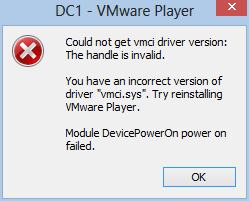
VMware Workstation 8.0.4, and VMware Player 4.0.4 both had issues when I tried to launch my guest virtual machines.  The error said I have an incorrect version of vmci.sys. (see image below).  So I re-ran the latest installer package for 8.0.4, which uninstalls the current setup and then installs it all again.  After doing this, both VMware Workstation and VMware Player worked just fine and were able to power on and support my guest VM's. (note: I know that the vendor says 9.0 supports Windows 8 as a key feature, but I wanted to see how 8.x would work out).


Migrating the Server

Next, I ran the Windows Server 2012 (Standard Edition) upgrade on my 2008 R2 domain controller.  I did this via RDP with a different USB thumbdrive.  It's worth noting that this is a workhorse server and hosts quite a few roles and features, which pretty much violate "best practices" guidelines, but hey, I know for a fact I'm not alone when it comes to having to "make do" with limited hardware budgets.  This server hosts:

  • Active Directory Domain Services (domain controller)
  • Internet Information Server (IIS) for both WSUS and software development
  • File and Print shares
  • WSUS 3.0 for managing patches and updates
  • Automation Server: scripts and scheduled tasks for managing all sorts of daily/nightly chores
  • Backup Services: backups from clients and the server to an external drive

Again, the Windows Server 2012 setup checker ran through and checked my system for potential issues prior to letting do the actual upgrade.  It warned me to uninstall WSUS 3.0 and verify "third-party applications compatibility", but didn't explicitly name any.  The only thing I could figure was my APC "PowerChute" UPS software, but I left it as-is.

It also said I had to run ADPREP /FORESTPREP and then ADPREP /DOMAINPREP before continuing.  You can find ADPREP.exe on the installation media under \support\adprep.  After uninstalling WSUS (content, logs and database) I rebooted, and started Windows Server 2012 setup process again.  After it warned me about the "third-party" issues, it allowed me to continue, so I took a deep breathe and pushed the button.  Total time: about 1 hour 20 minutes.

Afterwards, I went into the Server Manager console, went into Roles and Features, and added the Windows Server Update Server role.  Then I ran the post-install configuration tasks to setup the options to function as my domain WSUS server.

Interesting Notes

Some things I found that needed to be resolved after the server was migrated, some were quick and easy, some took a little digging around:

Group Policy Objects

I have a GPO named "Drive Mappings" that has drive letters mapped to shares on my server for user documents, photos, videos, and software utilities.  Each of them are configured via Group Policy Preferences, and each drive is mapped via "Replace" and the "Reconnect" option was checked.  This DID NOT WORK on ANY of my Windows 8 clients.  But after researching this a bit (see link1 and link2), I found it was due to two things:
  • I was logging on with an account that has local Administrator rights (this reportedly does not occur with users who do not have local administrative rights, but I didn't have time to test this yet)
  • The "Reconnect" option was checked
After, un-checking the "Reconnect" option, the drives began mapping correctly.

WSUS

After letting WSUS bake-in for 30 minutes or so, I was concerned about not seeing any computers reporting in.  I ran GPUDPATE /FORCE on several of the clients, as well as WUAUCLT /DETECTNOW, but still none were reporting in to the WSUS server.  After reading through the WSUS configuration notes for 2012, I discovered that it had reconfigured the web service to respond on port 8530 (HTTP) and/or 8531 (HTTPS), but I was only using HTTP.

So, I went into my GPO settings, and edited the setting "Specify intranet Microsoft update service location" to append ":8530" onto the existing URL entry.  The setting is found under Computer Configuration / Policies / Administrative Templates / Windows Components / Windows Update.
After saving the changes, I went back to some clients and ran GPUPDATE /FORCE, and then WUAUCLT /DETECTNOW.  Within two minutes the clients started appearing in the WSUS console.

The Dreaded Start Screen

I tried REALLY REALLY hard to warm up to the Windows 8 Start Screen, but I can't do it.  It makes sense for a tablet (e.g. touch-screen) interface, but for a mouse and keyboard I cannot find ANY rationale that it can be "as" efficient to use the Metro tiles rather than the traditional Desktop.

My friend and co-worker Chris DeCarlo pointed me to the ClassicShell application on SourceForge, which suppresses the Start Screen and installs a Windows 7-ish Start Menu.  With that in place I find Windows 8 to be pretty nice, but I still am forcing myself to try the tile interface as often as I can just to give it a fair trial. ClassicShell is impressively built, and has a lot of attention to detail.  However, I doesn't seem to show a "Computer" link on the right-hand side, nor does it apply the "Pin to Start Menu" feature consistently (trying to pin Internet Explorer to the Start Menu only adds repeated shortcuts on the "Programs" fly-out menu).  All in all, however, it's a gotta-have for my needs and I really like it.

Miscellaneous

If I were asked to rank the applications I use most often, on a typical day, it would probably look like this...
  1. Internet Explorer and Google Chrome (a tie)
  2. SQL Server Management Studio
  3. TextPad
  4. Microsoft Outlook
  5. WMI Code Creator
  6. Windows PowerShell ISE
  7. Snipping Tool
  8. Paint.NET
One that might be easily overlooked is number 5 (WMIC).  But I live in that application quite often as I do a fair amount of work with WMI and WBEM scripting.  One thing I noticed immediately as that the CIM namespaces list continues to grow with each major Windows version release.  In fact, it took about a full minute for the list to fully populate the first time I opened the application. Not a huge deal obviously, but something I found interesting (and nice!)


Windows.old

As with previous Windows version "in-place" upgrades, the original environment is backed up into the "Windows.old" folder located in the root of the system drive.  If you try to delete this folder, you will be smacked in the face with a cold, wet, dish rag that has the phrase "Access Denied!" embroidered across it.  That's true whether you try to delete it as an Administrator account, opening a CMD console using "Run as Administrator" or by running a script under an elevated user context.

The solution is to run the Disk Cleanup utility provided with Windows 8.  Be sure to click the "Clean up system files" button, otherwise you won't see the option to check "Previous Windows Installations".


Conclusion

The only thing I really miss right now is not having a CPU that supports SLAT, so I can't run HyperV 3.0.  At work I have a computer that does, and it runs HyperV 3.0.  I'd really like to expand my horizons and learn more about the Microsoft side of virtualization and "now" seems like the right time to do so.  For now, I'm using VMware Player and it seems to work very well on Windows 8.

As for "Metro" (or whatever Microsoft decides to call the Windows 8 UI/UX), I like it.  I've always like the flat, spaceous, simplified look over the Aero or XP motif.  What some people don't realize is that Google was actually putting a "metro"-ish UI on much of their web applications like Gmail, Docs, and so on.  I'm talking about the now-familiar 2D motif, fat-border outlined regions and tables, padded flat buttons, and ample use of white space to achieve a simplified look. As to who came up with that concept first is anyone's guess.  I assume it was "invented" years ago and simply rediscovered, as is often true with many "new" things these days.

In any case, Windows 8 is growing on me and I intend on keeping up with it.  Not simply because I work in the IT field, but because I kind of like shiny new things.

Monday, August 20, 2012

Windows 8 on TechNet: Not so Great for TechEd folks


If you attended Microsft Tech-Ed North America 2012, in Orlando, Florida, you got a nice gift: A free, one-year subscription of TechNet Professional.  However, what you might not have realized is that there are quite a few "flavors" of TechNet Professional.  The one given out at Tech-Ed NA is "TechNet Professional (NFR)", or "not for resale".  This version, or "flavor" (my own term), doesn't allow access to the same downloads as many other "TechNet Professional" flavors.  For example...

Windows 8 and Windows 8 Enterprise is available for download to the following subscription levels:

TechNet for Action Pack
TechNet for Microsoft Competency Partners
TechNet for Microsoft Competency Partners (VL)
TechNet Plus Consumer Service Professional Pilot
TechNet Professional (Certified Partner)
TechNet Professional (NFR Bundle)
TechNet Professional (NFR FTE)
TechNet Professional (NFR MCT)
TechNet Professional (NFR MVP)
TechNet Professional (NFR)
TechNet Professional (Retail)
TechNet Professional (SA)
TechNet Professional (VL)
TechNet Professional with Media (Retail)
TechNet Professional with Media (VL)
TechNet Standard (Retail)
TechNet Standard (VL)

Windows 8 Pro is only available for download to the following subscription levels:

TechNet Professional (SA)
TechNet Professional (VL)
TechNet Professional with Media (VL)
TechNet Standard (VL)

The net result is that if you happen to be running Windows 7 Ultimate, and you'd like to try out the much-touted and improved "upgrade" for Windows 8, well, you can't.  Windows 7 Ultimate can only be "upgraded" to Windows 8 Professional, which is not available on your "NFR" subscription level.  So, your only options are:

  • Do a full install of Windows 8 or Windows 8 Enterprise, and reinstall everything again
  • Wait and buy the "Pro" version upgrade when it's available
  • Upgrade your TechNet subscription level (for a nominal fee, of course)
  • Stick with Windows 7 Ultimate

Bummer.

Friday, June 15, 2012

Microsoft TechEd 2012 - The Experience in Review

I'm not a professional writer, well, actually, that's not true.  I have written a few (e)books for sale on Amazon, so I guess that makes me a professional, even though I don't earn enough to make a car payment from that, it still helps.  However, I did spend a week in Orlando (thank you to my company president for sending me!  very much appreciated!), attending the Microsoft TechEd 2012 conference.

Key Take-aways for me:


  • My skills are getting dated
  • The changes coming with the 2012 products are vast and diverse
  • Microsoft is changing their direction in some very surprising ways
  • My skills are getting dated, but so are everyone else's now
Like many attendees, I flew in on Sunday, got to my hotel and immediately went on a hunt for food and beer.  It was HOT and HUMID, as is expected in Florida in June.  I walked a mile to meet up with my team mates at their hotel (we were booked in separate places due to timing), and I lost about 10 lbs from sweat along the way.  
Hotel Room - Day 1
Just for the record: The Wyndham Orlando Resort hotel is not a place I'd recommend you stay.  The staff is very nice and helpful, but the facilities are falling apart.  My door lock was busted and took a few hours to get fixed.  Then my phone went out.  They have no free breakfast, or Wi-Fi access, so you have to plug into the phones to go wired, and they never worked the entire time I was there.  The door didn't shut tight either.  At least the air conditioning worked well enough.

I rehydrated at Miller's Ale House on International Drive, where I enjoyed the Ossobuco dinner special, and was left speechless at how damn good it was.
(Ossobuco, already half-eaten)
Afterwards, I had to grab a taxi back to my hotel because I didn't feel like walking another mile-and-a-half in 95 F heat and sticky humidity.  The $5 fare was worth it.

Day 1 - Registration, Breakfast, Keynote, Sessions, Lunch, Sessions and Beer

First stop was registration.  Sign in.  Pick up my badge and backpack.  Stuff my things into the backpack and head for breakfast.  Twenty or so lines were opened up with a cheering staff (I'm not kidding) pointing us to the shortest lines to pile up eggs, bacon, sausage, fruit, pastries, juices, milk and so on.  Then we fan out to one of a hundred or so group tables to chow down.  Afterwards, it was comparing schedules with colleagues and new friends, coffee and heading over to the keynote session.

Registration (not yet full, but would be full soon after)

The Keynote

It was a lot of emphasis on Azure cloud services, new scalable features in Windows Server 2012, and new capabilities in Visual Studio 2012.  Lot's of comparison's of the new Hyper-V features against "the competition" as well.
Keynote session

WCL327 - Maximizing Windows 7 Performance: Troubleshooting Tips - Johan Arwidmark

What can I say? Any session Johan presents is going to be good, and worth attending.  It was.  I learned a ton and enjoyed quite a few laughs.

Lunch - (chomp chomp, slurp, mumble, burp, repeat...)

Lunch (or Breakfast)

WCL309 - What's New in Microsoft Deployment Toolkit 2012 (MDT) - Michael Niehaus

While a lot was said about Windows 8 deployment support, MDT 2012 packs a ton of improvements and features to help with Windows 7 deployments as well.  Michael always does a fantastic job of presenting.

WCL302 - Alphabet Soup Deployment: From AIK to ZTI - Migrating from Windows XP to Windows 7 Using Nothing But Free Tools - Stephen Rose

This was more of a broad overview of the options available to replace legacy deployment tools like Symantec Ghost, with AIK (ADK), MDT, DISM, and WDS.  Not really technically deep in any one technology, but just enough to provide a reason to consider dumping your legacy (costly) products to at least try out the free alternatives Microsoft provides.

After the last session ended at 6:00 PM, the expo floor opened up.  That means vendor frenzy.  Free food, drinks.  Swag and goodies to fill up your backpack.
Beer!


Day 2 - Breakfast, Vitamins, Water, Sessions, More Food and Beer

Another Keynote?  Nope.  I went to the Hands-On Labs area to work with App-V 5.0.  Even though it's still "beta" and a little rough, it's a huge improvement over 4.x from what I saw.  The customer I work with now is looking to implement App-V and I'm glad they never deployed 4.x since that means no need to co-exist or migrate.

WCL303 - Microsoft Desktop Virtualization: The Right Technology for Your Business Scenario - Karri Alexion-Tiernan and Skand Mittal

This was also more of a high-level scope coverage of App-V, UE-V, MED-V (very little on that however), RemoteApp, and VDI.  Most of the demos were on App-V, UE-V and RemoteApp.  They also spent quite a bit of time demoing the VDI features in Windows Server 2012, which look really nice (and powerfully simple too).

Lunch - I'm a sloppy eater.  I will spare you the details.

WCL382 - Deploying Windows 8 with the Microsoft Deployment Toolkit - Michael Niehaus

The name says it all.  It was a very good session.  Michael also discussed upcoming changes in "Update 1" for MDT 2012 and future "wishlist" features as well.

SIA312 - What's New in Active Directory in Windows Server 2012 - Dean Wells

Dean reminds me so much of Ricky Gervais, more in speaking, tone, humor and body movement than physical looks, that I had to keep reminding myself it wasn't Ricky doing the presentation.  Thankful he was funny, because this was a very deep dive into AD and LDAP, Kerberos, bug fixes, RID services, FSMO management, and much more.  The room was packed and it was one of the larger rooms.  I put Dean on my list of favorite presenters to follow in the future.

SIA311 - Sysinternals Primer: Gems - Aaron Margosis

Great slice of Sysinternals tools which are often overlooked.  Aaron is a funny guy and does a fantastic job in front of a large audience.  Bonus: Mark Russinovich dropped in and sat directly in front of me. I still need to pick up the Sysinternals Toolkit book they both co-authored.

Expo Floor.  Food.  Beer.  Vendor Party at Ice Bar.  Interesting place made (almost) entirely of ice.  The bar, the walls, the seats and decor.  Even the drink glasses are ice.  One free (tiny) drink.  Meh.


I dropped my backpack off at the hotel where my colleagues were staying (because it was closer to the party location).  Afterwards, I couldn't find a cab, so I walked the 1.5 mile stretch along International Drive to my hotel.  I think I worked off the beer and food.

Day 3 - Breakfast, Sessions, Lunch, Sessions, Expo, Food, Beer again

SIA402 - How to (un)Destroy Your Active Directory - Ralf Wigand

Ralf is surprising. A renown MVP, he has a classic German accent, but he's very soft spoken.  That soft-spoken demeanor delivers some seriously powerful information.  He's also very funny.  If you get a chance to attend one of his presentations, do it.  I learned a lot about common errors and some not-so-common errors that can screw up an otherwise functional AD environment.  Even better, he focused on 2008 R2 AD, rather than all 2012, so it was information everyone could put to use "now".

SIA316 - Windows Server 2012 Dynamic Access Control Best Practices and Cast Study Deployments in Microsoft IT - Brian Puhl

This was surprising for me for a few reasons:
  • Brian was very candidate about the challenges inside of managing Microsoft's internal IT operations
  • DAC is not a cure for all security management needs
  • DAC is not a replacement for security groups
  • DAC is a good enhancement to using security groups by extending a policy-driven approach to implementing template-based access management with delegation.
I really had a weak understanding of DAC before this because I had only read up on the capabilities alone.  I had not seen any documented results of actual usage in production environments.  This was an eye-opener for sure.

Lunch (you know the rest)

WCL404 - Turn PowerShell Commands into Reusable CLI and GUI Tools - Don Jones

Wow! Don is such a fantastic speaker and presenter.  This was only my second time seeing him at TechEd, and I saw him again in a later session (read later).  Don covered a lot of aspects of PowerShell, what it is, what it isn't, and provided some great demos of building out a reusable function cmdlet, and then provided a brief overview of creating GUI forms using either WPF or Windows Forms.

BOF11-ITP - Windows PowerShell Best Practices - Ed Wilson and Don Jones

This session was packed into a very small room, which was kind of dumb planning on the logistics side. Not the fault of Ed or Don though.  This was essentially a free-for-all, stand-up, un-scripted (pardon the pun) session where the speakers interacted with the audience to share ideas, challenges, methods, tips and resources among each other.  The session was also broadcast live on Channel 9 (and other outlets?).  I was in the back of the room, leaning on the door next to Jeffrey Hicks.

I was going to attend a session at this point but ran over to the HOL area instead, to play with App-V 5.0 some more.

Day 4 - Final Day - Breakfast, Sessions, Lunch, more Sessions, Closing Party

WCL325 - Raiders of the Elevated Token: Understanding User Account Control and Session Isolation - Raymond Comvalius

I really didn't expect to learn a lot from this session because I foolishly believed I already had a firm grasp of how UAC and sessions work in Windows 7.  I was wrong.  Raymond gave a very good presentation with demos and explanations of how each piece of the process works.  It was well worth sitting in on this one. Raymond has a soft voice and a Dutch accent that fools you into thinking he's going to go easy on the crowd.
Lunch

WCL290 - Microsoft Application Virtualization 5.0: Introduction - Andy Cerat

This session covered some gaps from the WCL303, but in all, they each fit together to provide a fairly good picture of App-V 5.0.  Andy ran through several demos to show how the new web-based management interface works, how to create and import packages, apply access controls, publish and unpublish packages, and refreshing clients.  He also demonstrated Connections and Extensions and how they work to make a more integrated and cohesive experience for users.  I'm looking forward to App-V 5.0 projects.

Lunch - More obscene sloppiness and lost fingers

Hands-On Labs

WCL301 - Case of the Unexplained 2012: Windows Troubleshooting with Mark Russinovich

Anyone who's been to TechEd knows Mark's "Case of..." session is the biggest attendee draw of the week. It was packed.  They should have booked this in the main keynote hall rather than the regular "large" room they used.  I can't do this justice in my own words, so just trust me that if you haven't been to one of his sessions, and you get the chance to go to one in the future, do it.

Mark Russinovich at TechEd 2012


I was planning on attending WCL402 (App Compat for Nerds, Chris Jackson), but I was so burned out from walking and being squished in the room during Mark's session, that I had to take a breather and get ready for the closing party...

Closing Party: Universal Studios Theme Park

They closed the park to everyone else except TechEd attendees from 7:00 pm until roughly midnight.  I started off with pizza, and a Coke, then moved on to beer, and roamed the park.  This is a fairly large park and you can wander for a long time.  It's an interesting place.  I've been to Busch Gardens, Williamsburg, Disney World, and Universal Studios Theme Park in Los Angeles, as well as Elitch Gardens in Denver.  This park has some very new attractions which were fantastic:  The Harry Potter Adventure and The Hulk.  I also ran through the Amazing Spiderman
Hogwarts - Harry Potter Adventure

The Hulk (part of it)

Getting on The Hulk

Leaving the park was a sad moment, but it also meant I was closer to getting back home to my family and my dog Lucky.

Today, my colleagues and I boarded our Southwest flight back home to Norfolk airport and on to Virginia Beach.  The picture below is from the Orlando airport food court near gate 102.  It's a very nicely designed airport and the birds flying around the inside are a nice touch (none of them bombed us, as far as I could tell).

Conclusion

It was a good year this time.  I think the Orange County Convention Center worked out better than the Georgia World Congress Center (Atlanta, 2011) did.  It made it much easier getting around from one session to the next, and the single central hall works better for sharing an expo, food and lab space with plenty of room to spare.

The buses all ran on time and I never had a problem getting to or from the event and my hotel or Universal's park.  The closing party was fantastic as well.  I met some interesting and impressive people throughout the week.  In all, if you haven't been to TechEd before, and you work with Microsoft products, services or technologies, or even if you are just curious about them, I highly recommend it.  It's just such an overwhelming deluge of useful information, demos and perspectives that your head will hurt after the first few days.

Cheers!